
Letting the AI employee handle customers
1. Overview
After an admin assigns an AI employee to an agent, a robot button appears next to the chat input box in the Agent Workspace. Click it for a given customer, and the AI employee handles that customer according to its configured persona, knowledge base, or script; when the agent sends a message themselves, the AI turns off automatically and hands the conversation back to the agent.
The AI employee has to be turned on per customer and does not take over all conversations automatically. For how to create an AI employee, see Creating an AI employee.
2. How to use it
1. How do I let an AI employee handle a customer?
① In the Agent Workspace, open a customer's conversation.
② Click the robot button to the right of the emoji button in the input box. The button turns blue, and above the input box it shows "[AI name] is handling · N rounds replied · send a message yourself and the AI turns off".
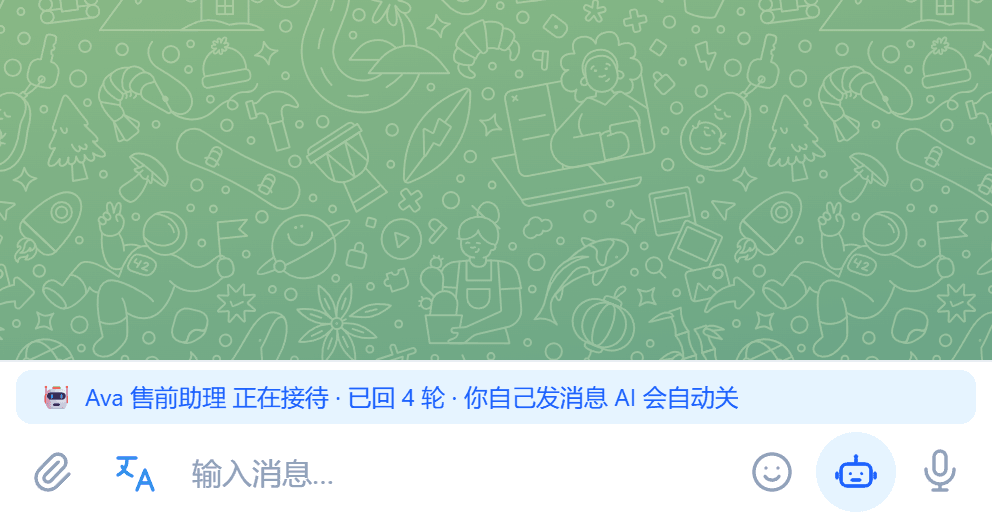
③ If the customer's last message has not been answered by anyone, the AI replies right away.
④ Messages the AI sends show a small AI tag next to the time in the bubble.
2. How do I turn the AI off and take over?
① Just send the customer a message from the input box, and the AI turns off automatically.
② Or click the robot button again to turn it off manually.
Note: Sending the customer a message from this account in Telegram on your phone also turns the AI off automatically.
3. Why can't I see or click the robot button?
The robot button appears only when all of the following are true:
① An admin has assigned an AI employee to you.
② The current conversation is a one-to-one Telegram private chat; the new-version AI employee can also handle web-chat visitors, but the script version cannot.
③ The account this conversation belongs to is one you can see.
When the button is greyed out and cannot be clicked, hover over it to see the reason:
| Message | Reason |
|---|---|
| AI service isn't set up yet | The AI service is not enabled yet; contact your admin |
| Your AI employee is disabled | The admin turned off this AI employee's Enable switch |
| Your AI employee isn't published yet | The new-version AI employee has not been Published yet |
| Your AI employee has no script yet | The script-version AI employee's script has not been organized yet |
4. How does the AI employee reply?
① After the customer sends a message, the AI waits a few seconds to merge several messages sent in a row into one, then replies.
② Before replying, it waits a random short while and shows "typing", to feel more human; if the customer sends another message during the wait, the round restarts.
③ The wait time, whether to split into several messages, and so on are adjusted by the admin in the AI employee's settings (for the new version, under Human-like settings; for the script version, under Reply interval and Merge wait).
Note: The AI only reads and sends text. When a customer sends an image or voice message, the AI only knows that an image or a voice message was sent. The AI no longer replies to customer messages older than 6 hours.
5. When does the AI stop?
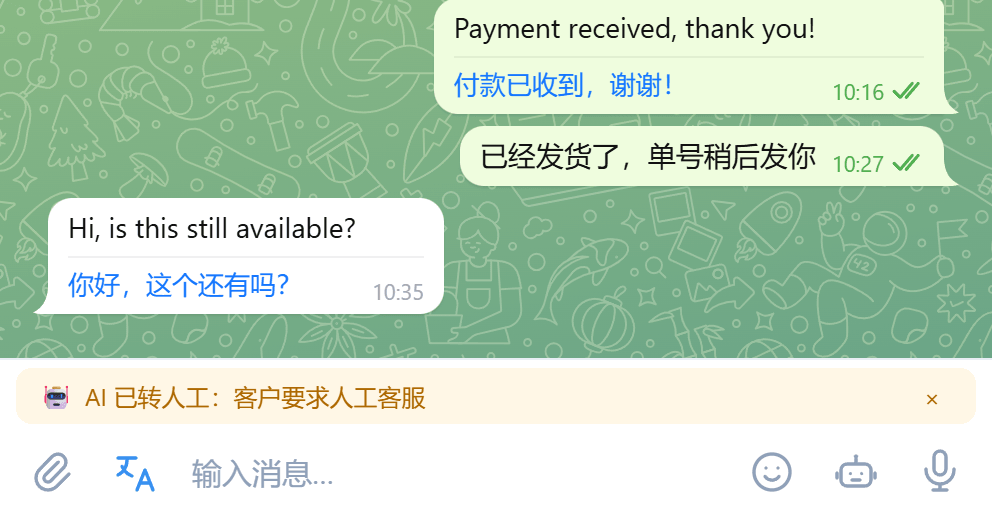
When the AI stops, the reason is shown above the input box; click × to dismiss it:
| Message | Reason |
|---|---|
| You sent a message, so the AI turned off | You or a colleague sent this customer a message |
| AI handed off to a human | The customer matched a handoff condition (new version: a handoff intent or attribute; script version: a handoff keyword or reaching the reply-round limit), or the AI judged that a human should take over |
| The customer declined, so the AI stopped | The customer clearly said to stop messaging or that they are not interested |
| Balance too low, the AI can't handle chats | The main account's balance is below 0.01 USDT |
| The AI's message didn't go out | The message did not reach the customer; the account may be restricted or offline |
Note: When handing off, the AI does not necessarily send the customer another message (it depends on the admin's settings), so please pick up the chat promptly.
Note: When you turn the AI back on, the rounds already replied are not reset. For a script-version conversation that was handed off because the reply-round limit was reached, turning the AI back on will hand it off again as soon as the customer speaks; to continue, have your admin raise Max AI replies per chat.
6. How can an admin see how the AI did?
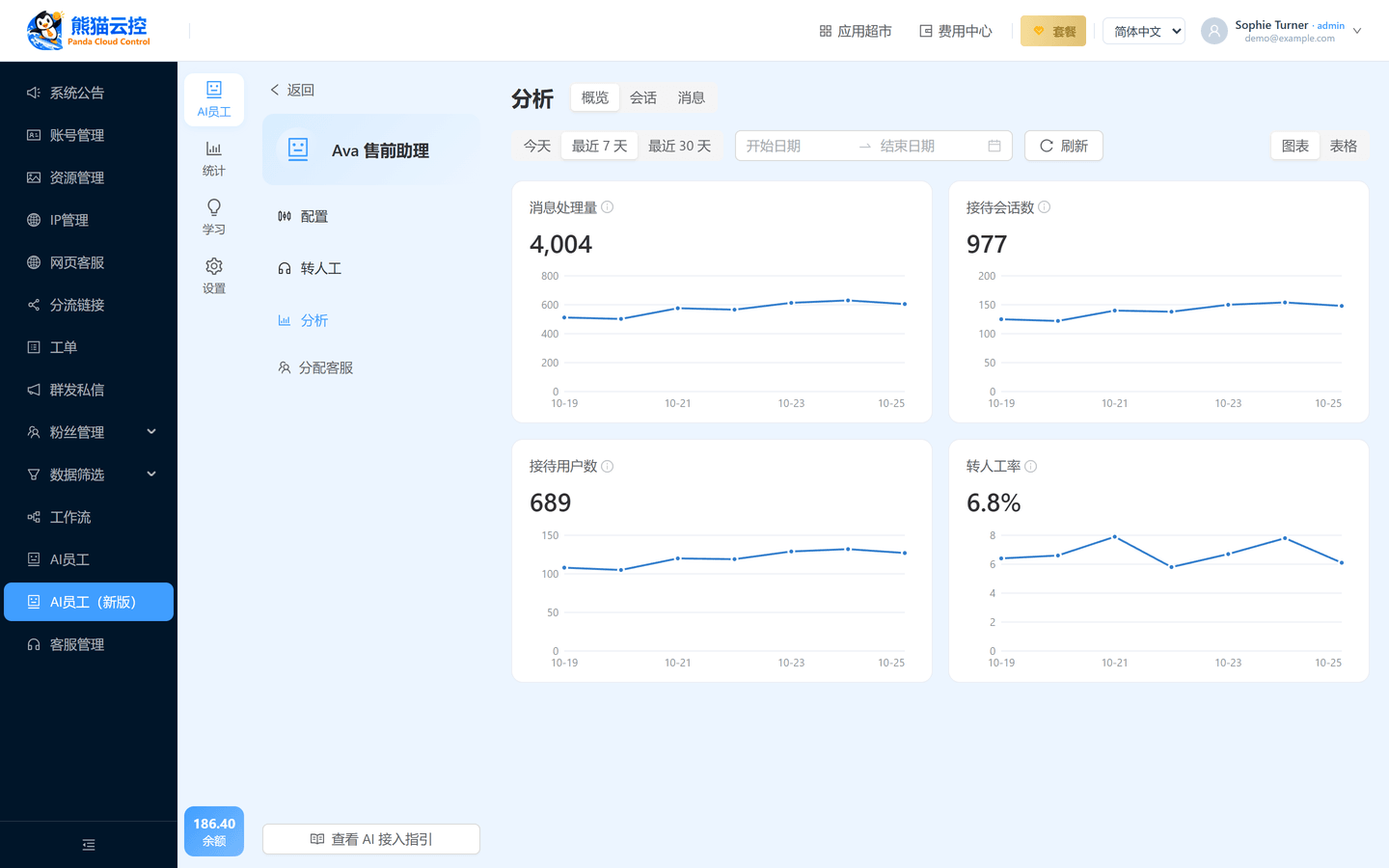
① New version: go to AI Employee (New), and on the left of the AI employee's config page click Analysis to view the Overview (messages handled, conversations handled, users handled, handoff rate) and the Conversations and Messages detail, with export supported; Stats in the left nav compares across AI employees.
② Script version: in the AI Employee list, see In progress, Opened today, Total / handed off, and Billed (USDT).
Note: For customers an AI employee has handled, if Collect customer info is on, the agent can see what the AI recorded under Customer info recorded by the AI on the profile card; see Completing the customer profile.
Thanks for the feedback!
Still stuck? Reach us directly: Telegram @scrmqiye001 or email [email protected]
Last updated: