
Translating the customer's language
1. Overview
Panda Cloud Control's Agent Workspace has translation built in. Once it's turned on, the customer messages you receive automatically get a line of translated text added beneath the bubble; you type in Chinese, and what goes out is the customer's language. You can set a global default translation rule, and you can also set the customer's language for a single conversation on its own.
Translation runs over Google Translate, connected directly from your browser. It currently supports 26 languages, including Simplified and Traditional Chinese, English, Spanish, Portuguese, French, German, Russian, Arabic, Turkish, Japanese, Korean, Vietnamese, Thai, and Indonesian.
2. How it works
1. How do I set up global translation?
① After logging in to the Agent Workspace, click the hamburger menu (☰) in the bottom-left > click Settings > open Translation Settings.
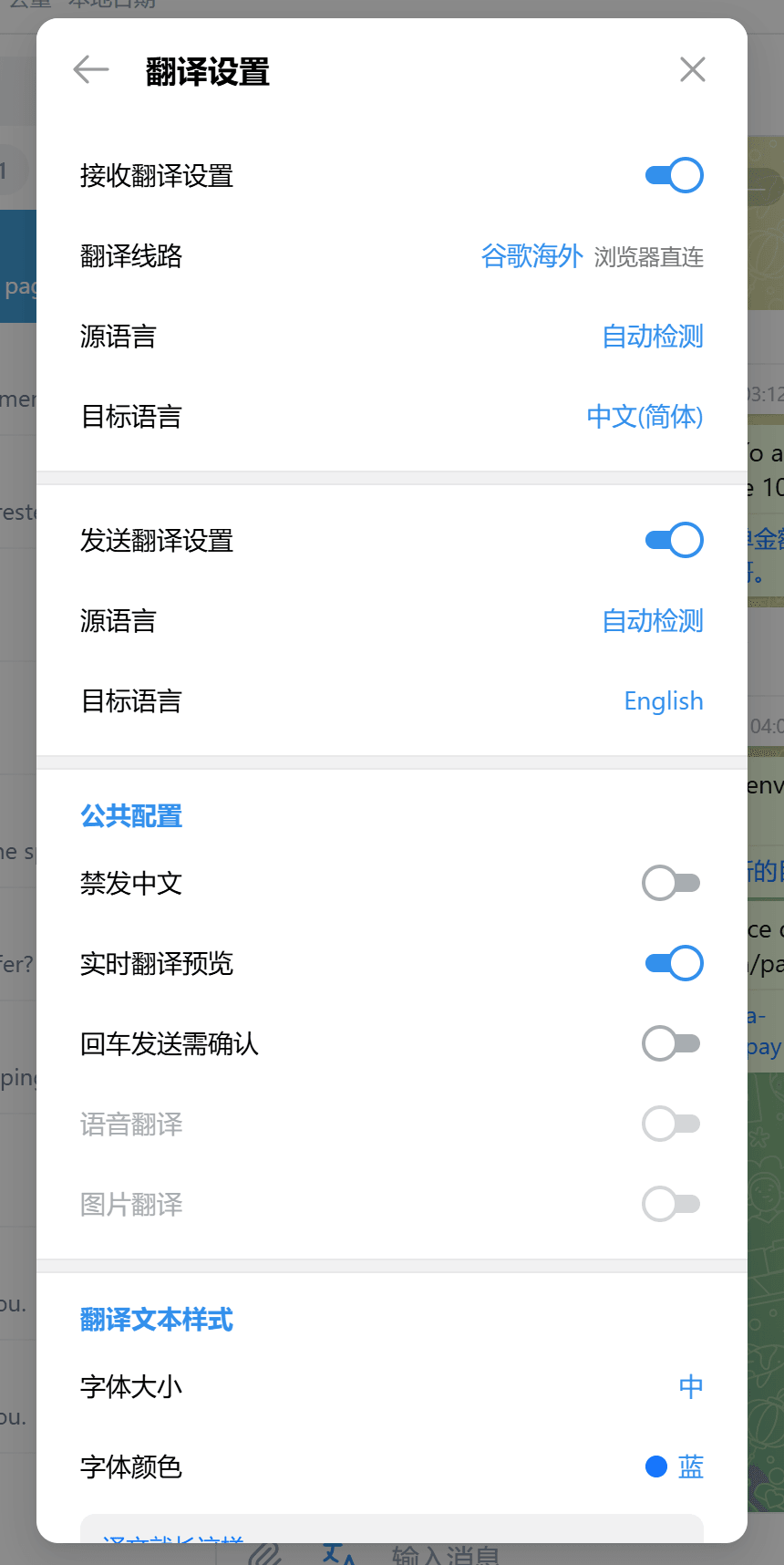
② Turn on Incoming translation settings and choose a Target language (for example, Chinese (Simplified)); incoming customer messages will then be translated into this language for you automatically.
③ If you also want outgoing messages translated automatically, turn on Outgoing translation settings and choose a Target language (for example, English).
④ Turn on the following options as needed:
| Setting | Default | Description |
|---|---|---|
| Block Chinese | Off | Holds back a message when the content you're about to send still contains Chinese |
| Live translation preview | On | Shows the translation above the input box as you type |
| Confirm before sending on Enter | Off | Pops up the original and the translation for you to confirm before Enter sends |
| Translation text style | Medium, blue | The size and color of the translation shown beneath the bubble |
Note: Global translation settings are saved only in the browser on the current computer; on another computer you'll need to set them up again.
2. How do I set the language for a single conversation?
When your customers are from different countries, you can set a language for each conversation on its own, and it takes priority over the global settings.
① Open the conversation and click the Translate button to the left of the input box.
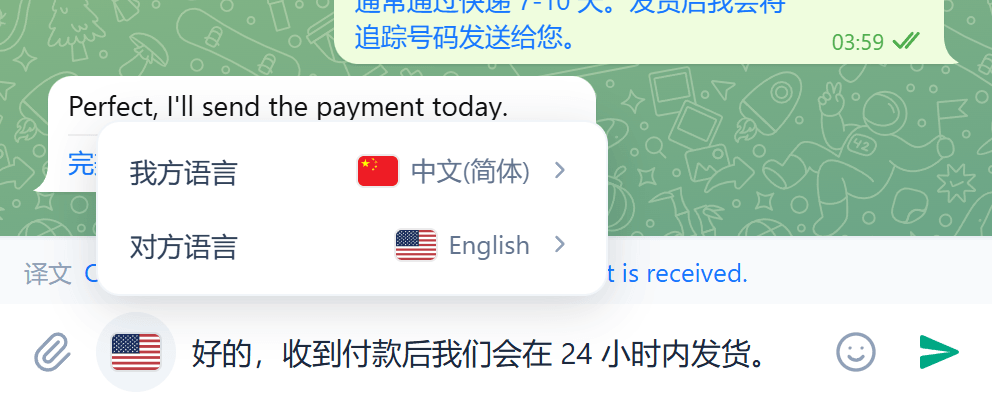
② Set Their language (the language the customer uses), and change Our language too if needed.
③ Once set, messages received in this conversation are always translated into our language, and messages sent are always translated into their language, regardless of the global switches. The button shows the flag of their language.
Note: To cancel, choose Not set under Their language.
3. How does send translation work?
① While you type in the input box, if Live translation preview is on, a Translation bar appears above the input box and updates when you pause.
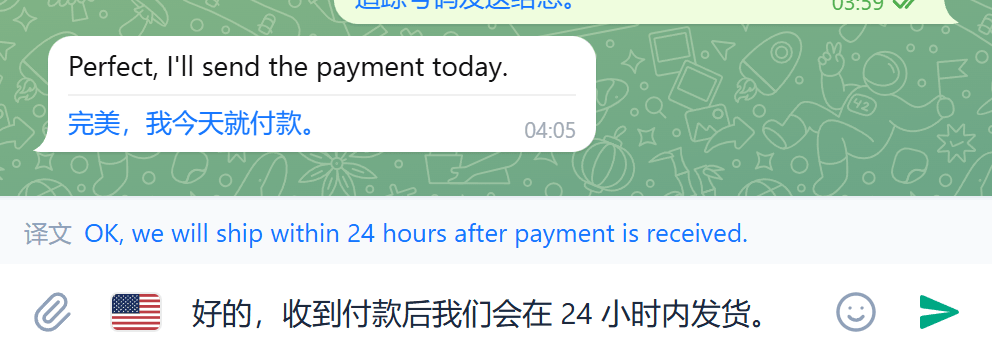
② After you press Enter or click send, the system translates first and then sends; if translation fails, the whole message is not sent and the reason is shown.
③ When Confirm before sending on Enter is on, pressing Enter pops up "Send this message?", with the original in gray above and the translation below; clicking the send button directly does not pop up the confirmation.
④ What goes out is the translation, and beneath your own sent bubble you'll see the original text you typed at the time (saved only on this computer).
FAQ
1. Why did translation fail?
Translation connects to Google Translate directly from your browser. If your current network can't reach Google, translation fails, and "Translation failed" and the reason are shown beneath the bubble. Please check your network, then click Translation route in the translation settings to run a speed test and confirm it can connect.
2. Why is there no translation under some messages?
An incoming message is translated only once it scrolls near the screen. If the translation is the same as the original (for example, when the customer wrote in Chinese to begin with), the system won't show the translation again.
3. Can I translate voice messages and images?
Not yet. Voice translation and Image translation in settings are currently grayed out and not yet available.
Thanks for the feedback!
Still stuck? Reach us directly: Telegram @scrmqiye001 or email [email protected]
Last updated: