
The customer profile card
1. Overview
The customer profile card sits at the far right of the Agent Workspace and shows the current conversation's customer: avatar, online status, display name, username, and more.
On the card you can give the customer a display name (shared across the team), add the customer as a contact of this account, see whether the customer is also chatting on your team's other accounts, and view the customer info the AI employee recorded while handling them; you can also search just this customer's chat history, browse media files and starred messages, or block the customer.
2. How it works
1. How do I open the profile card?
① Click Show customer info at the right of the chat window's top bar to open or collapse the right-hand profile card.
② Click the customer's avatar or name at the left of the top bar to pop up the same profile card in the middle of the page.
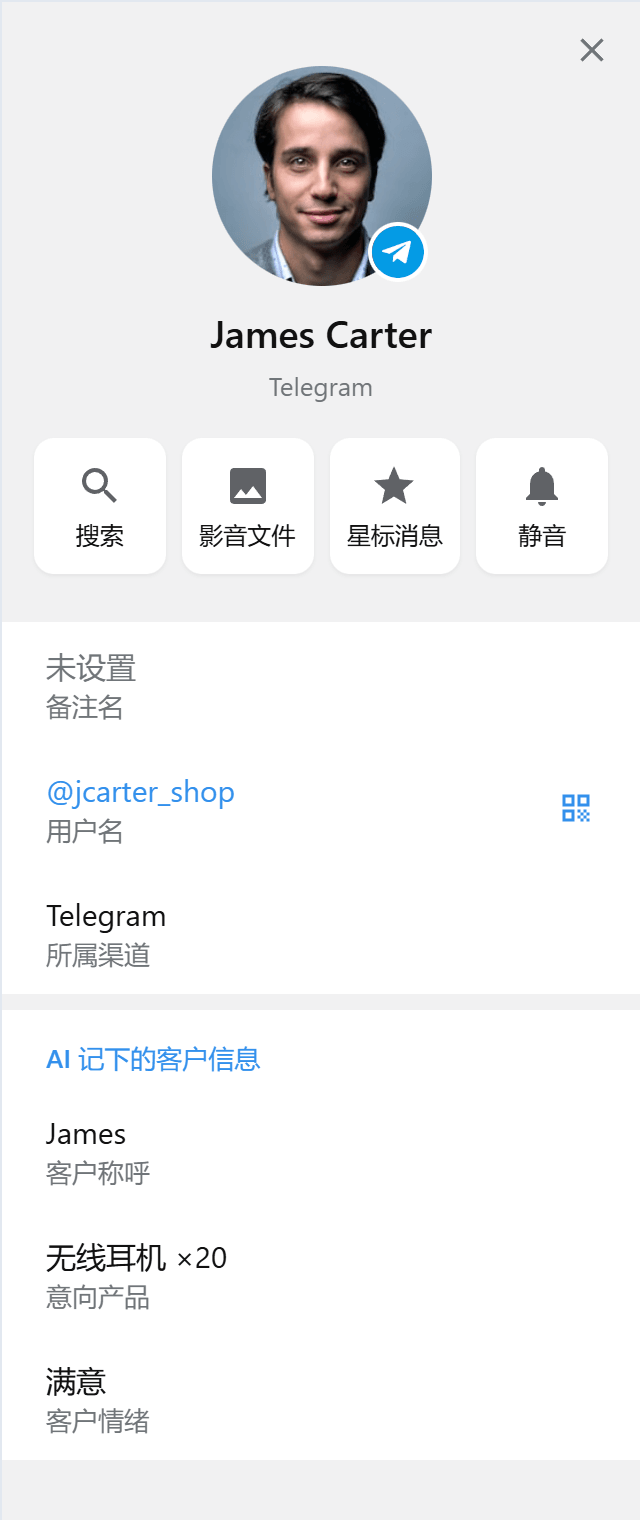
2. What information does the profile card show?
① The header has a large avatar (click to enlarge) and the name (the display name is shown if one is set), with the online status below, for example Online or "Last seen N minutes ago".
② The header has four buttons: Search (searches only this customer's messages), Media files, Starred messages, and Mute / Unmute.
③ The information area includes:
| Field | Description |
|---|---|
| Display name | Shows Not set when none is set; click this row to edit it |
| Their nickname | Once a display name is set, this shows the customer's original nickname |
| Username | Click to copy; the QR-code icon on the right opens a QR code for the customer's link, with Copy link and Download QR code |
| Contact note | The note for this contact in the account's address book; shown only if present |
| Channel | For example, Telegram or Web chat |
Note: For web visitors, the card shows From site, Source page, Referrer, Browser language, First visit, and Browser, to help you tell where the customer came from.
3. How do I edit the display name?
① Click the Display name row to open the Edit display name window.
② Enter a display name and click Save or press Enter. Saving it empty clears the display name.
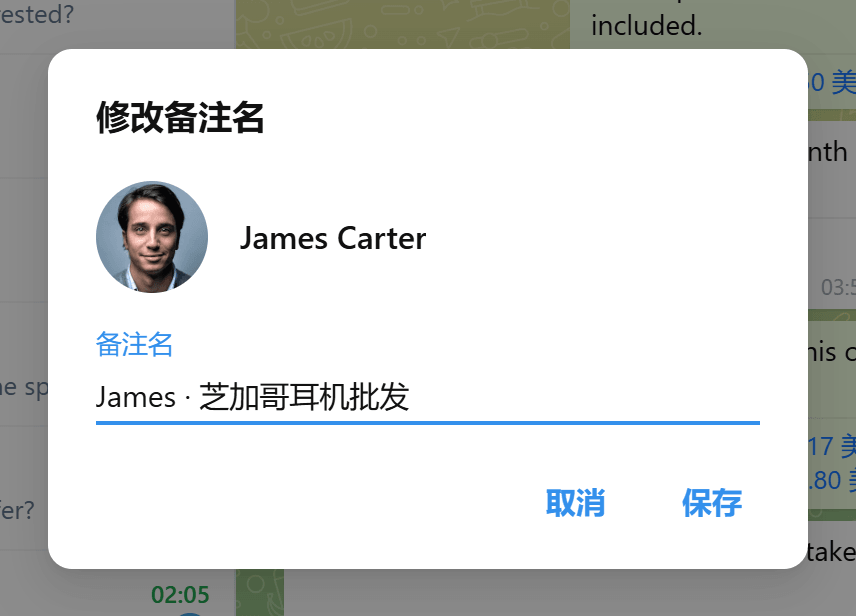
Note: Once set, the display name appears in the conversation list, the chat top bar, the profile card, new-message notifications, the forward list, and message search. Colleagues on the team share this one display name, so when anyone changes it, everyone sees the change.
Note: Display names are recorded per "account + customer": the same customer's conversation on another account needs its own setting.
4. How do I add a customer as a contact?
① When the customer isn't yet a Telegram contact of this account, a blue Add as contact appears below the information area.
② Click it and, in the New contact window, fill in First name (required) and Last name; you can also add a Note.
③ Click Done. The customer is added to this account's Telegram address book, and the name is saved as the display name automatically.
5. What are duplicate contacts?
When the same customer has private chats on two or more of your team's accounts at once, a red duplicate badge appears on the avatar in the conversation list, and the profile card shows Duplicate contact · on N accounts and lists each account and the agent responsible for it.
This helps you avoid having several agents chat with the same customer at once.
6. Where can I see the customer info recorded by AI?
If this conversation has been handled by the new AI employee and the AI employee has Collect customer info turned on, the profile card shows a Customer info recorded by AI section listing the customer attributes the AI recorded (for example, intent and budget). Anything recorded during the previous session is marked Previous session.
To set which attributes to collect, see Creating an AI employee.
7. How do I block a customer?
① At the bottom of the profile card, click the red Block this user and confirm Block.
② Once blocked, the customer can no longer message the Telegram account this conversation belongs to. To restore it, click Unblock.
Note: Block this user here really blocks the other party on Telegram; the Block in the conversation list's right-click menu is only a label inside the Workspace. The two are different.
8. How do I browse media, files, links, and starred messages?
① Click Media files or Starred messages on the profile card, or Media, Files, Links, or Starred under More in the chat top bar, and a content browser opens in the profile-card area, where you can switch among the Search, Media, Files, Links, and Starred tabs.
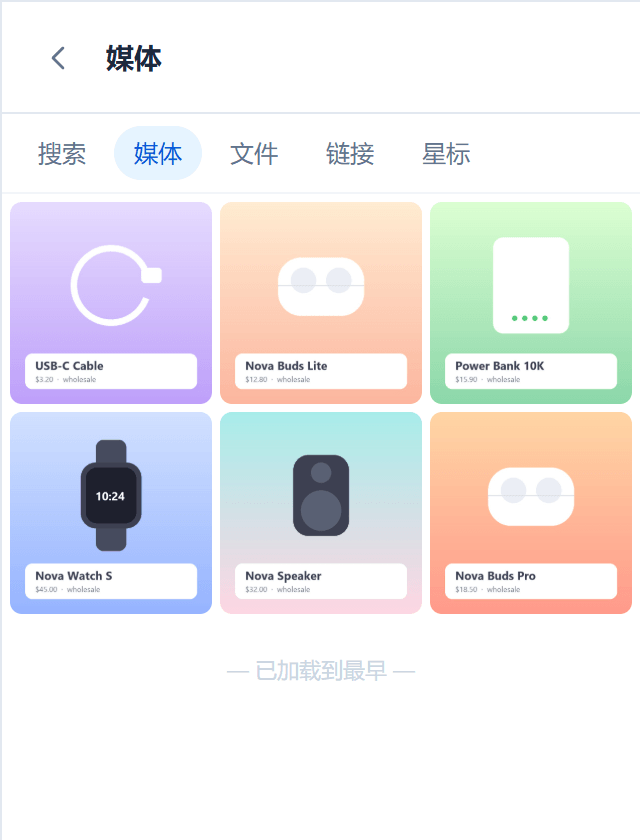
② The content browser counts only messages that have already loaded; click the load button at the bottom to look further back for earlier content.
Note: Starred messages must first be saved by right-clicking a message in the chat > Star.
Thanks for the feedback!
Still stuck? Reach us directly: Telegram @scrmqiye001 or email [email protected]
Last updated: