
How do I create a WhatsApp API number in Meta?
1. Overview
Before you can connect a WhatsApp API account, you first need to set up the official WhatsApp Cloud API on Meta: a Meta developer account, a Meta app with a WhatsApp use case, a WhatsApp Business Account (WABA), and a number already registered on Cloud API. This article walks through setting that up from scratch, following Meta's current official flow. If you've already set it up, go straight to How do I connect a WhatsApp API account?.
The first steps are done on Meta's website; the last step, registering the number, can be done directly while connecting to Panda Cloud Control:
| Step | Where | Once done |
|---|---|---|
| Register a developer account | Meta developer site | You can create an app |
| Create an app | Developer Dashboard | You get an app, a business portfolio, and a WABA, plus a test number |
| Add and verify a number | Developer Dashboard > API Setup | The number appears under the WABA |
| Register the number | Done directly while connecting to Panda Cloud Control | The number can send and receive messages and connects to Panda Cloud Control |
Note: Meta revises its backend from time to time, so when a menu name doesn't match this article, go by what's in the Meta backend. This article uses Meta's own English menu labels.
2. Steps
1. What do I need before I start?
- A personal Facebook account. Set the region of both your personal account and your business portfolio to somewhere outside mainland China, or you may not find WhatsApp in the app.
- A phone number that can receive SMS and an email you'll keep using long-term, to verify the developer account; Meta also sends important notices here later.
- A number to use as the WhatsApp API number: it must be your own number, with country code and area code (short codes aren't supported), able to receive SMS or a voice call.
- A phone with WhatsApp installed, to test sending and receiving messages.
- Your company website URL and privacy policy URL, needed when filling in business details and taking the app live.
Caution: If the number you plan to use as the API number is currently in use in the WhatsApp or WhatsApp Business app, you first have to delete that account in the app (Settings > Account > Delete my account); it takes about 3 minutes after deletion before you can add it to Meta. Deleting it loses the existing chat history and means you can no longer use this number in the app, so back up your chat history first.
2. How do I register a Meta developer account?
① Signed in to Facebook, open the Meta developer site developers.facebook.com and click Get Started in the top-right.
② Read Meta's Platform Terms and Developer Policies, and click Next to accept.
③ Enter your phone number and email, enter the codes Meta sends to each, and finish verification.
④ Choose the option that best fits your role, and finish registering.
3. How do I create an app?
① Open developers.facebook.com/apps and click Create App.
② Fill in App name and Contact email, and click Next.
③ Under Use cases, choose Connect with customers through WhatsApp, and click Next.
Note: Meta no longer asks you to choose an App type; the Select a business type step from older guides is now this step. A use case can't be removed once added.
④ Choose the Business portfolio to connect (formerly called Business Manager). If you don't have one, choose Create a business portfolio and fill in the name and other details in the dialog. Use your company's real name, since it has to match your company records later during business verification.
⑤ The Requirements page usually has nothing to deal with, so click Next; review the app details, use case, and business portfolio, and click Create app.
⑥ Once created, you land on the WhatsApp use case's Quickstart page; click Start using the API to open API Setup.
4. How do I get the WABA and the test number?
① In API Setup, connect the app to a WhatsApp Business Account: pick an existing account, or click Create a WhatsApp Business Account and fill in the business details as prompted. If you created a new business portfolio in the previous step, Meta has usually created one automatically — just confirm it's connected.
② Once connected, API Setup shows this account's ID — that's the WABA ID you'll enter when connecting to Panda Cloud Control (in the newer interface it may be called Messaging account ID).
③ Meta gives you a pre-registered test number. Click Generate access token, add and verify your own phone number (the one with WhatsApp installed) under To, and try sending a message to confirm the account works.
Note: The test number can only exchange messages with registered phone numbers (up to 5) and can't be used to handle real customers. For production use, add your own number with the steps below.
5. How do I add and verify a production number?
① On the API Setup page, click Add phone number.
② Fill in the business details: Display name, country/region, business category, and so on. The display name is the business name customers see in WhatsApp; it has to follow Meta's display-name rules, so use a name consistent with your company or brand.
③ Enter the number, choose how to receive the code (SMS or voice call), and enter the code you receive.
④ Once verified, the number appears in the From dropdown in API Setup, with its Phone number ID shown below it.
Caution: At this point the number is only verified; it is not yet registered on Cloud API and can't send or receive messages. Go on and complete step 6.
6. How do I register the number on Cloud API?
Meta requires a number to be registered through the API, not on a Meta backend page. You don't have to call the API yourself — you can register directly while connecting to Panda Cloud Control:
① Following How do I connect a WhatsApp API account?, prepare the system user token, WABA ID, and App Secret in the Meta backend, and switch the app to Live mode.
② In Panda Cloud Control, under Account Management > WhatsApp API, click Add Account, fill in the three pieces, and click Next.
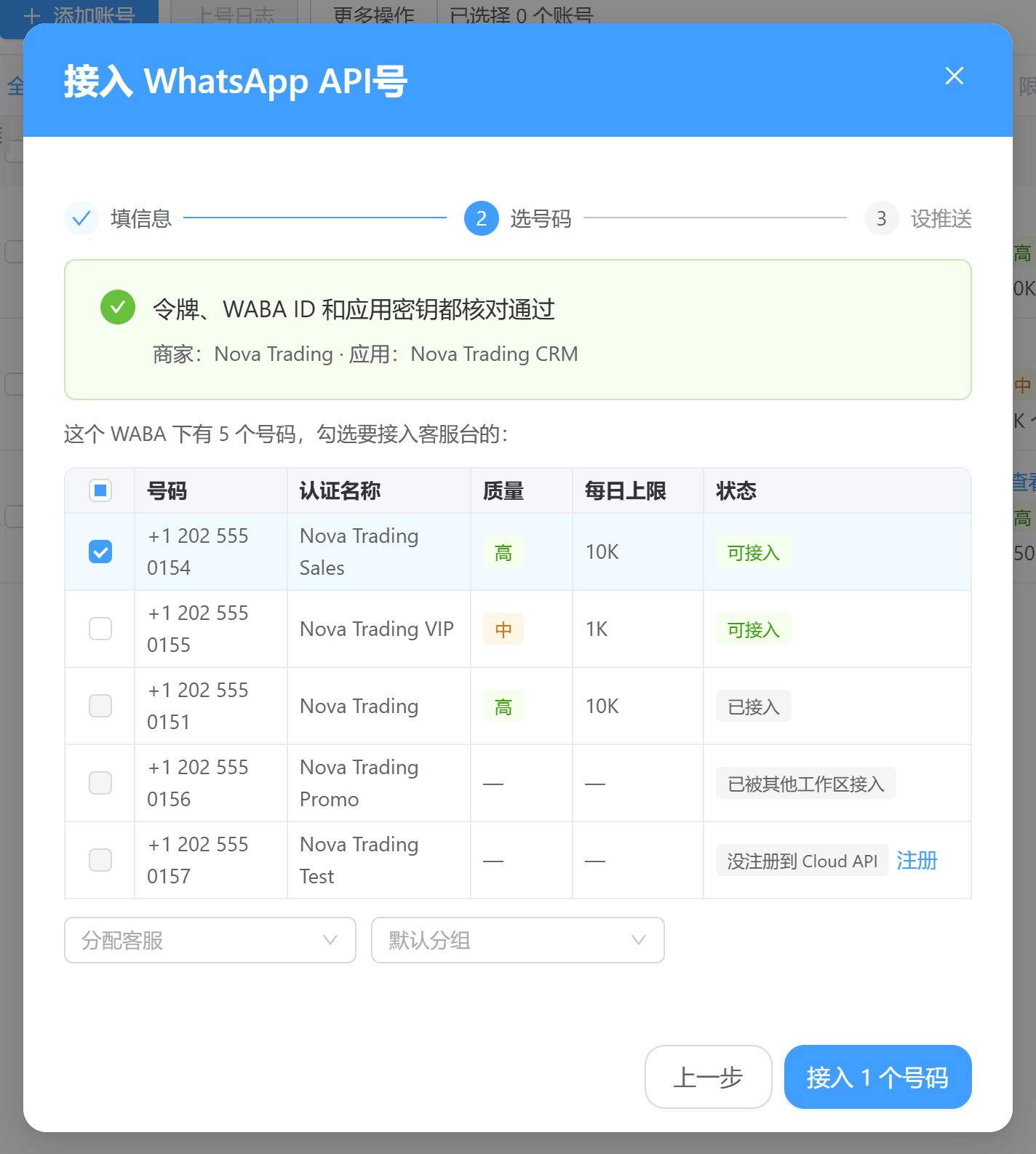
③ At the Pick numbers step, the number you just added shows Not registered on Cloud API; click Register next to it.
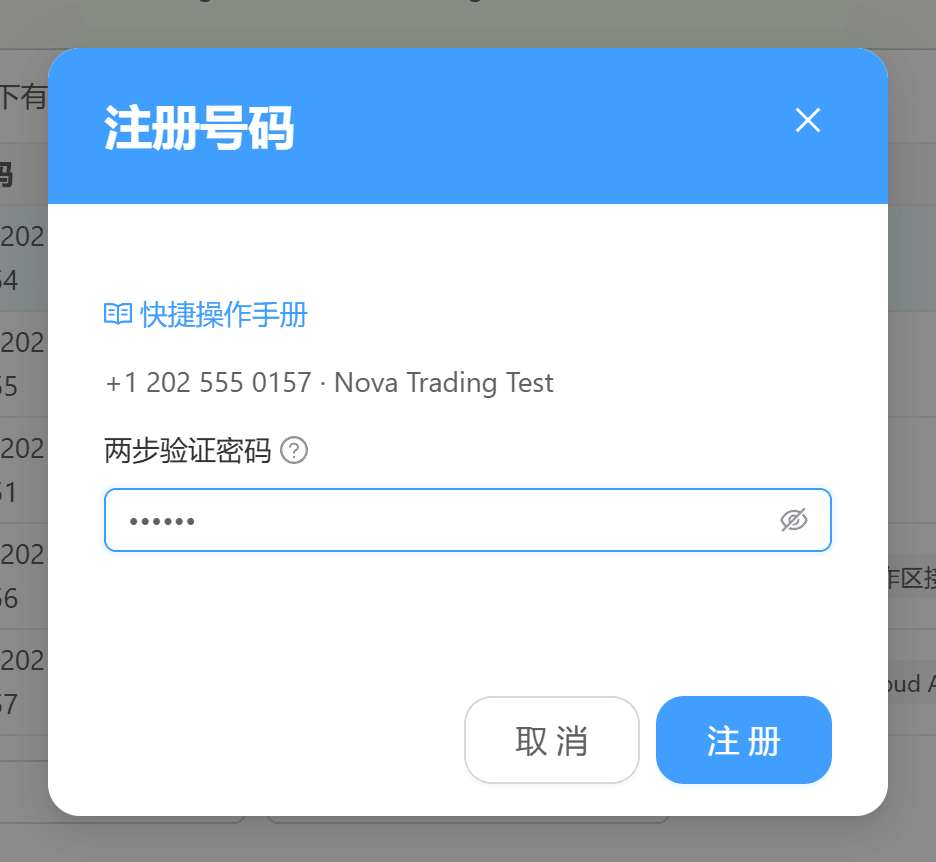
④ In the Register number dialog, enter the Two-step verification PIN (6 digits) and click Register.
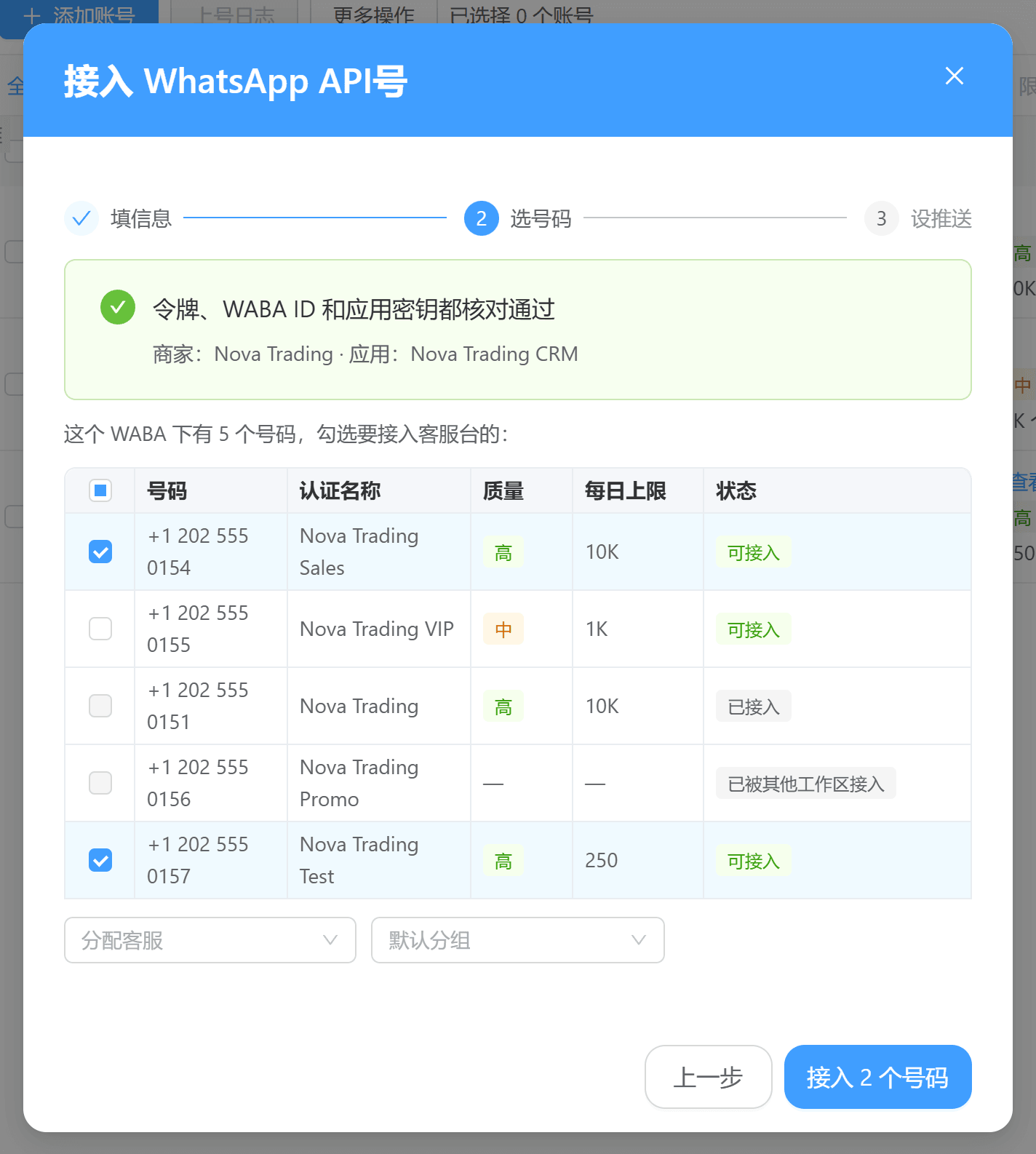
⑤ After it shows "Registered successfully," the number becomes Connectable and is ticked automatically; then just click Connect N numbers.
Caution: The two-step verification PIN is a 6-digit number you set yourself, so be sure to remember it; you'll need it later to change the PIN or delete the number in the Meta backend. If this number had two-step verification set up before, enter the existing PIN. Panda Cloud Control does not store this PIN. The same number can be registered at most 10 times in any 72 hours.
Note: When connecting from the Agent Workspace via Add Account > WhatsApp API account, you can likewise click Register.
6.1 You can also register on Meta yourself
If registering inside Panda Cloud Control isn't convenient, you can also register with Meta's own Graph API Explorer:
① Open developers.facebook.com/tools/explorer and, on the right, set Meta App to the app you just created.
② Under Permissions, add whatsapp_business_management and whatsapp_business_messaging, click Generate Access Token, and grant access as prompted.
③ Change the request method in the top-left from GET to POST, and in the address bar enter Phone-number-ID/register?messaging_product=whatsapp&pin=six-digits, for example 106540352242922/register?messaging_product=whatsapp&pin=246810. You can find the Phone number ID in the From dropdown in API Setup.
④ Click Submit; a response of "success": true means registration succeeded.
Note: The access token generated here is temporary and only for this one registration; it is not the system user token used to connect to Panda Cloud Control.
7. What's next?
Once the number is registered and connected, messages from customers go straight into the Agent Workspace. For message push, replacing the token, and the usage rules, see How do I connect a WhatsApp API account?.
FAQ
1. I can't find "Connect with customers through WhatsApp" when creating the app?
Check the region of your personal Facebook account and your business portfolio. If it's mainland China, change the region of your personal account and the region under the business portfolio's Business info to another country/region, then create the app again.
2. When I add the number, it says this number is already using WhatsApp?
First delete this number's account in the WhatsApp or WhatsApp Business app (Settings > Account > Delete my account), wait about 3 minutes, and then add it. Back up your chat history before deleting.
3. I'm not receiving the code?
Make sure the number can receive international SMS, or switch to receiving the code by voice call. The number must include the country code and area code; short codes aren't supported.
4. When connecting to Panda Cloud Control, the number shows "Not registered on Cloud API"?
The number is only verified, not registered yet. Click Register next to it and enter the 6-digit two-step verification PIN, as in step 6 of this article.
5. How many numbers can one business portfolio register at most?
A new business portfolio can register at most 2 numbers at first. After you complete business verification, or once a number's daily limit reaches 2,000, Meta automatically raises this to 20.
6. Registration says the two-step verification PIN is wrong?
This number had two-step verification set up before and needs the original 6-digit PIN. If you've forgotten it, open this number in Meta's WhatsApp Manager > Phone numbers, and under Two-step verification choose to turn two-step verification off; Meta sends an email to the business portfolio's email, and after you click the link in the email to turn it off, click Register and register with a new 6-digit number.
7. Registration says the number isn't verified yet?
After the number is added in the Meta backend, it hasn't been verified with an SMS or voice code yet. Complete verification as in step 5 of this article, then click Register.
Thanks for the feedback!
Still stuck? Reach us directly: Telegram @scrmqiye001 or email [email protected]
Last updated: