
Task details & reports
1. Overview
You can review how a broadcast task ran from several places: the Task log records every step each account took, in time order; the Task report shows one row per target with its result and reply status; and there are also the task progress, task details, and account details.
Messages that did not make it into Telegram are flagged as failed, with the most likely reason noted (for example, the sending account is restricted).
2. How to use it
1. Where do I open these from?
In the Bulk Messaging list:
| Click | Opens | What you see |
|---|---|---|
| Task log in the Actions column | Task [ID] Log | What each account did at each step, in time order |
| The Read / Reply cell | Task [ID] Report | One row per target: the result, who sent it, and whether there was a reply |
| The progress bar in Task status | Task [name] Progress | The progress percentage and the status of each target |
| The task name | Task [ID] Details | All of the task's settings, read-only |
| The account count in Task elements | Task [ID] Account Details | How much each sending account sent and how many succeeded |
Note: Task report in the Actions column downloads this task's one-row summary CSV directly; to see the per-target report dialog, click the Read / Reply cell.
2. How do I view the task log?
① In the Actions column of the Bulk Messaging list, click Task log.
② Filter by tab: All, Not started, Canceled, Completed, In progress, Paused, Error, Failed, with the count in parentheses.
- Failed: a reason on the recipient's side, for example the number cannot be found or is not registered on Telegram — the result is the same no matter which account sends.
- Error: a reason on your side, for example the sending account is restricted by Telegram or opening the chat timed out — switching accounts or trying again later may succeed.
③ Review the columns: Operating account, Account note, Action type (send message / receive reply / task-status change), Send method, Status, Result, and Time. Hover over Result to see the raw error detail.
④ When needed, search by sending account at the top-right; click Export log to export a CSV for the current tab and search filters.
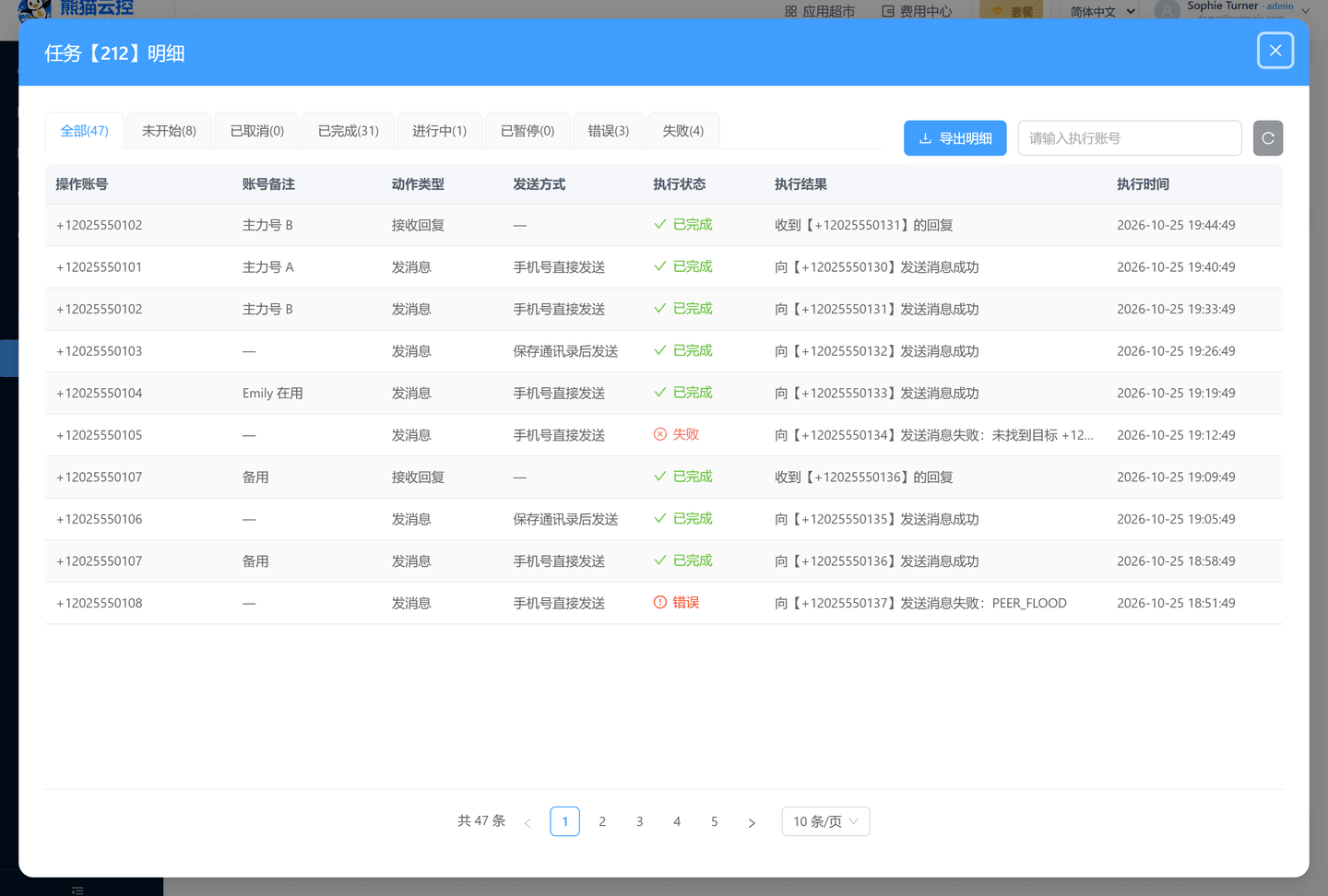
Note: Rows where Operating account shows "Whole task" record changes to the task itself, such as start, pause, complete, cancel, scheduled start, and auto-pause due to consecutive failures.
3. How do I view the task report?
① In the Bulk Messaging list, click the task's Read / Reply cell.
② Filter with the search bar: Data, Sending account, Replied? (replied / not replied), then click Search.
③ View different results by tab:
| Tab | Meaning |
|---|---|
| Invalid data | The number or username cannot be found or is not registered on Telegram — the same no matter which account sends |
| Sync failed | No conversation could be opened; the reason is on your side, for example an open-chat timeout |
| Send failed | The conversation opened but the message did not go out, for example because the sending account is restricted by Telegram |
| Unused | Not yet sent, or skipped when the task was canceled |
| Sent | The message has been sent out |
④ The Reply rate is shown to the right of the tabs. The list columns: Data type, Data, Replied? (hover to see the reply time), Phone, Username, Name, Sending account, Account note, Status, and Time.
⑤ Click Export report to export a CSV for the current search and tab, with failure reasons and reply times.
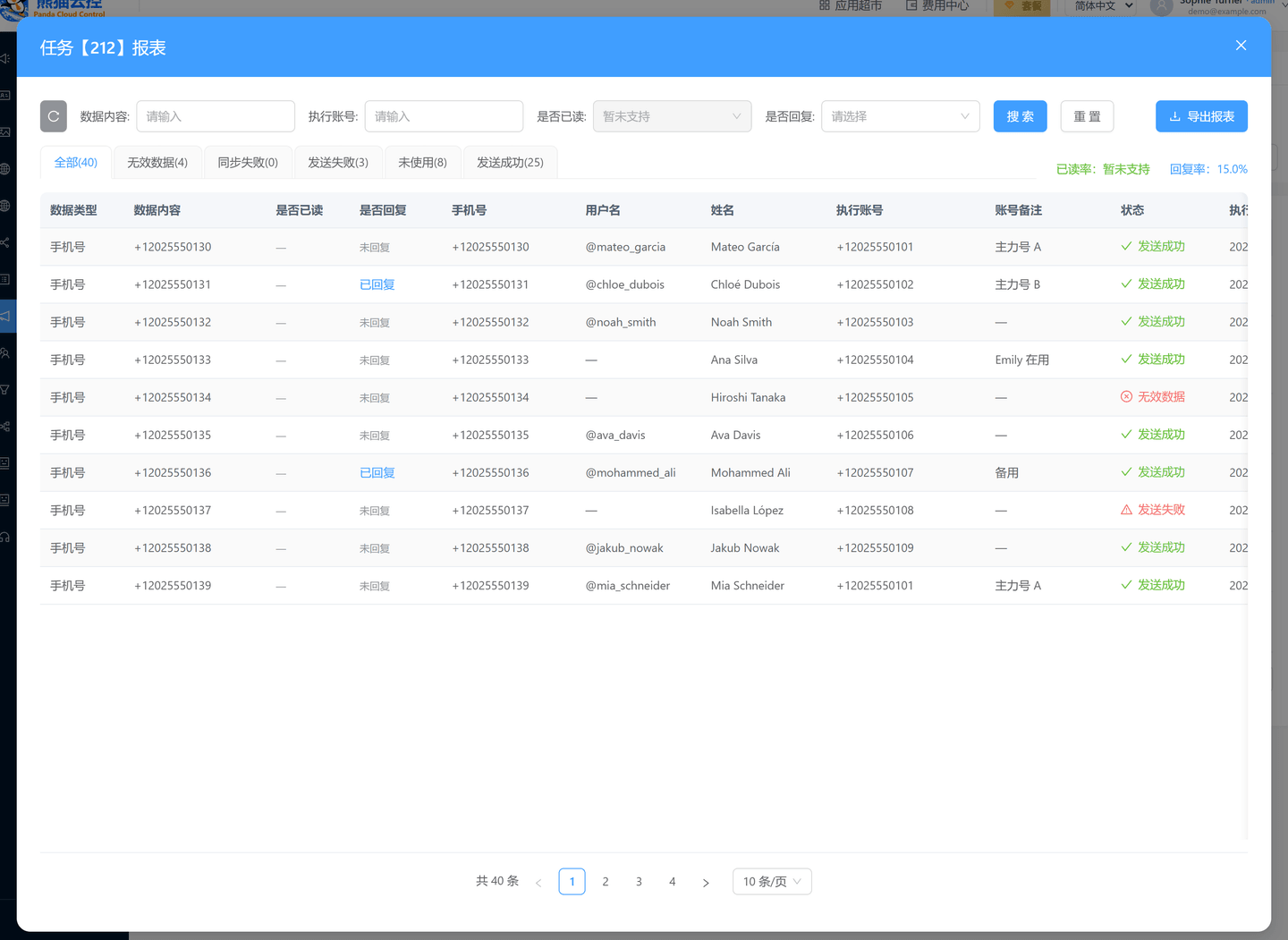
Note: Read? and Read rate are not supported yet.
4. How do I view the task progress and task details?
① Click the progress bar in Task status to open the task progress: on the left, a progress ring with the processed, pending, succeeded, and failed counts; on the right, each target's round, status, and result. Closing the progress window does not affect the task, which keeps running in the background.
② Click the task name to open the task details: all of the task's settings, including status, progress, account group, send mode, ad type, copy, sending rules, send method, and created and updated times. View task log at the bottom opens the log directly.
Note: In the task details, Ad push interval is the Send interval, and Account push cap is the Daily cap (counted per task).
5. How do I see how each sending account did?
① Click the account count in Task elements to open the account details.
② One row per sending account: Account status (online, offline, frozen, banned, and so on), Task status, Last action, Sent, Send failures, and Replies.
③ Click View account activity to see every step this account took in this task; switch to All account activity to see its records across all broadcast tasks.
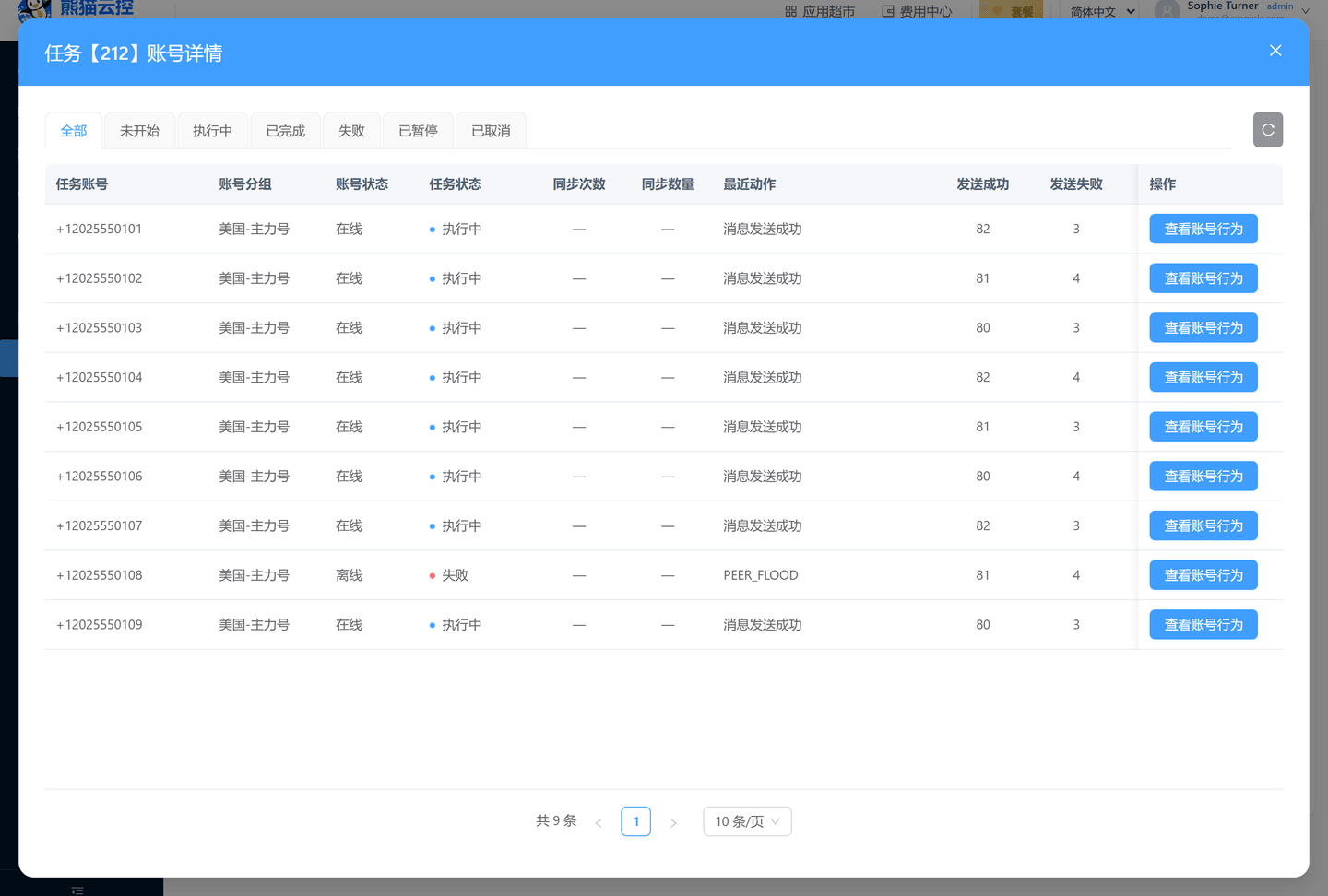
Note: If an account fails often, go to Account Management > Telegram to check its status, and if needed use Edit > Add accounts to bring in a fresh account.
FAQ
1. What is the difference between Failed and Error?
Failed is a reason on the recipient's side (the number cannot be found, or is not registered on Telegram), so switching accounts will not help; Error is a reason on your side (a restricted account, a timeout, and so on), so switching accounts or trying again later may succeed. For more reasons, see Broadcast failure reasons.
2. A customer just replied — why isn't the reply counted in the report yet?
Replies are tallied on a schedule, so a message that just came in takes a little while to be counted.
3. Can I see whether the other person has read it?
Not yet; all read-related stats currently show "Not supported yet".
Thanks for the feedback!
Still stuck? Reach us directly: Telegram @scrmqiye001 or email [email protected]
Last updated: