
Step 1: Create your Panda Cloud Control account
1. Overview
The first step in using Panda Cloud Control is to register a primary account. The primary account is your team's management account: it has every menu, and it handles top-ups, device purchases, and creating support sub-accounts.
2. Steps
1. How do I register a primary account?
① Open app.xiongmaoscrm.com in your browser and click Enter the TG Cloud Control System.
② The page is in English by default; you can first select Simplified Chinese from the language dropdown in the top-right, and once you choose, it is remembered.
③ Click Sign up now and fill in Email, Name / Preferred name, and a password (at least 8 characters). If the page has an Email verification code field, click Get code and enter the 6-digit number sent to your email.
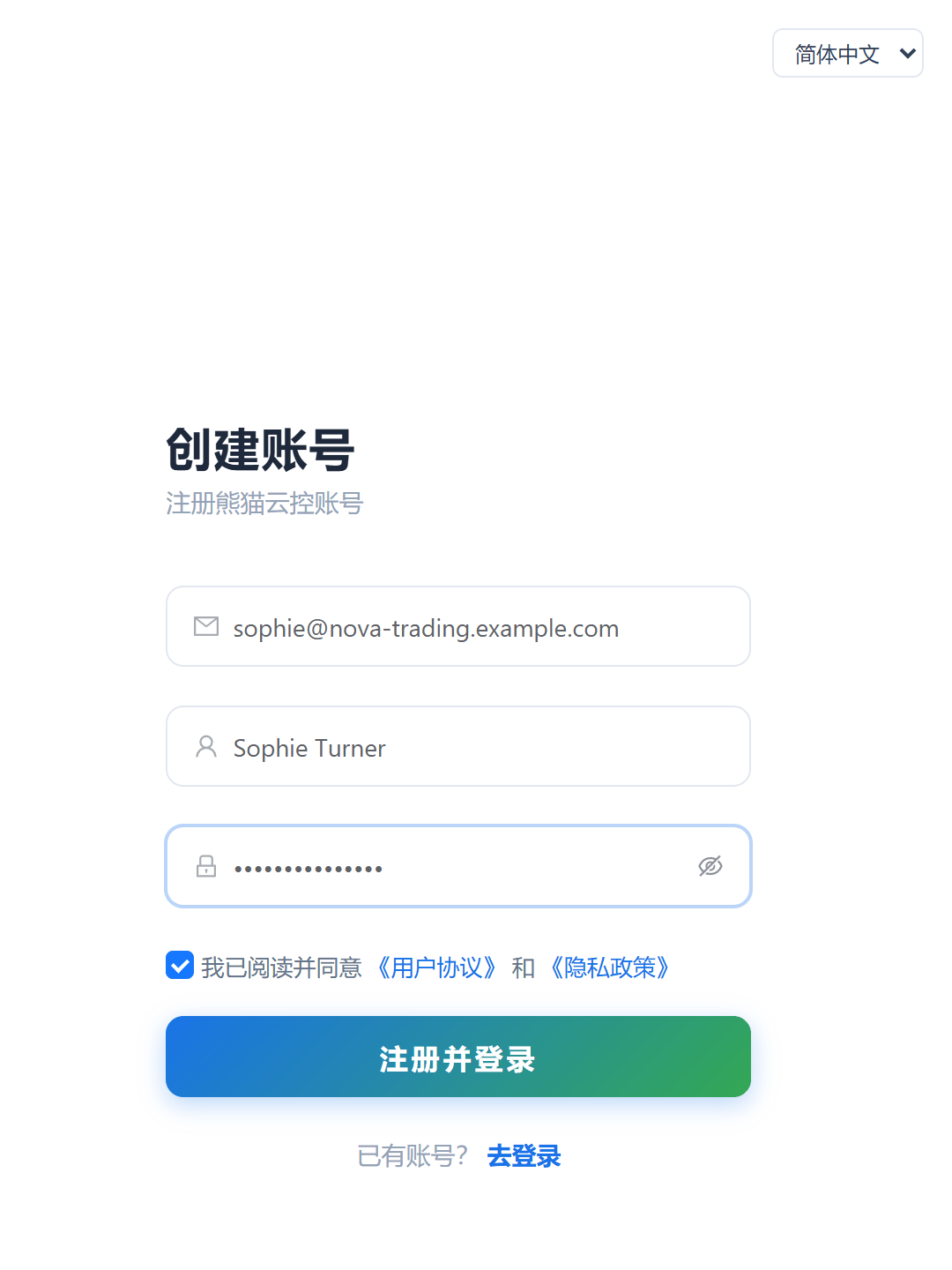
④ Make sure I have read and agree to the User Agreement and Privacy Policy is checked, then click Sign up and log in to enter the admin console.
Note: If the page has a Sign up with Google button, you can register directly with a Google account and then use Log in with Google afterward.
2. How do I log in later?
① Open app.xiongmaoscrm.com and click Enter the TG Cloud Control System.
② On the Primary account login tab, enter the email and password you registered with, and click Log in.
③ After logging in you land on System Announcements by default; we recommend reading through the notes there first.
For more detail, see Signing up, logging in, and the admin interface.
Next step: Step 2: Top up and buy devices
Thanks for the feedback!
Still stuck? Reach us directly: Telegram @scrmqiye001 or email [email protected]
Last updated: