
Contact list
1. Overview
The contact list is a roll-up of all your private-chat customers. Private-chat customers your agents have chatted with in the Agent Workspace enter the contact list automatically, and you can also import a list by hand. Here you can filter contacts by owning account, agent, tag, whether they've replied, and more, and tag, block, export, or delete them in bulk.
The contact list is one shared set of data for the team. A sub-account needs the Contacts permission (set in Agent Management) for Contacts to appear in its left-hand menu.
2. How to use it
1. Where do contacts come from?
- Automatically from conversations (source shows Conversation): when someone with the Contacts permission opens the Agent Workspace, the system syncs the Workspace's private-chat conversations into the contact list every few minutes. Groups and channels don't count as contacts.
- Manual import (source shows Import): click Import to paste or upload a list.
Note: For contacts already in the list, a sync only refreshes the nickname, last-active time, and whether they've replied; manually maintained fields such as tags, work orders, and block status are not overwritten.
Note: A new contact's Current agent and Agent at acquisition record whichever agent the account was assigned to at the time; they are blank if the account had no assigned agent.
2. How do I filter contacts?
① After logging in to the back office, click Contacts > Contact List in the left-hand menu.
② Set conditions in the search bar: the Contact account / nickname box; the Owning account, Tag, Agent, Work order name, and Source dropdowns; yes/no filters such as Replied, Banned, Duplicate contact, API account, and Blocked; and an acquisition date range.
③ Click Search to apply; click Reset to clear the conditions.
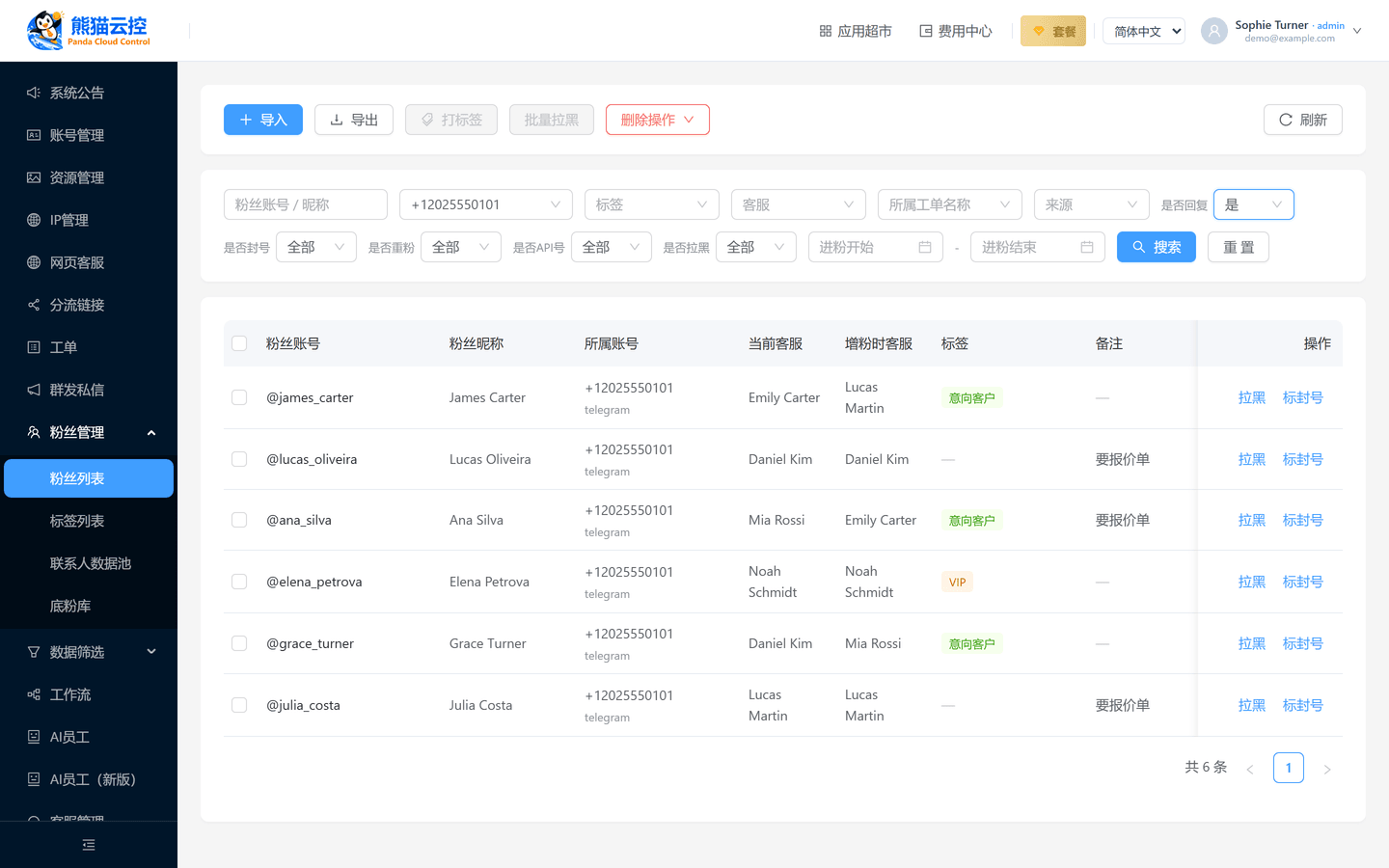
Note: Duplicate contact means the same contact is attached to two or more of your accounts at once; Replied means whether the contact has ever sent you a message.
3. What's shown in the table?
① The columns are Contact account, Contact nickname, Owning account (which of your accounts), Current agent, Agent at acquisition, Tags, Note, Contact source, Replied, Acquisition time, and Work order name.
② Below a contact's account there may be markers such as Duplicate, Banned, or Blocked.
③ Per-row actions: Block / Unblock and Mark banned / Mark normal take effect immediately on click; select several contacts and click Bulk block at the top to block them at once.
Note: Block and Mark banned are only markers within this system to help you filter; they don't block the person on Telegram.
4. How do I tag contacts?
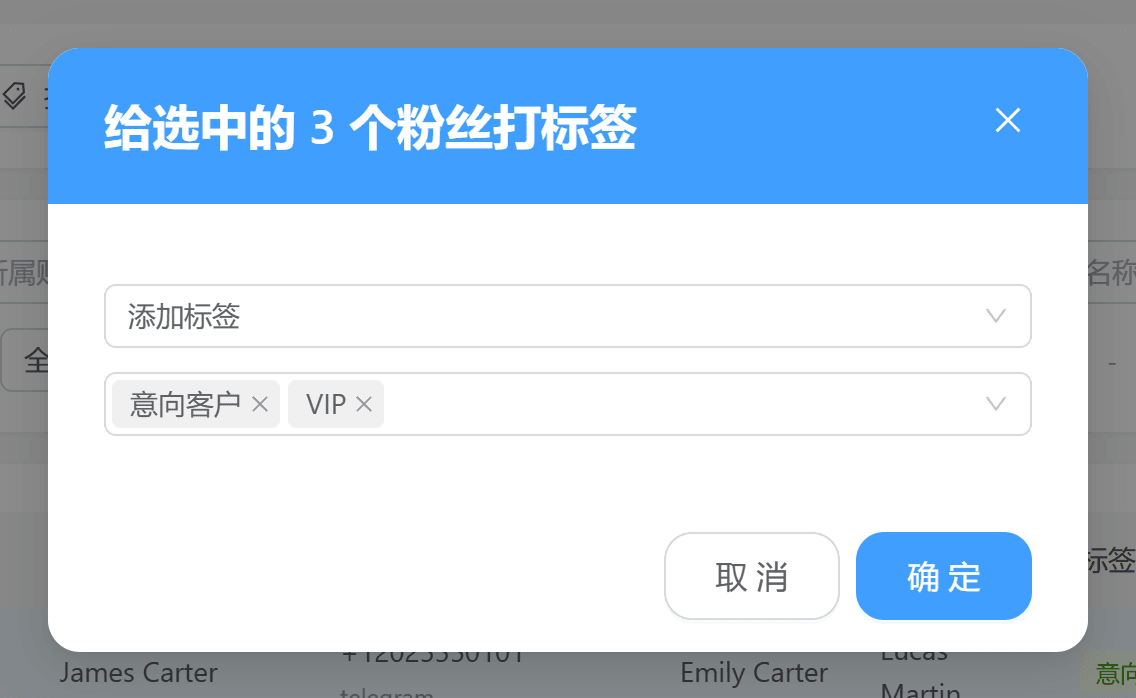
① Select contacts in the table.
② Click Tag (N).
③ Choose Add tags or Remove tags, then pick the tags (create tags under Tags).
④ Click OK.
5. How do I import contacts by hand?
① Click Import to open Import Contacts.
② Optionally choose an Owning account, enter a Work order name, and pick tags to apply (all optional).
③ Paste into Contact list, or click Import txt / csv to choose a file (up to 20 MB). One entry per line; put a nickname after #, for example @johndoe # John Doe.
④ Click Import.
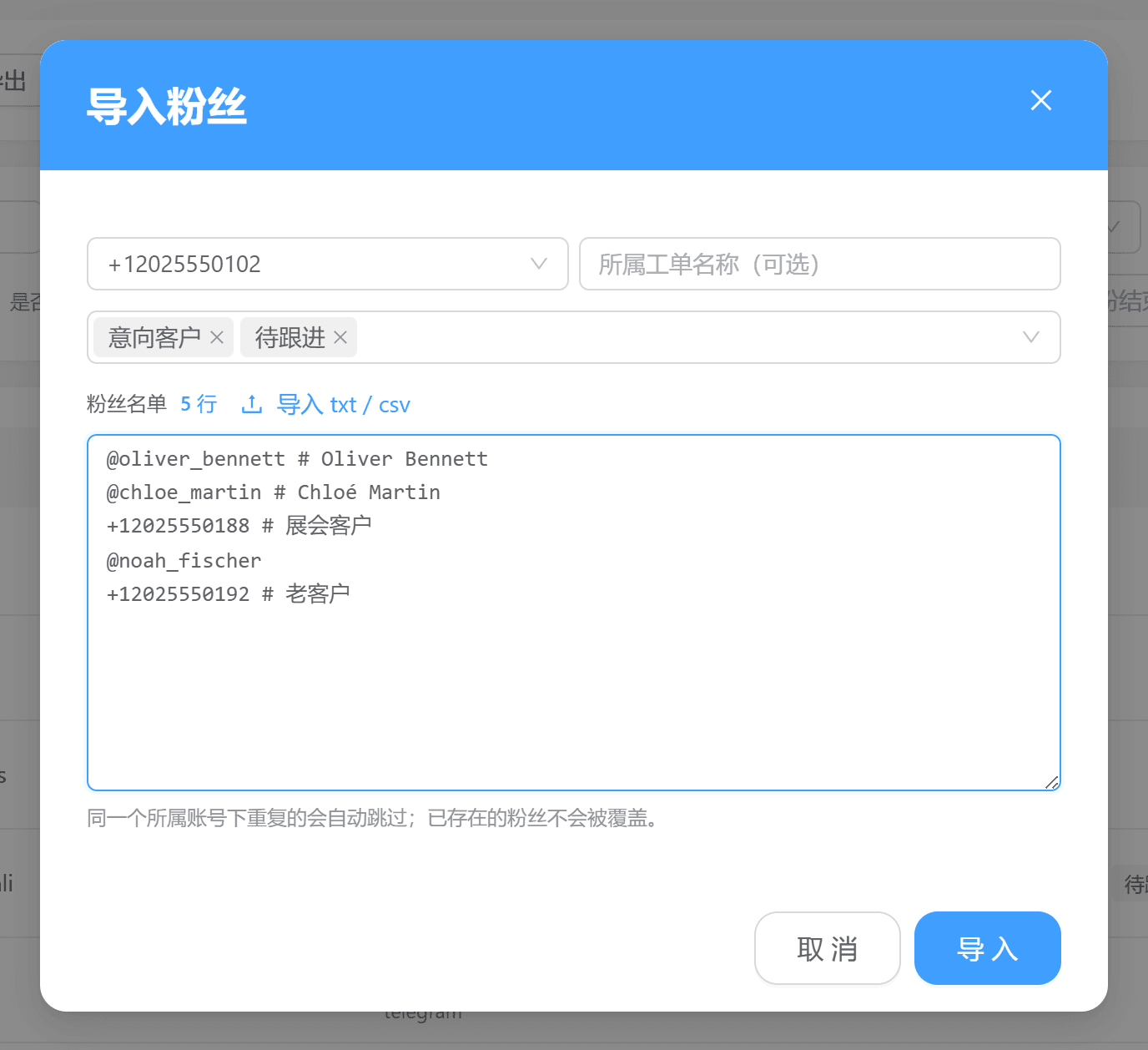
Note: Up to 50,000 rows per import. Duplicates under the same owning account are skipped automatically, and existing contacts are not overwritten.
6. How do I export or delete contacts?
① Export: set your filter conditions and click Search first, then click Export to download a CSV file of the current results.
② Delete: click Delete, choose Delete selected or Delete current results, and confirm.
Caution: Deleting only removes the contact record in this system; it doesn't affect the chat conversation itself, and it can't be undone. For contacts whose source is Conversation, as long as the chat still exists, they may be synced back in later.
FAQ
1. Why isn't a customer my agent just chatted with on the contact list?
Conversations only sync when someone with the Contacts permission has the Agent Workspace open, and syncing happens every few minutes. Wait a moment and click Refresh.
2. Where does the content in the Note column come from?
When the AI Employees (new) feature collects customer information while handling a chat, any attribute marked for sync is written into this column as "[AI] name: value."
3. Can someone still receive broadcasts after being blocked?
Block is only a marker within this system; it doesn't block the person on Telegram and doesn't affect broadcasts.
Thanks for the feedback!
Still stuck? Reach us directly: Telegram @scrmqiye001 or email [email protected]
Last updated: