
Tags
1. Overview
Customer tags let you sort contacts into groups, such as "Interested lead," "Closed," or "Follow up later." First create your tags under Contacts > Tags, then tag contacts on the contact list, after which you can filter contacts by tag.
Tags are shared across the team: everyone with the Contacts permission sees the same set.
2. How to use it
1. How do I create a tag?
① After logging in to the back office, click Contacts > Tags in the left-hand menu.
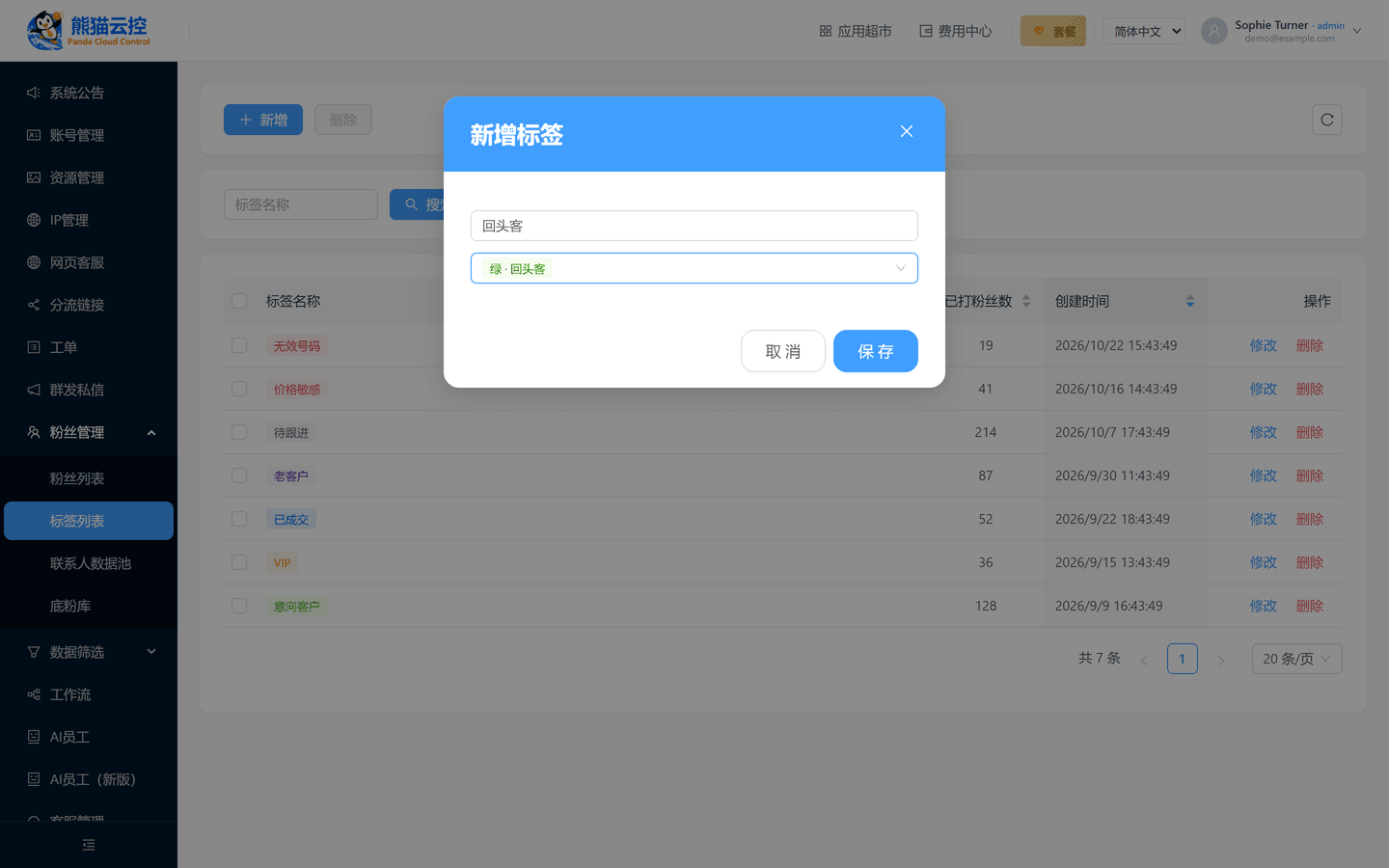
② Click Add to open Add Tag.
③ Enter a tag name (up to 32 characters), for example, "Interested lead."
④ Pick a color: red, orange, green, blue, indigo, purple, pink, or gray (gray by default).
⑤ Click Save.
Note: You can't create two tags with the same name.
2. How do I edit or delete a tag?
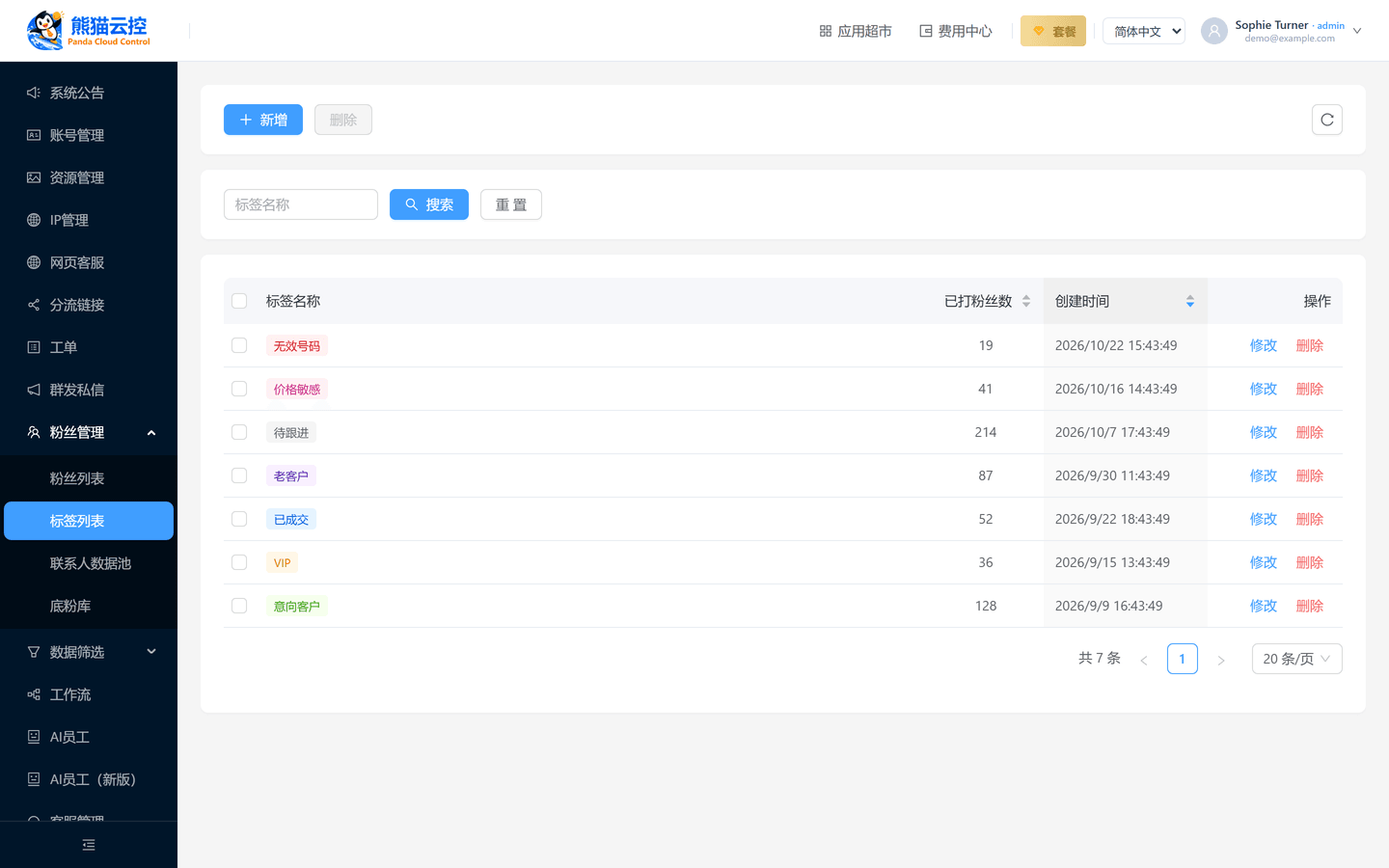
① In the list's Actions column, click Edit to change the name or color.
② Click Delete in the Actions column, or select several tags and click Delete at the top to delete them in bulk.
Note: Deleting a tag also removes it from any contacts that have it; the contacts themselves are unaffected.
3. How do I see how a tag is used?
① The Tagged contacts column shows how many contacts carry each tag; click the column header to sort.
② You can search by tag name in the search box.
4. How do I tag contacts?
On the contact list, select contacts, click Tag, choose Add tags or Remove tags, pick the tags, and click OK. You can also choose tags to apply directly when importing contacts.
FAQ
1. Are these tags the same as the conversation tags in the Agent Workspace?
No. These tags are for the contact list; the tags you add to chats in the Agent Workspace are a separate set, and the two don't affect each other.
2. What if I can't find the tag I want when tagging?
Create the tag on the Tags page first, then go back to the contact list to apply it.
Thanks for the feedback!
Still stuck? Reach us directly: Telegram @scrmqiye001 or email [email protected]
Last updated: