
How do I connect a Telegram bot?
1. Overview
Besides Telegram personal accounts, you can also connect your own Telegram bot to Panda Cloud Control. Once connected, the private messages users send the bot arrive in the Agent Workspace, and agents reply as the bot.
How a bot differs from a personal account:
- A bot can only reply to people who have messaged it first; it can't add people on its own and can't bulk-message strangers.
- Bots are managed on their own under Account Management > Telegram Bot, not mixed in with personal accounts.
- Each bot likewise uses one device slot.
2. Steps
1. Getting the bot token
① In Telegram, search for and open the official @BotFather.
② Send /newbot and follow the prompts to give the bot a name and username. Once it's created, BotFather sends you a token that looks like 123456789:AAH….
③ If you already have a bot, send /token to @BotFather and pick the bot to retrieve its token.
2. Connecting from the admin console
① Log in to the admin console, click Account Management in the left-hand menu, and choose Telegram Bot in the sub-navigation.
② Click Add Bot.
③ Paste the token into Bot token. To assign it straight to an agent, choose one under Assign agent; leave it as Unassigned otherwise.
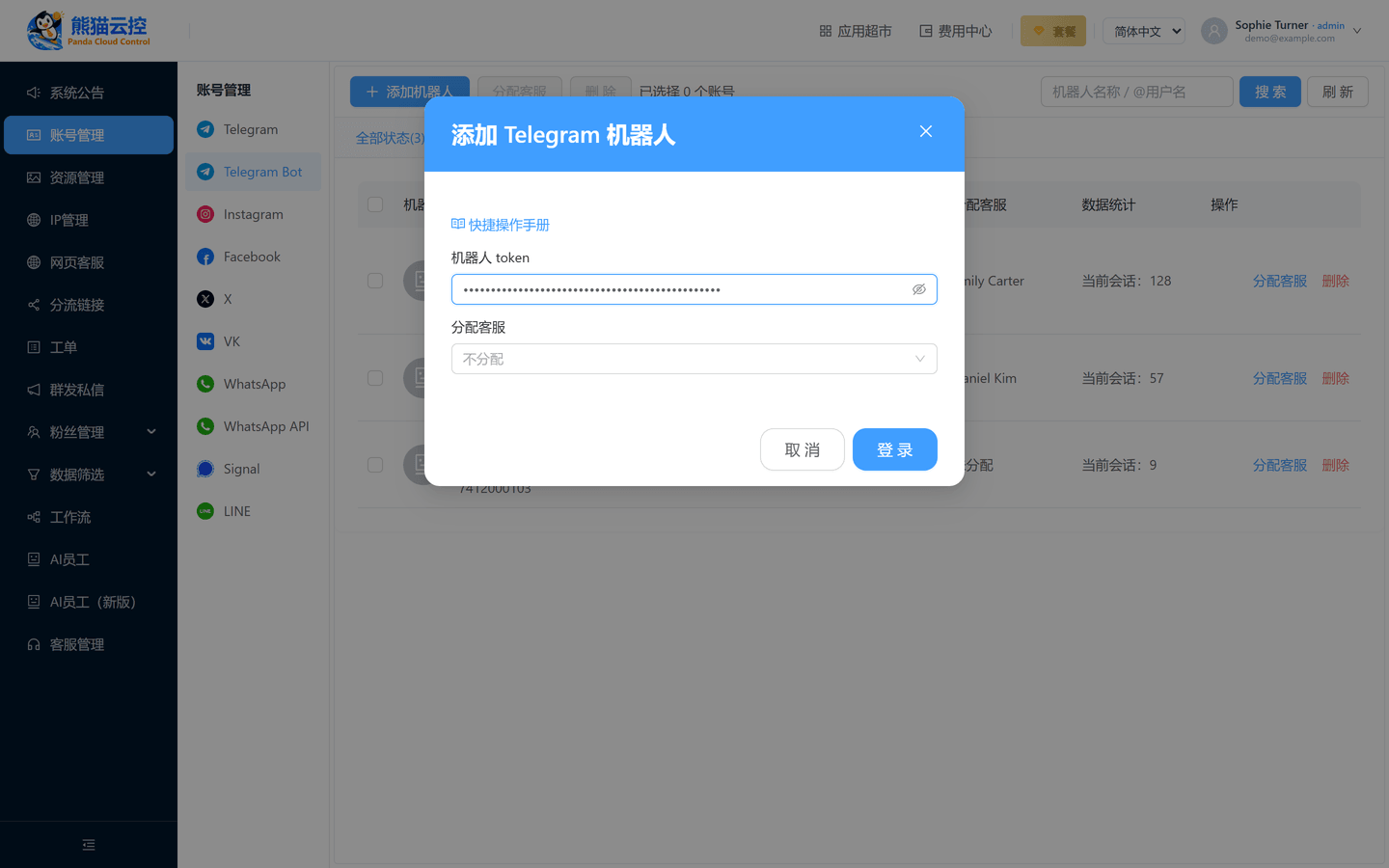
④ Click Log in. When it shows "Connected the bot 'bot name'," the bot is connected and appears in the list.
Caution: Once connected, this bot is used only by Panda Cloud Control. Any other system that was connected with the same token (for example an auto-reply service or another support tool) is disconnected.
3. Connecting from the Agent Workspace
① Log in to the Agent Workspace, click Add Account at the bottom of the account panel on the left, and choose Telegram bot from the list on the right.
② Paste the token into Bot token and click Log in.
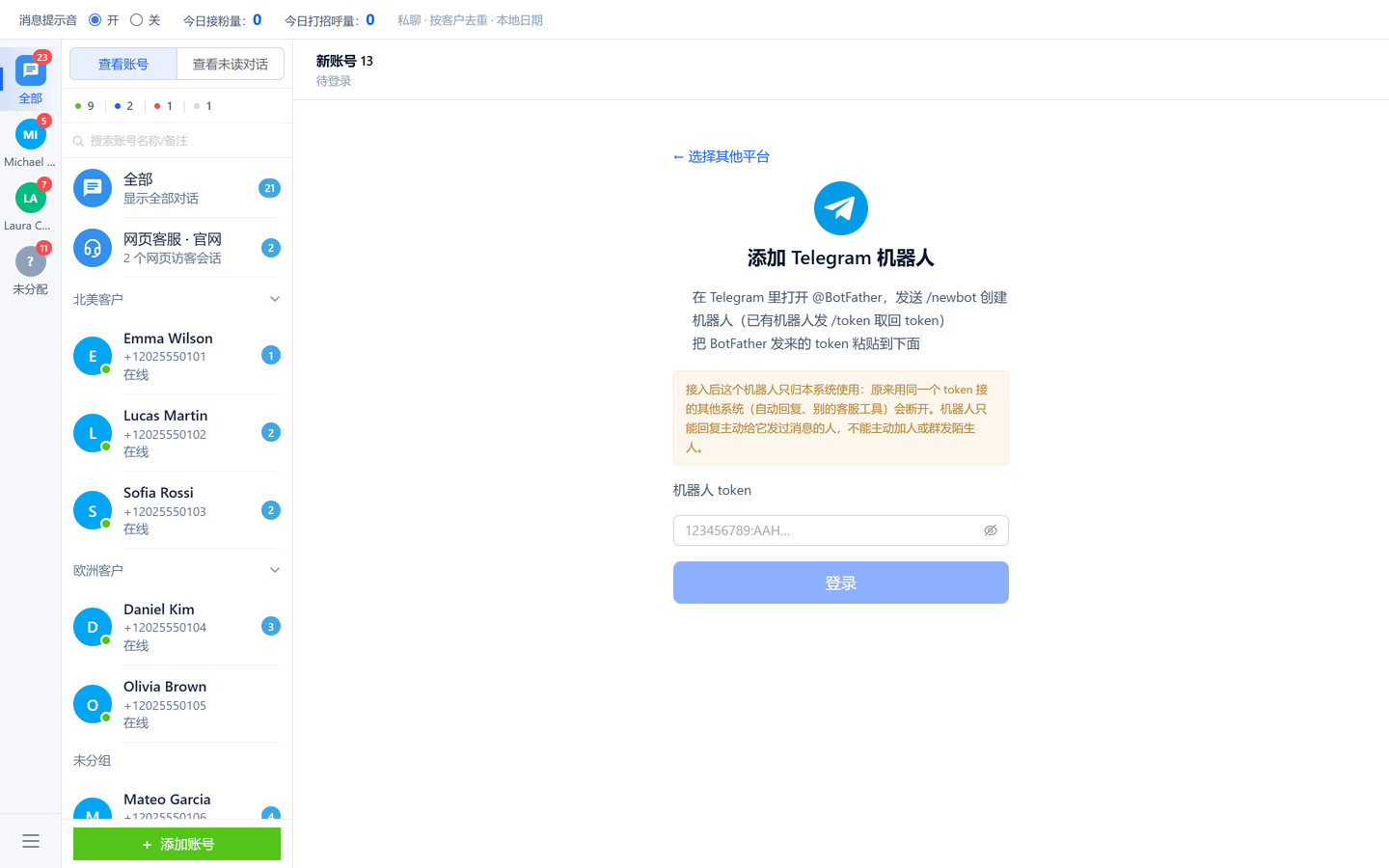
③ Once connected, the bot appears in the account panel. A bot an agent connects themselves is automatically assigned to them.
4. Managing a connected bot
Under Account Management > Telegram Bot you can:
- Click Assign agent to assign the bot to an agent, or choose Unassign.
- Click the note field to edit the note.
- Click Delete to take the bot offline and remove it. Once removed, its conversations no longer sync, and to use it again you have to paste the token and connect it anew.
FAQ
1. It says "This bot is already connected"?
The same bot is already in the list; there's no need to connect it again.
2. Why can't the bot message customers first?
This is Telegram's own restriction on bots: a bot can only reply to people who have messaged it first. To reach out to customers first, use a Telegram personal account.
3. What if the token was regenerated?
After you regenerate the token in @BotFather, the old token stops working. Delete this bot under Account Management > Telegram Bot first, then connect it again with the new token.
Thanks for the feedback!
Still stuck? Reach us directly: Telegram @scrmqiye001 or email [email protected]
Last updated: