
App market
1. Overview
App Market is in the top-right of the back office (next to Billing Center in the top bar). Inside it is Standalone stores: store-building platforms such as Shopify and SHOPLINE, with guides for installing the Web Chat widget into your store.
Note: Since October 24, 2026, chat channels such as Telegram Bot, Instagram, Facebook, X, VK, WhatsApp, WhatsApp API, Signal, and LINE no longer need to be enabled; just pick the channel in the Account Management sub-nav in the left-hand menu and add an account. See How do I connect a chat channel?.
2. How to use it
1. How do I install Web Chat on a standalone store?
① Log in to the back office as the main account or an admin, and click App Market in the top-right.
② Under Standalone stores, find your store-building platform (Shopify, SHOPLINE, Shoplazza, SHOPYY, UEESHOP, WordPress, OpenCart, BigCommerce, SHOPOEM) and click Integrate now.
③ In the Install Web Chat on … dialog that appears, follow the steps: select or create a Web Chat site > add your store's domain to the allowlist > copy the embed code > paste it into your store's admin following the platform's steps > open your store to check it's installed.
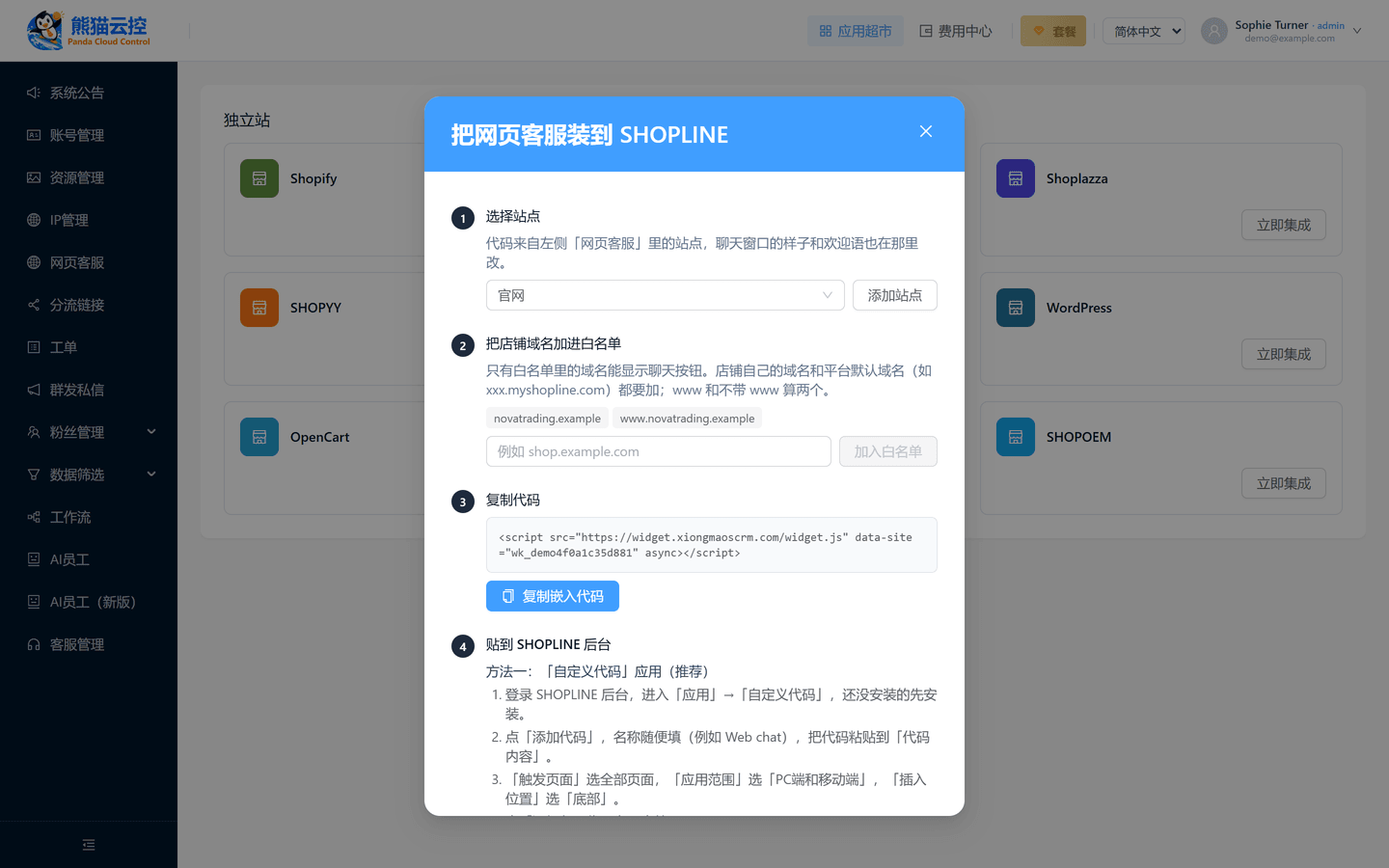
For detailed steps, see Installing the widget on your own site.
FAQ
1. Do channels I enabled in the App Market before still work?
Yes. Now that channels no longer need to be enabled, every channel's account management page lives in the Account Management sub-nav in the left-hand menu, and accounts already logged in are unaffected.
2. Why can't I see the App Market?
The App Market is shown only to the main account and admins; agent accounts can't see it.
Thanks for the feedback!
Still stuck? Reach us directly: Telegram @scrmqiye001 or email [email protected]
Last updated: