
Buying devices
1. Overview
Panda Cloud Control bills by "device" (also called a "slot" on the pricing page): one device can keep one account logged in at a time, so the number of devices you buy is how many accounts you can keep logged in at once. Devices are bought with your balance, so top up first.
- How many more accounts you can log in = purchased, unexpired devices − accounts currently logged in.
- An account you've set to Offline still occupies its device; the device is only freed after you delete it (log it out).
- Sub-accounts such as agents and admins don't occupy a device and aren't charged.
Note: Only the main account can buy devices and view the balance. An admin granted the Buy Devices permission can only view Device Details.
2. How to use it
1. How do I get to the Buy Devices page?
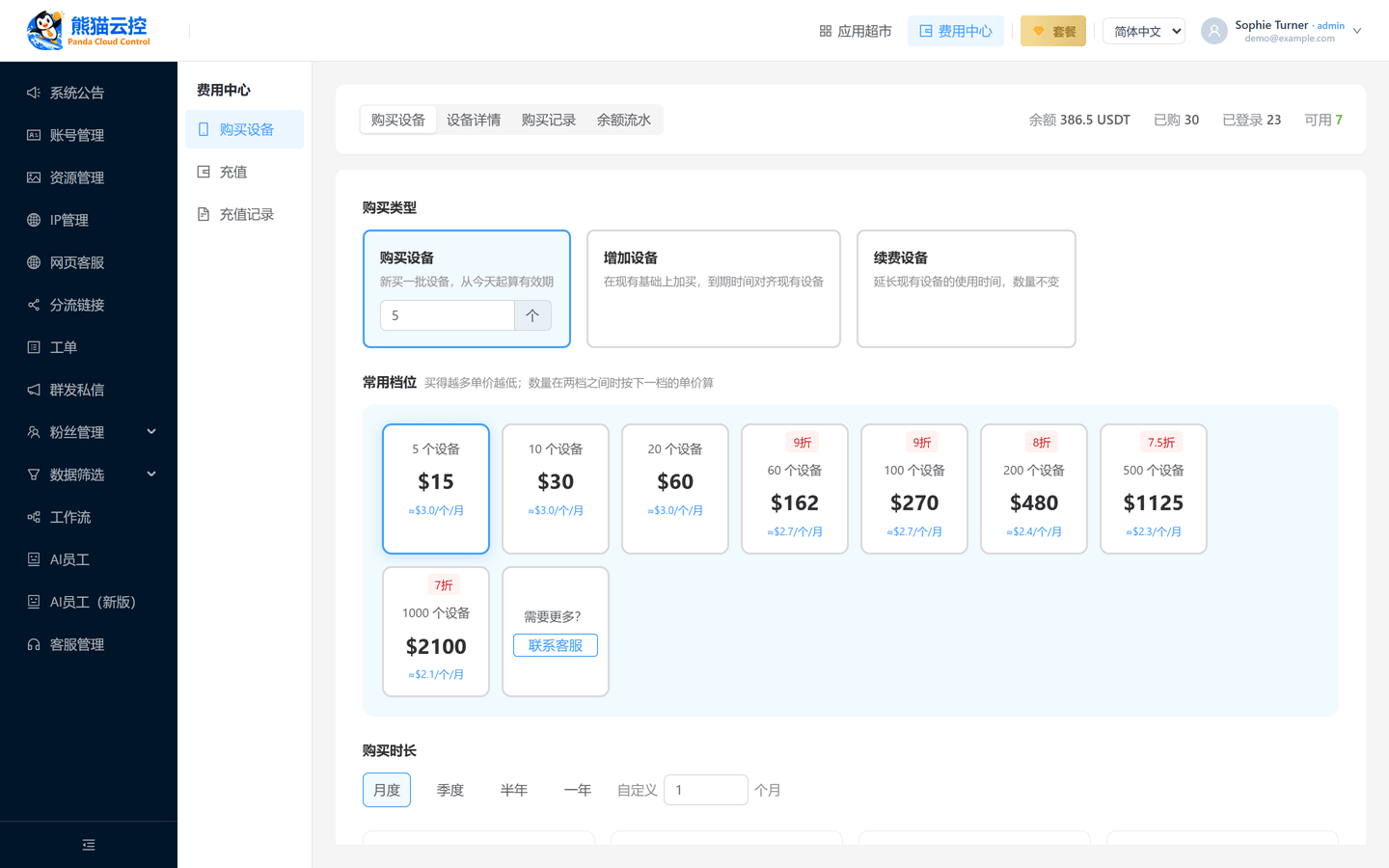
① After logging in to the back office, click Billing Center in the top-right (it opens Buy Devices by default), or click the Plans tab in the top-right.
② The top of the page has four tabs: Buy Devices, Device Details, Purchase Records, and Balance History. On the right it shows Balance, Purchased, Logged in, and Available; when Available is 0 it turns red, and you can't log in new accounts.
Note: If the number of logged-in accounts exceeds the devices purchased, a yellow notice appears. Logged-in accounts are unaffected and won't go offline, but you can't log in new accounts until you buy more.
2. How do I buy devices?
① Under Purchase type on the Buy Devices tab, choose one:
| Purchase type | Notes |
|---|---|
| Buy devices | Buy a new batch of devices, with validity counted from today |
| Add devices | Buy more on top of your existing devices, with the expiry aligned to the existing ones |
| Renew devices | Extend the time on your existing devices without changing the count |
② For Buy devices or Add devices, enter a quantity (5–1,000), or just click a card under Common tiers.
③ For Buy devices or Renew devices, choose a Duration: Monthly, Quarterly, Half-year, One year, or Custom 1–36 months (1 month = 30 days).
④ Check the quote: Device count, Valid days, List price, and Current balance, with Amount due in large type below.
⑤ Click Pay now, check the confirmation dialog, and click Confirm payment to deduct from your balance.
⑥ On success the page shows "Purchase successful: +N devices, balance …" (for a renewal, "Renewal successful"), effective immediately.
Note: When your balance is insufficient, Current balance turns red and Go to top-up appears, with Pay now grayed out; top up first, then come back to buy.
Note: For more than 1,000, click Contact support in the Need more? card at the end of the tiers.
3. How is the price calculated?
- The list price is $3.00 per device per month; the more you buy and the longer the term, the lower the unit price, and a site-wide 3% discount is already included. The Amount due on the page is what's deducted, and the balance is deducted at 1 USDT = $1.
- For the unit price at each tier, see How does Panda Cloud Control charge?.
4. What should I watch for with adding and renewing devices?
- Add devices requires that you have unexpired devices with more than 1 hour until expiry; the added devices expire together with the existing ones, and the price is prorated by the remaining days.
- Renew devices extends all your currently unexpired devices together; already-expired devices can't be renewed and need a fresh Buy devices.
Caution: Once charged, it takes effect immediately and can't be refunded or reversed, so check the quantity and duration before paying.
5. How do I view device details?
① Click the Device Details tab; the list shows each device's ID, Assigned account, Created, and Expires.
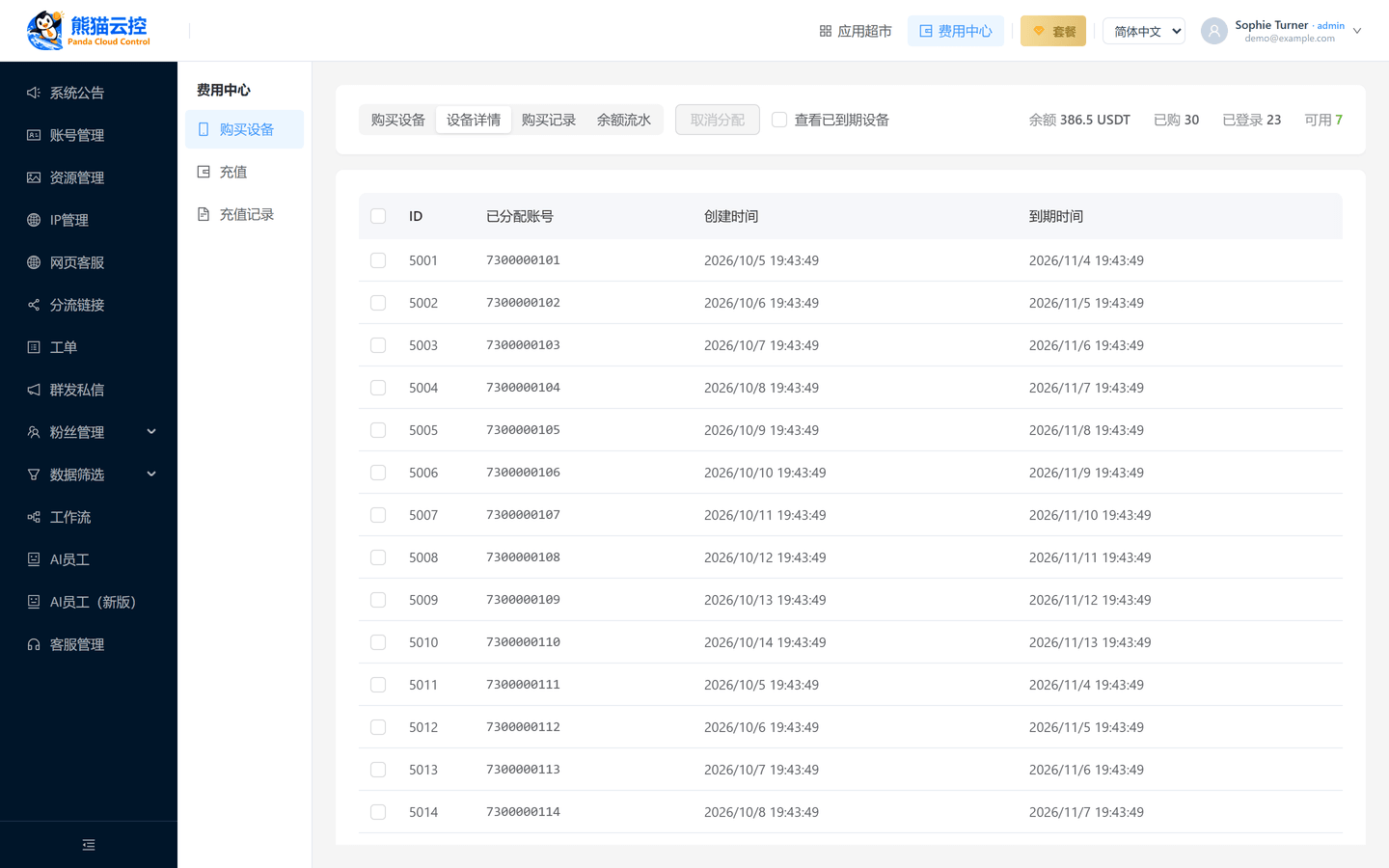
② Expired devices are hidden by default and appear only after you check Show expired devices.
③ Clicking Unassign only clears the binding record between a device and an account; it doesn't take the account offline and doesn't affect the Available count.
Note: To bind a device to an account, go to Account Management > Telegram > More Actions > Assign Device. Whether you can log in a new account depends only on "purchased − logged in," not on whether a device is bound.
6. How do I view purchase records and balance history?
- Purchase Records: every buy, add, and renew order.
- Balance History: every change to your balance, typed as Top-up, Spend, or Refund, with the Balance after and a Note (for example, buying devices, AI employee usage, or a data screening charge).
FAQ
1. What happens when there aren't enough devices?
When adding an account, you'll see a notice that you haven't bought devices yet, or "Not enough device slots: … purchased, … logged in, … more can be logged in." Already logged-in accounts are unaffected, and once you buy more devices you can keep logging in new accounts.
2. What happens to accounts after a device expires?
Expired devices no longer count toward Purchased. If the number of logged-in accounts exceeds the unexpired devices, logged-in accounts won't go offline, but you can't log in new accounts, so renew or re-buy promptly.
Thanks for the feedback!
Still stuck? Reach us directly: Telegram @scrmqiye001 or email [email protected]
Last updated: