
How do I connect X?
1. Overview
Panda Cloud Control signs an X (formerly Twitter) account in with a Cookie. Once signed in, the direct messages this account receives arrive in the Agent Workspace, and agents can reply directly.
Connecting X needs two things:
- Cookie: exported after signing this account in on a desktop browser; it must include ct0 and auth_token.
- PIN: the 4-digit PIN for X direct messages (X Chat). If this account hasn't set a PIN yet, the 4 digits you enter are used to create one.
Note: Each account uses one device slot. The exit IP is assigned automatically — the system gives each account a fixed one from the IP pool, so there's nothing to choose.
2. Steps
1. How do I export the X Cookie?
The steps below are done in your own browser.
① Open x.com in a desktop browser (for example Chrome) and sign in to the account you want to connect.
② Using a Cookie export extension (for example Cookie-Editor), export the Cookie on the x.com page, choose JSON format, and copy it.
③ Or, without an extension: press F12 to open the developer tools > Network, refresh the page, and right-click any request to x.com > Copy > Copy as cURL.
Panda Cloud Control accepts three forms: the JSON from an extension, the name=value; form from a request header, or a whole curl command. Just paste any of them and the system recognizes it automatically.
Note: After exporting the Cookie, don't click log out in that browser, or the Cookie will usually stop working right away.
2. Adding in the admin console
① Log in to the admin console, click Account Management in the left-hand menu, and choose X in the sub-navigation.
② Click Add Account, and under Add method choose Cookie login.
③ Paste the exported Cookie into the Cookie box. Below the box, it shows whether both ct0 and auth_token were recognized (green means recognized, red means missing).
④ Enter 4 digits in PIN.
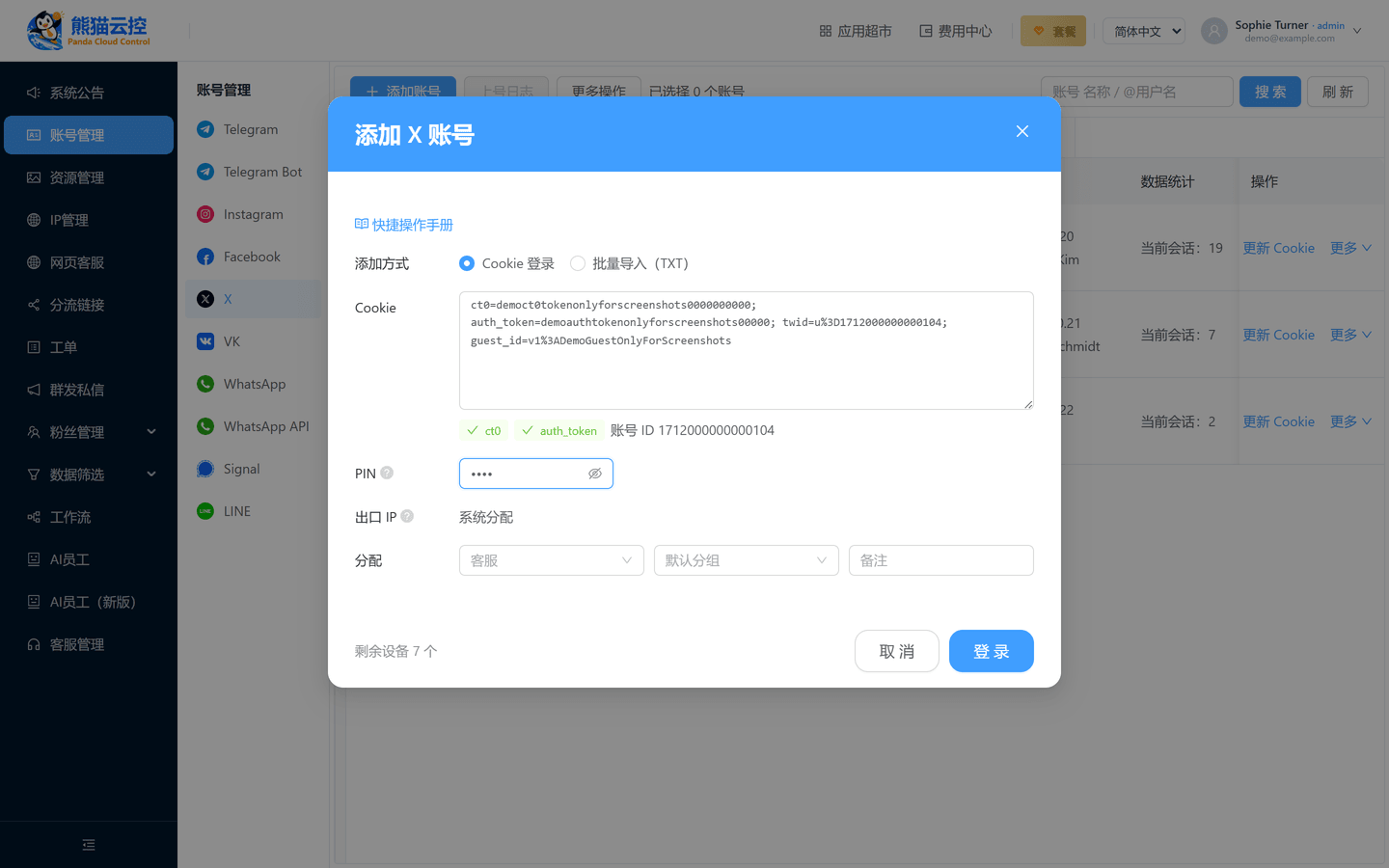
⑤ If you like, choose an agent and group under Assign, and fill in a note.
⑥ Click Log in. Once signed in, the dialog closes automatically and the account appears in the list.
Caution: If the PIN is entered wrong too many times, X locks this account's direct-message feature. When the page prompts "Wrong PIN, N tries left," double-check the PIN before trying again.
3. How do I bulk import?
① In the Add X Account dialog, under Add method choose Bulk import (TXT).
② Prepare a .txt file with one account per line, in the format: Cookie ---- PIN ---- note (the note can be omitted).
③ Drag the TXT onto the upload area, or click to pick a file. The list shows the recognition result for each line; a line missing a required Cookie item or the PIN shows Won't import.
④ Click Import and log in; the system signs them in one by one, and each line's status becomes Logged in or Failed with a reason.
4. Adding from the Agent Workspace
① Log in to the Agent Workspace, click Add Account at the bottom of the account panel on the left, and choose X from the list on the right.
② Paste the Cookie into the Cookie box, enter 4 digits in PIN, and click Log in.
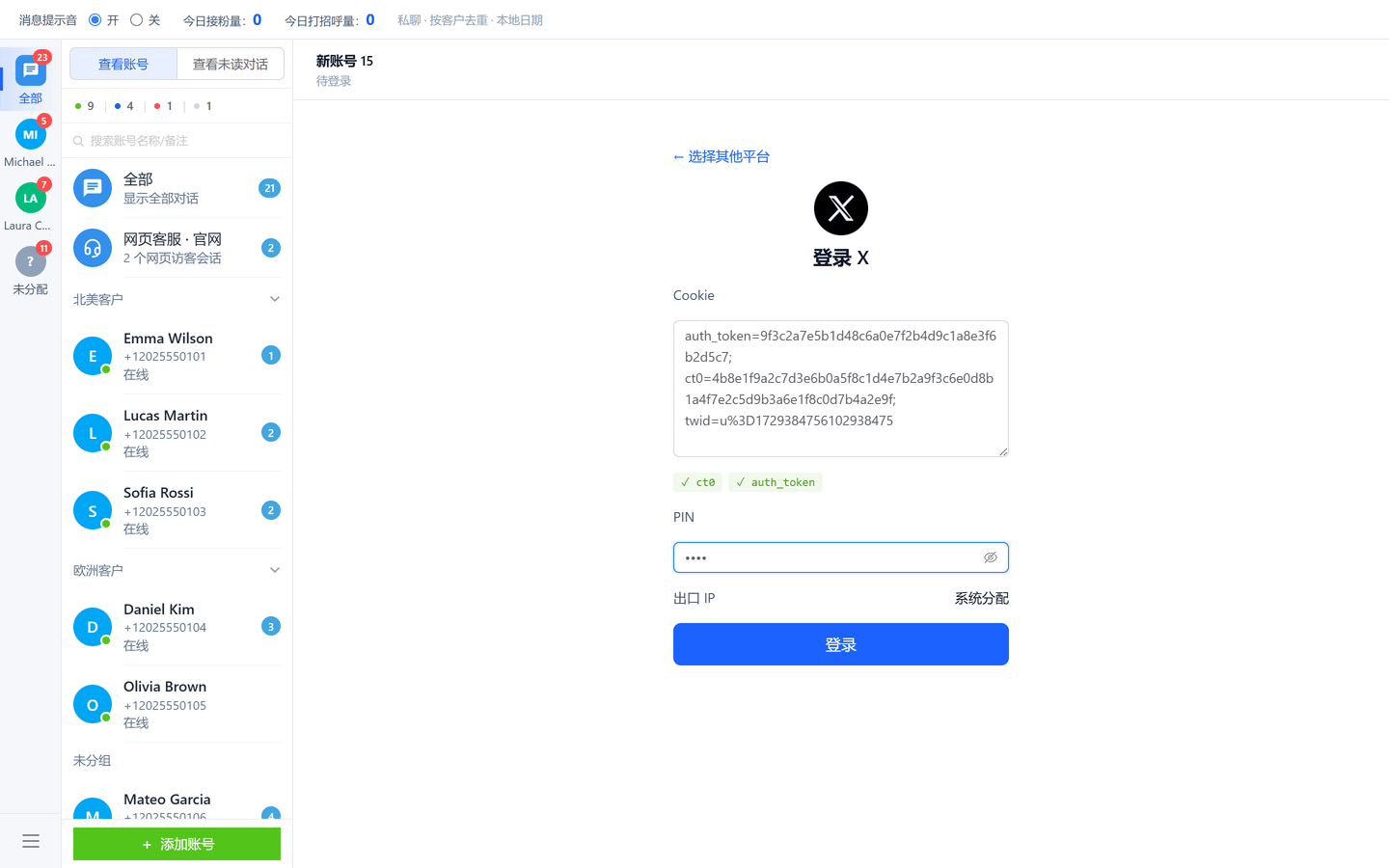
③ Once signed in, the account appears in the account panel. An account an agent adds themselves is automatically assigned to them.
5. What do I do if the Cookie stops working?
Find this account in the Account Management > X list, click Update Cookie, paste a freshly exported Cookie, enter the PIN, and click Log in. The account and its conversations stay the same.
FAQ
1. It says "Too many wrong PINs; X Chat is locked"?
The PIN was entered wrong too many times in a row, and X has locked this account's direct-message feature. Clear it on x.com as X instructs, then connect again.
2. It says "This account hasn't set up X Chat yet"?
Open direct messages on x.com and set them up as prompted first, then come back to connect.
3. It says "The Cookie has stopped working"?
This Cookie has expired, or the account was logged out in the browser. Sign in to X again in the browser, then export it.
4. It says X rate-limited the requests?
Too many requests in a short time; try again later.
Thanks for the feedback!
Still stuck? Reach us directly: Telegram @scrmqiye001 or email [email protected]
Last updated: