
Resources (avatars, nicknames, message media)
1. Overview
Resources is where you keep the assets your operations need in one place. After clicking Resources in the left-hand menu, the sub-nav to the right of the menu has four pages:
| Page | What it holds | Where it is used |
|---|---|---|
| Avatar Assets | Avatar images | Pick from an avatar group when bulk-editing account avatars |
| Nickname Assets | Nicknames (names) | Pick from a name group when bulk-editing account names |
| Message Assets | Images, text, videos, voice, files, links | Randomly pick from an ad-copy resource group when broadcasting, or Pick from message assets when sending by script |
| Asset Senders | Sender numbers and notes | A list kept for the record |
Avatar, nickname, and message assets can all be grouped, so you can separate different uses or batches by group.
Note: Sub-accounts need the Resources permission enabled under Agent Management before Resources appears in the left-hand menu.
2. How to use it
1. How do I manage asset groups?
① After logging in to the back office, click Resources in the left-hand menu, and in the sub-nav choose Avatar Assets, Nickname Assets, or Message Assets.
② In the group panel on the left of the page, click Add group, enter a group name, and click Save.
③ Use the rename and delete buttons to the right of a group to rename or delete it. When a group is deleted, its assets fall back to Ungrouped rather than being deleted.
④ Click a group to show only that group's assets on the right; click All to see every asset. When there are many groups, use the search box at the top of the group panel to find one by name.
2. How do I add avatar assets?
① On the Avatar Assets tab, click Add to open Add avatar asset.
② Choose a group, then click the upload area or drag images in; you can select several at once.
③ Click Save.
④ To move avatars to another group, select them and click Change group; to remove avatars you no longer need, select them and click Delete.
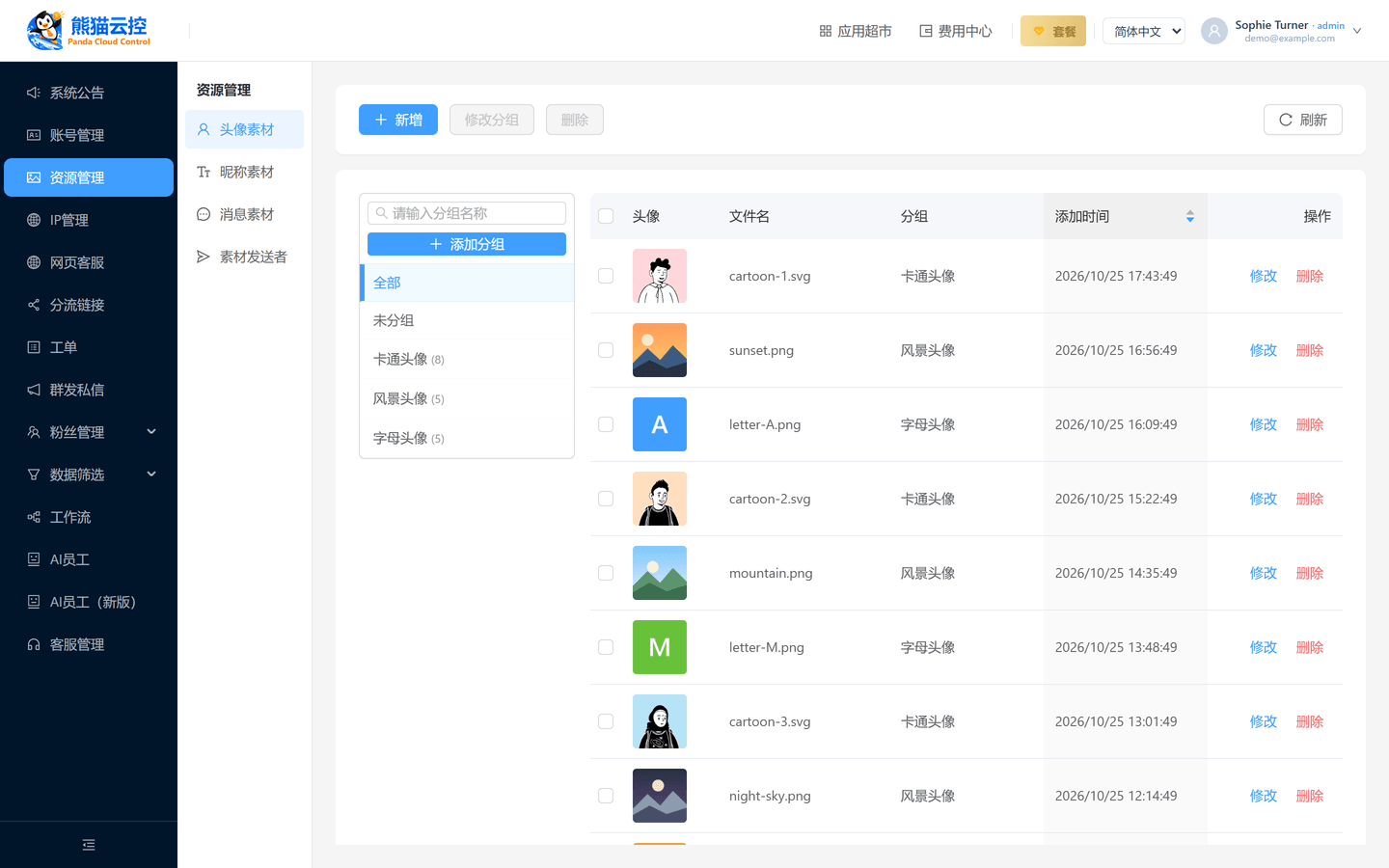
Note: Deleting only removes the record in the asset library; avatars already applied to accounts are not affected.
3. How do I add nickname assets?
① On the Nickname Assets tab, click Add, enter a nickname, choose a group, and click Save.
② To add many at once, click Bulk add nicknames and paste them in, one per line; nicknames already in the group are skipped automatically.
③ You can search by nickname and edit or delete in the Actions column.
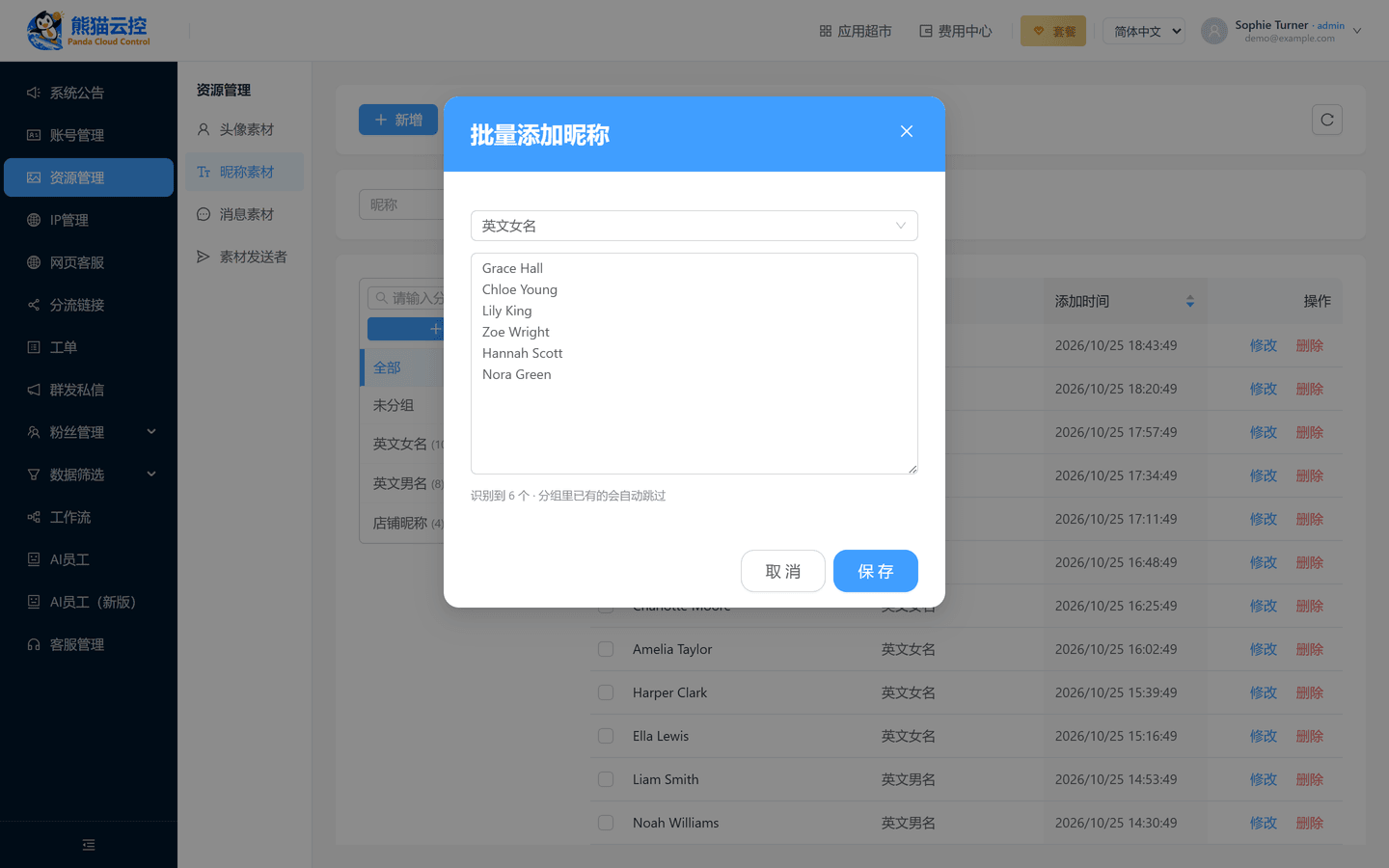
When bulk-editing avatars and names under Account Management > Telegram, choosing Pick from an avatar group or Pick from a name group uses the assets here; see Bulk-editing account profiles.
4. How do I add message assets?
① At the top of the Message Assets tab, choose an asset type: Image, Text, Video, Voice, File, or Link.
② Click the Add card, fill in the Asset name and the content: for text and links, type the content; for images, videos, voice, and files, click Choose file to upload, and optionally add a caption. Choose a group, then click Save.
③ Each asset card has a switch at the bottom, next to the asset name; turning it off disables the asset so it is not drawn when broadcasting. You can also edit or delete the asset at the bottom of the card.
④ You can filter by Asset name and Enabled and click Search.
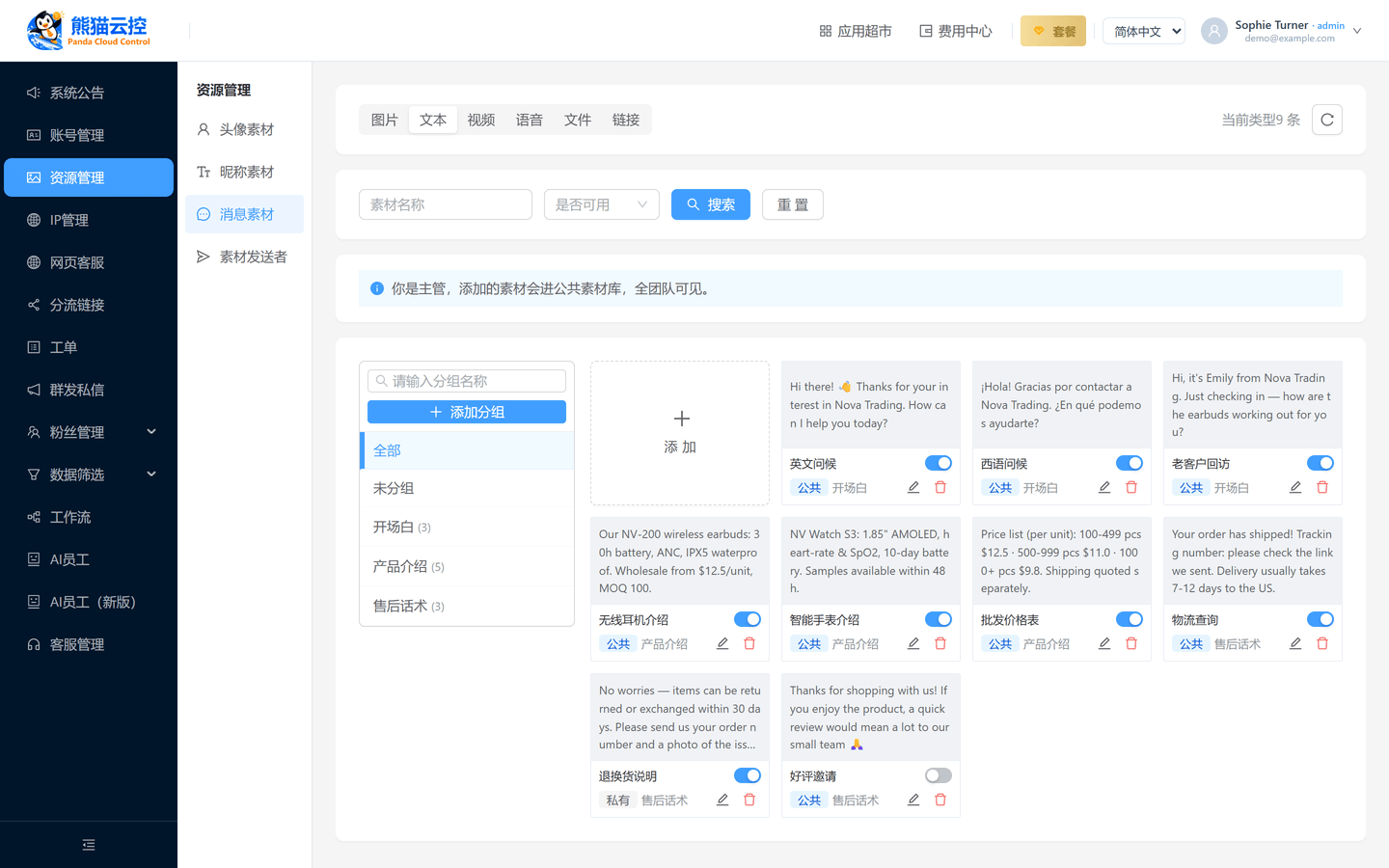
Note: Assets added by the main account and admins go into the shared asset library, visible to the whole team and marked Public on the card; those a regular agent adds are visible only to that agent and marked Private.
5. How do I use message assets in a broadcast?
① Create a broadcast task, and in step 2 set the ad-copy source to Randomly pick from an ad-copy resource group.
② Choose a group under Ad-copy resource group; below it shows how many enabled assets of the matching type the group has.
③ When sending, each target gets one random item from this group.
Note: Only enabled assets matching the Ad type are drawn. For example, with an ad type of Image + text, only images that have a caption are drawn; stickers cannot be picked from assets and must be uploaded manually.
6. What are asset senders?
Asset Senders is a list of numbers, kept to record which numbers use this set of assets. Click Add to fill in the Sender number and a note; you can also search, edit, and delete.
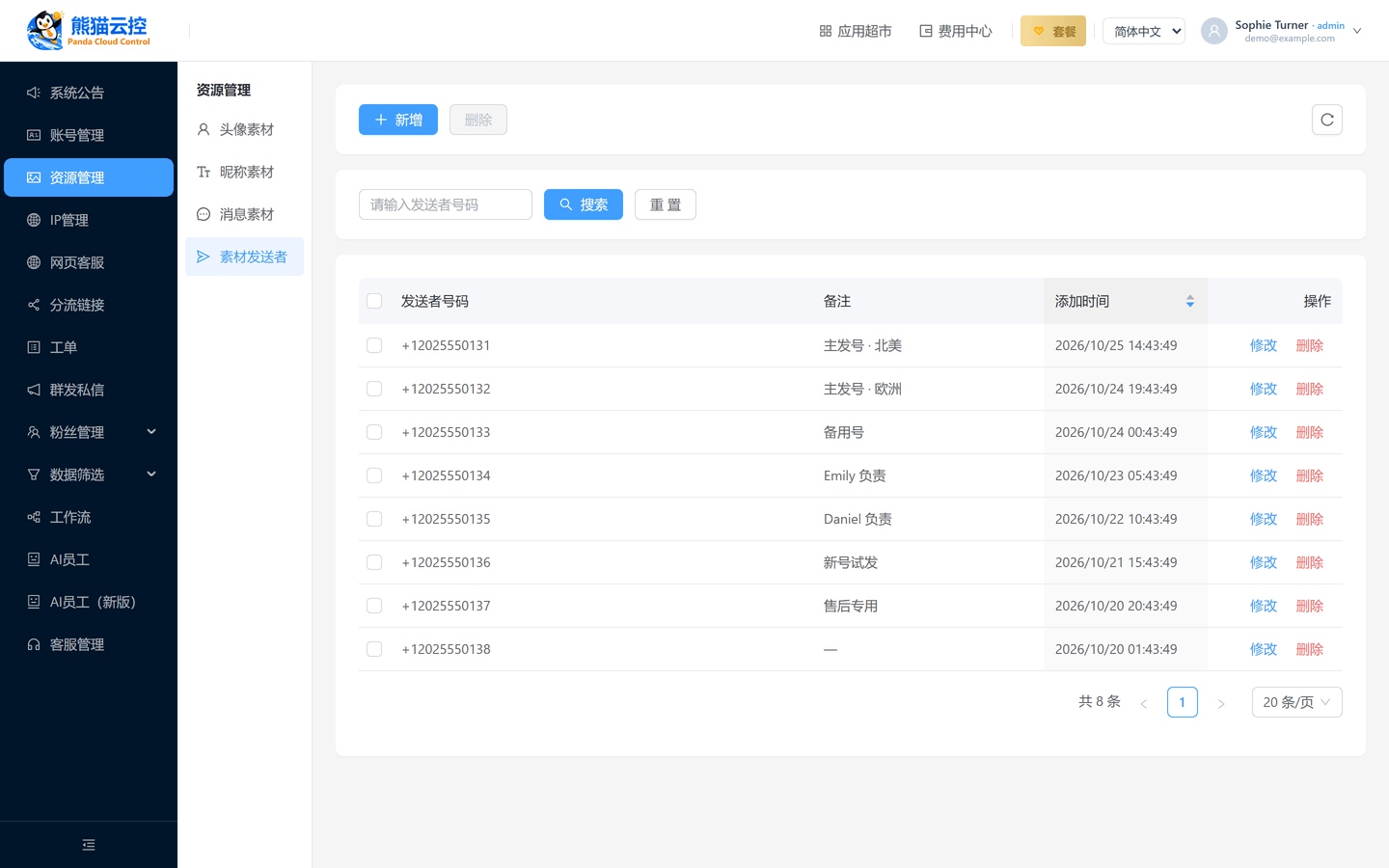
Note: Asset senders are only a record for now and do not affect broadcasting or other features.
FAQ
1. I chose an asset group in a broadcast but it says there are no usable assets. What do I do?
Check whether the group has assets of the same type as the Ad type, and whether those assets are enabled. After adding or enabling them, click the refresh button next to the group dropdown.
2. Can I open message assets straight from the broadcast page?
Yes. On the Bulk Messaging page, click More Resources > Message Assets, or click Manage next to the group selector in step 2 of task creation.
Thanks for the feedback!
Still stuck? Reach us directly: Telegram @scrmqiye001 or email [email protected]
Last updated: