
How do I connect a VK community?
1. Overview
Panda Cloud Control can connect a VK (VKontakte) community that you manage. Once connected, the messages users send to the community's direct messages arrive in the Agent Workspace, and agents reply as the community.
Connecting needs just one thing: a community access key created in the VK community backend. Each community is one account in Panda Cloud Control and uses one device slot.
Note: A community can only reply to users who have messaged it, or who allow the community to message them.
2. Steps
1. How do I create a community access key?
The steps below are done on the VK website; go by the menu names in the VK backend.
① Log in to VK with a community administrator account and open the community you want to connect.
② Go to Manage > API usage > Access keys, and click Create key.
③ Tick the four permissions Community management, Community messages, Photos, and Docs, and confirm creation.
④ Copy the key once it's created (the new format usually starts with vk1.a.).
Caution: A community access key is effectively the community's login credential. Paste it only into the input box in Panda Cloud Control, and don't send it to anyone.
2. Connecting from the admin console
① Log in to the admin console, click Account Management in the left-hand menu, and choose VK in the sub-navigation.
② Click Add Account to open the Connect a VK community dialog.
③ Paste the key into Community access key. To assign it straight to an agent, choose the Assign agent and group.
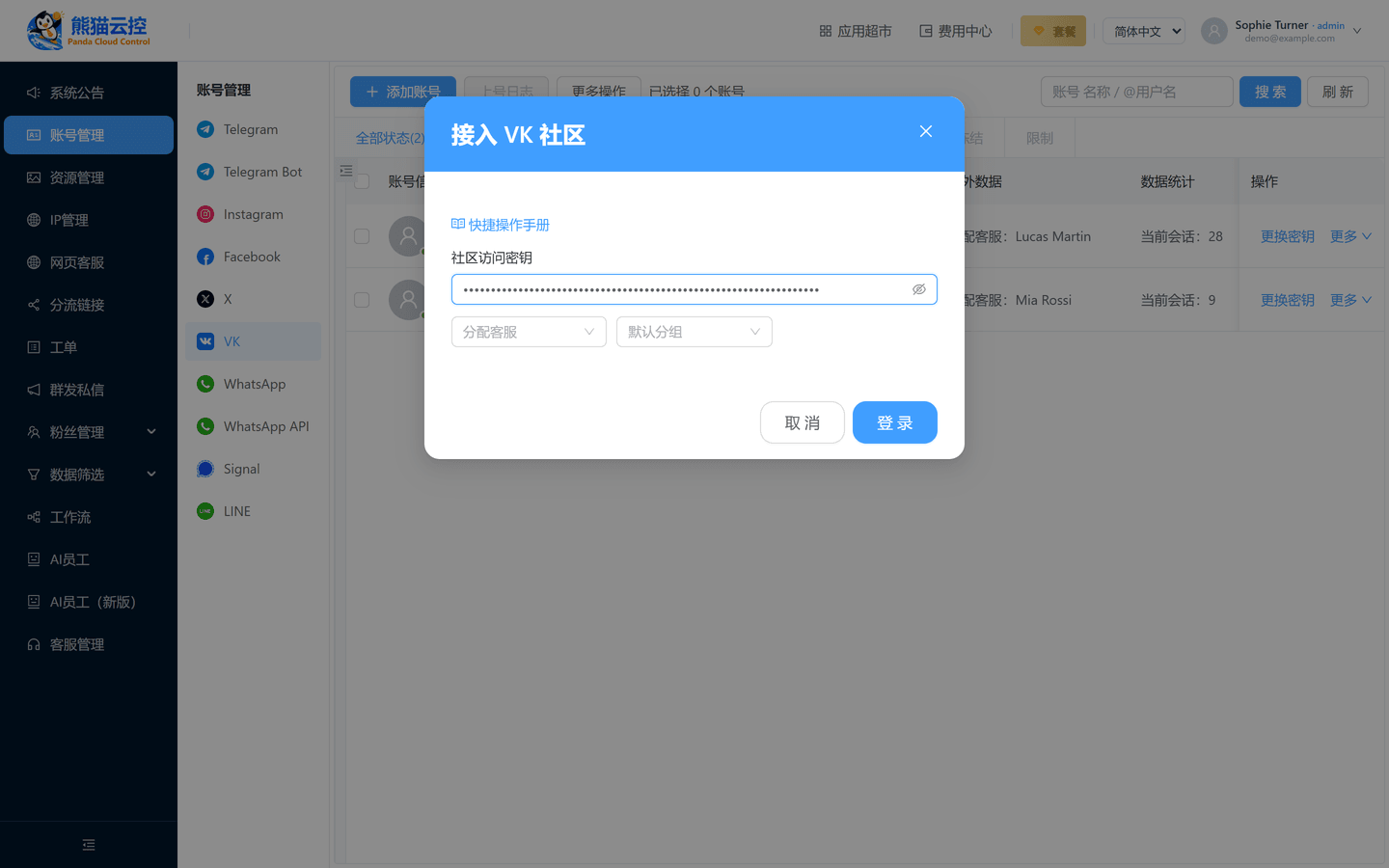
④ Click Log in. When it shows "Connected the community 'community name'," the connection succeeded.
Note: If the community's Long Poll (message push) isn't turned on, the system turns it on for you — no manual setup needed.
3. Connecting from the Agent Workspace
① Log in to the Agent Workspace, click Add Account at the bottom of the account panel on the left, and choose VK community from the list on the right.
② Paste the key into Community access key and click Log in.
③ Once connected, the community appears in the account panel. A community an agent connects themselves is automatically assigned to them.
4. How do I replace the access key?
After the key is deleted or regenerated, the community can no longer send or receive messages. Create a new key in the VK community backend, then click Replace key for this community in the Account Management > VK list, paste the new key, and click Log in; when it shows "Access key replaced," you're done.
FAQ
1. It says "The access key is missing a permission"?
Not all permissions were ticked when the key was created. Create the key again and tick all four: Community management, Community messages, Photos, and Docs.
2. It says "The access key is invalid"?
The key may have been deleted or regenerated. Copy the latest key under the community's Manage > API usage > Access keys.
3. It says "This isn't a community access key"?
You may have pasted a personal account key. Create a community access key under the community's Manage > API usage.
4. It says "The access key format is wrong"?
Copy the whole string from the community's Manage > API usage > Access keys, with no spaces or line breaks.
Thanks for the feedback!
Still stuck? Reach us directly: Telegram @scrmqiye001 or email [email protected]
Last updated: