
Account status & detection
1. Overview
Panda Cloud Control checks each Telegram account's status on a schedule in the background, so you don't need to keep a page open the whole time. The results are shown in the status tabs of Account Management > Telegram, in the dot at the bottom-right of the avatar, and in the Frozen and Mutual marks at the end of the Account Info column.
Besides automatic detection, you can also run Check Frozen and Check Restrictions/Bans manually in bulk at any time.
2. Steps
1. What do the various account statuses mean?
| Status | Meaning | What to do |
|---|---|---|
| Online | Connected and not frozen | — |
| Offline | Connecting, briefly disconnected, or set to Take Offline | Reconnect with Bulk Actions > Log In |
| Login failed | The login credentials are not accepted by Telegram | Import again, or log in by phone number or QR code |
| Session kicked | The session has expired, or a login elsewhere pushed it out | Import again; do not use the same session file in several places at once |
| Logged out | The account has logged out | Import or log in again |
| Abnormal | An error that cannot be classified has occurred | Hover over the avatar dot to see the reason, or check the Action Log |
| Banned | The account has been banned or deactivated by Telegram | Contact your account provider for a replacement |
| Frozen | The account can still log in and receive messages but cannot send | See "How to handle a frozen account" below |
| Send messages (mutual) | Telegram does not allow this account to message strangers first | See "What is Send messages (mutual)" below |
| Unknown | Not yet detected, or the account is not logged in | Newly added accounts are all in this status; wait for the next round of detection, or run Log In on it once |
Note: under the Error tab you can further choose Login failed, Session kicked, Logged out, or Abnormal. Hover over the dot at the bottom-right of the avatar to see the specific reason or the time of the last detection.
2. How often does the system check?
- The connection status is checked automatically every few minutes, after which the status and Updated time refresh. Banned accounts are counted in the Banned today figure on the stat cards.
- The frozen status is checked roughly every 30 minutes.
- Status changes are recorded in the account's Action Log, see Login log & action log.
Note: after logging in or switching the IP, the status in the list only updates on the next round of detection; after a Take Offline, refreshing the list shows offline right away.
3. How do I view accounts by ban reason?
① Click the Banned status tab, and in the options that pop up choose a ban reason:
| Ban reason | Meaning |
|---|---|
| Banned on first login | The account was never online, and banned on the very first detection |
| Banned after restriction | It was restricted before the ban: restricted by Telegram while broadcasting, or it had been frozen |
| Banned after activity | It had successfully sent messages via broadcasting with this account before the ban |
| Banned with no activity | It had been online, but had no broadcast records before the ban |
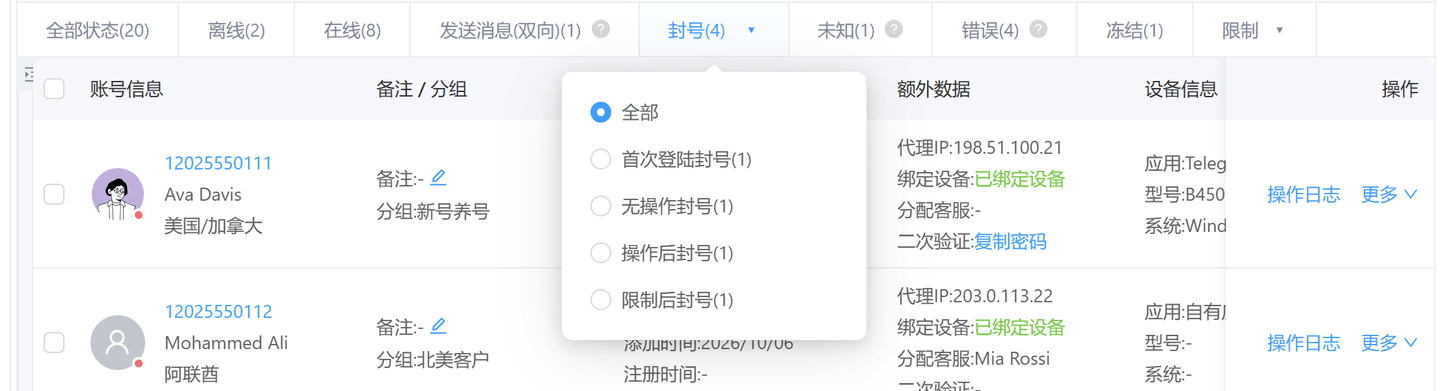
Note: "activity" in the ban reasons only counts broadcasting. An account banned after only chatting in the Agent Workspace falls under Banned with no activity.
4. How to handle a frozen account?
① A frozen account goes into the Frozen tab, with an extra Frozen line at the end of the Account Info column and a Frozen at time in the Time column.
② Hover over the avatar dot to see a message like "The account has been frozen by Telegram; if you do not appeal it will be deleted on …" and the appeal address. This date is Telegram's deletion deadline, so appeal before it if you want to.
③ Once the freeze is lifted, the account automatically returns to online.
5. What is Send messages (mutual)?
Accounts on the Send messages (mutual) tab are not allowed by Telegram to message strangers first (such messages are rejected by Telegram). These accounts can still reply to messages the other person sent first, and can message mutual contacts.
The system marks these accounts automatically based on Telegram's actual replies over the last 3 days; an account that later successfully sends a message to a stranger is moved out of this tab automatically. Frozen accounts do not appear here; they are on the Frozen tab.
6. How do I manually check for freezes?
① Tick the accounts, click Bulk Actions > Check Frozen, and choose the scope.
② The dialog shows "Detection result: X frozen, Y failed, N total", and lists for each account whether it is frozen, its deletion deadline, and the appeal address.
Note: "no freeze detected" does not mean the account has no other restrictions. To check sending restrictions, use Check Restrictions/Bans.
7. How do I manually check restrictions and bans?
① Tick the accounts, click Bulk Actions > Check Restrictions/Bans, and choose the scope. The system asks Telegram's official @SpamBot one account at a time using the account itself, which is rather slow.
② Check each account's result in the progress dialog, with @SpamBot's own words attached:
| Result | Meaning |
|---|---|
| Normal, no restrictions | The account has no restrictions |
| Frozen — can receive, cannot send | The account is frozen, and the system marks it as frozen |
| Restricted — can appeal | The account is restricted and can appeal following @SpamBot's instructions |
| Status unknown | The result could not be determined |
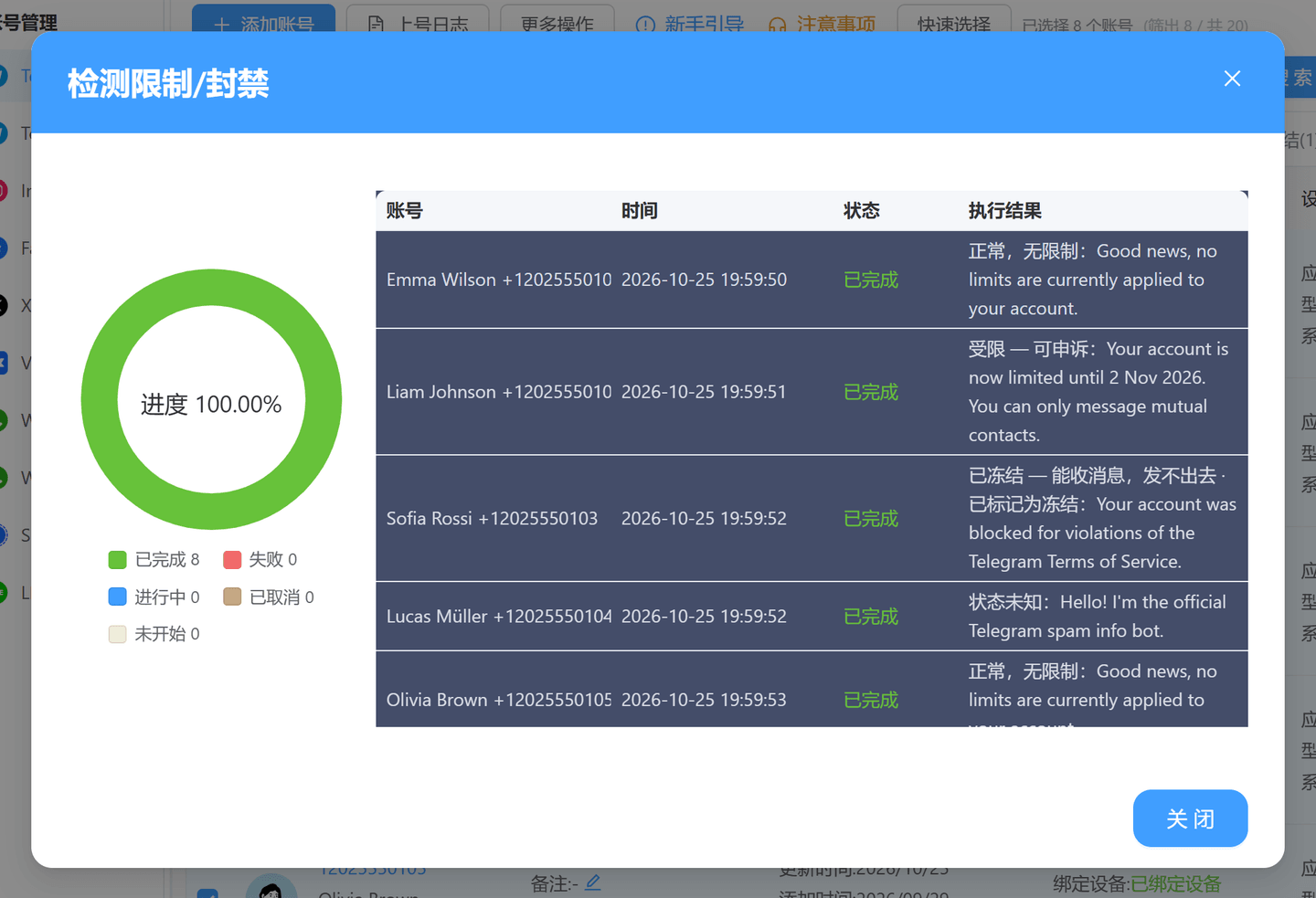
Note: the detection results are saved, and once it finishes the list refreshes automatically, with the counts on tabs such as Frozen updating accordingly.
FAQ
1. What is the difference between frozen and banned?
A frozen account can still log in and receive messages but cannot send; a banned account can no longer log in. A frozen account can appeal to Telegram following the instructions, while a banned account usually can only be replaced.
2. What do I do if an account keeps showing "Unknown"?
First click Refresh and wait for the next round of automatic detection. If it is still unknown, run Bulk Actions > Log In on these accounts once. For more ways to handle this, see Handling offline, frozen & banned accounts.
Thanks for the feedback!
Still stuck? Reach us directly: Telegram @scrmqiye001 or email [email protected]
Last updated: