
Telegram account management
1. Overview
Account Management > Telegram is where you manage Telegram accounts in one place. Here you can add and log in accounts, group them, assign exit IPs, bulk-edit profiles, check online and banned status, and assign accounts to agents.
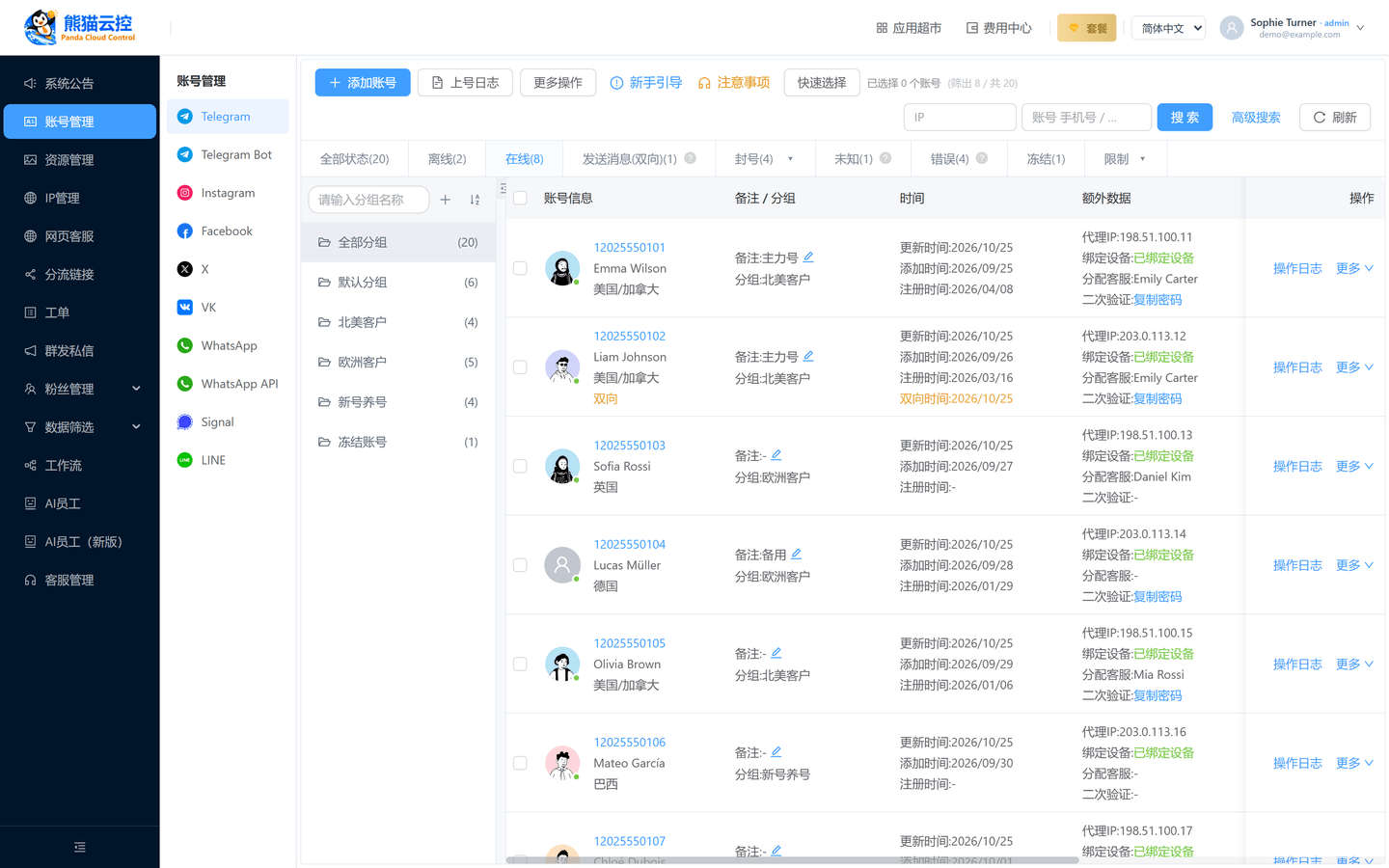
The page has four parts: the top toolbar, the status tabs, the group panel on the left, and the account table. When you open the page it stays on the Online tab by default and shows only online accounts.
Note: only the owner and administrators who have the Account Management (channel accounts, work orders) permission ticked can see this page; ordinary agents cannot.
2. Steps
1. What does the top toolbar do?
① After logging in to the back office, click Account Management > Telegram in the left menu. The top-left of the page has these buttons in order:
| Button | Description |
|---|---|
| Add Account | Log in or import a new Telegram account |
| Login Log | View the records of every file-upload import |
| Bulk Actions | Open the bulk-operations panel, split into the Account Status, Account Profile, and Account Settings sections |
| Getting Started, Precautions | Short usage notes |
| Quick Select | Tick in one click within the current filter results: Select all N current, Select online, Select offline, Select banned, Select unassigned to agents, Invert selection, Clear selection |
② The top-right of the page has the common searches: the IP and Account phone / username boxes, plus the Search, Advanced Search, and Refresh buttons.
For the specific ways to add an account (QR code, phone number, bulk import, etc.), see How do I add a Telegram account?.
2. How do I view accounts by status?
① Above the table are the status tabs: All statuses, Offline, Online, Send messages (mutual), Banned, Unknown, Error, Frozen, with the account count for that status in parentheses.
② Click a tab, and the table shows only accounts in that status. Banned can be further filtered by ban reason, and Error can be further set to Login failed, Session kicked, Logged out, or Abnormal.
Note: the page stays on the Online tab by default. Newly added, offline, or frozen accounts can only be seen by switching to the matching tab. For what each status means, see Account status & detection.
3. How do I view accounts by group?
① On the left of the table is the group panel, including All Groups, Default Group (accounts not in any group), and the groups you have created yourself, with the account count after each name.
② Click a group, and the table shows only that group's accounts, together with the status tabs. For example, click the Online tab first and then a group to see the online accounts in that group.
③ The vertical bar between the group panel and the table has a collapse button; collapsing it lets the table show wider.
To create, rename, and delete groups, see Account groups.
4. What do the table columns mean?
| Column | Content |
|---|---|
| Account Info | Avatar, phone number, name, country. The dot at the bottom-right of the avatar shows the status; hover over the dot to see the details; click the avatar to change just this account's avatar; click the phone number to open this account's chat page in the Agent Workspace in a new tab. A frozen account has an extra Frozen line at the end, and an account restricted from messaging strangers has an extra Mutual line |
| Note / Group | Note can be edited by clicking it in the cell; Group is the group the account is in, showing Default Group when it has none |
| Time | Updated (the time of the latest automatic detection), Added, Registered (from the account provider's file at import time); a frozen account also shows Frozen at, and a mutual account shows Mutual at |
| Extra Data | Proxy IP (the exit IP), Bound Device, Assigned Agent, Two-Step Verification (for accounts imported with a two-step verification password, you can click Copy Password) |
| Device Info | The App, Model, and OS the account reported when logging in to Telegram |
| Stats | The number of Current Friends; hover to see the contacts count and reply count |
| Tags | Account tags |
| Actions | Action Log and More; More contains Assign Agent, Move to Group, and Delete |
Note: the table does not refresh automatically. When an account's status changes, click Refresh at the top-right. Ticked accounts stay ticked after paging or switching filters.
5. How do I use advanced search?
① Click Advanced Search at the top-right, and the page expands the stat cards and the full set of filters.
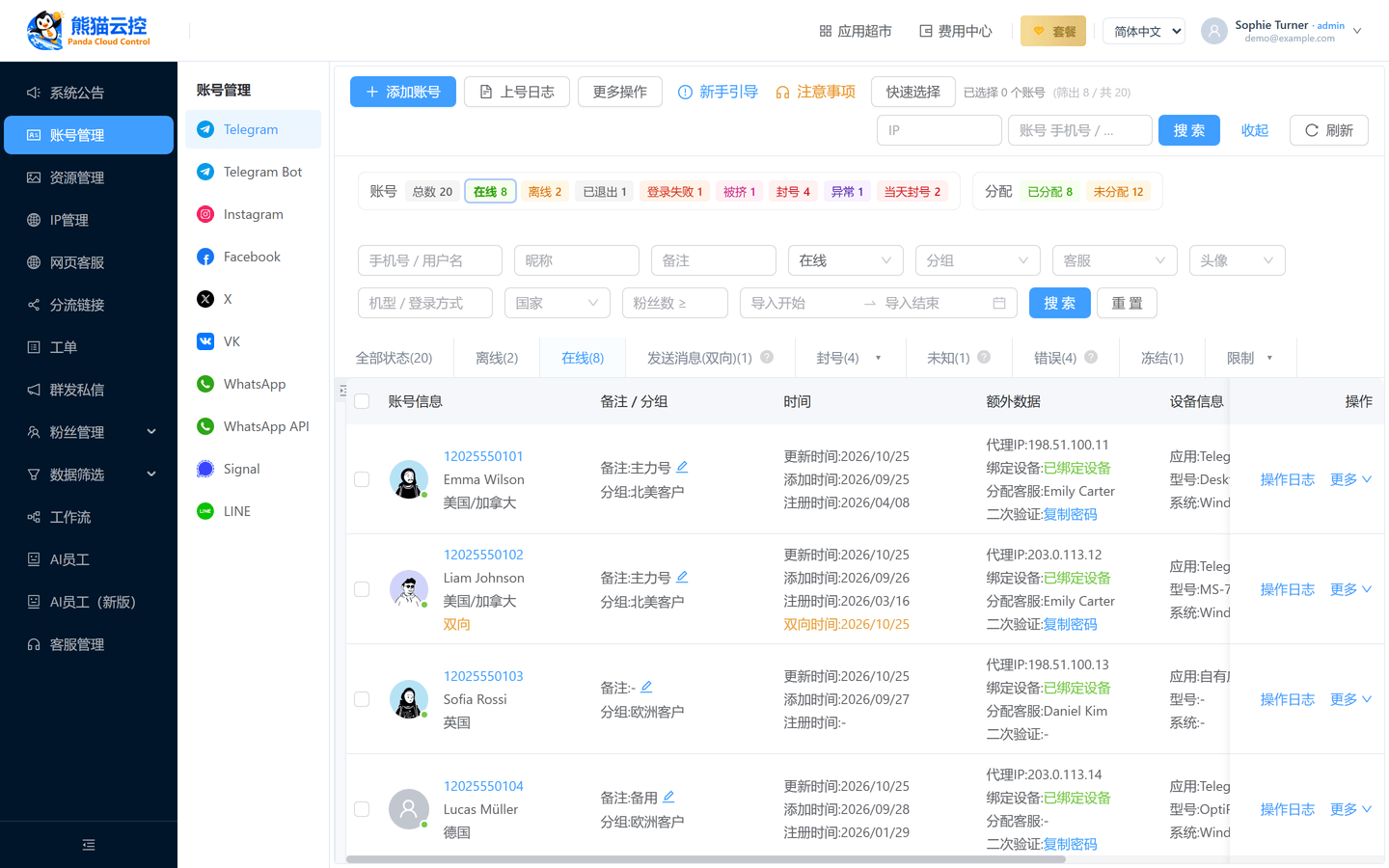
② The stat cards show the totals for all, online, offline, login failed, session kicked, banned, abnormal, and banned today, as well as the assigned and unassigned counts. Click a number, and the table shows only that category; click again to cancel.
③ The filters include: phone number / username, nickname, note, status, group, agent, avatar (has / none), device model / login method, country, contacts count, and import date range. Click Search to apply.
④ Click Reset to clear the filters and return to the default Online tab.
6. What is the common flow for bulk operations?
All bulk operations under Bulk Actions follow the same steps:
① Tick the accounts you want to act on in the table (you can also leave them unticked).
② Click Bulk Actions and click the operation you want in the panel.
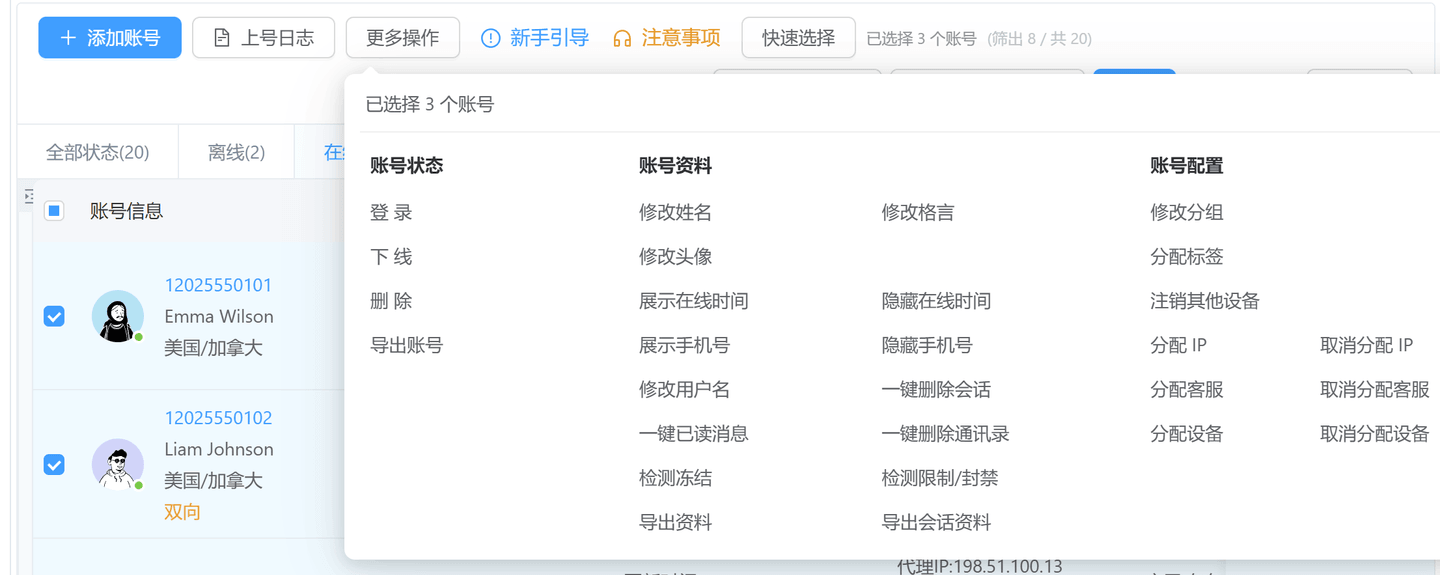
③ In the Select the data to act on dialog that pops up, choose the scope: The N selected or All N.
④ Fill in the parameters according to the operation and confirm.
⑤ Watch the progress: a ring on the left, and one Result per account on the right. While it is running, you can only click Stop (stops after the current account finishes).
Caution: All N means all accounts, regardless of the current tab, group, and search conditions. For example, choosing All while on the Online tab also processes offline, banned, and frozen accounts. Before running an irreversible operation such as delete, be sure to check the number in the dialog.
FAQ
1. Why can't I find a newly added account in the list?
The page shows only the accounts on the Online tab by default. A newly added account that has not finished detection is in the Unknown status, so switch to the All statuses or Unknown tab to view it, or click Refresh.
2. An administrator opens this page and sees a loading failure. What should I do?
Besides the Account Management (channel accounts, work orders) permission, an administrator also needs the Account groups permission, otherwise the account list fails to load. In addition, assigning IPs and choosing an IP at login needs the IP Management permission, and picking from media when changing avatars and names needs the Resources permission. Please ask the owner to add them under Agent Management, see Adding agents & setting permissions.
Thanks for the feedback!
Still stuck? Reach us directly: Telegram @scrmqiye001 or email [email protected]
Last updated: