
Handling offline, frozen & banned accounts
1. Overview
When an account drops, is kicked offline, is frozen, or is banned, the account list under Account Management > Telegram sorts it into a different status tab. This article explains what each status means and what to do.
2. Where to look first
① After logging in to the admin console, click Account Management in the left menu > Telegram and look at the status tabs above the list: All statuses, Offline, Online, Send Messages (Mutual), Banned, Unknown, Error, Frozen.
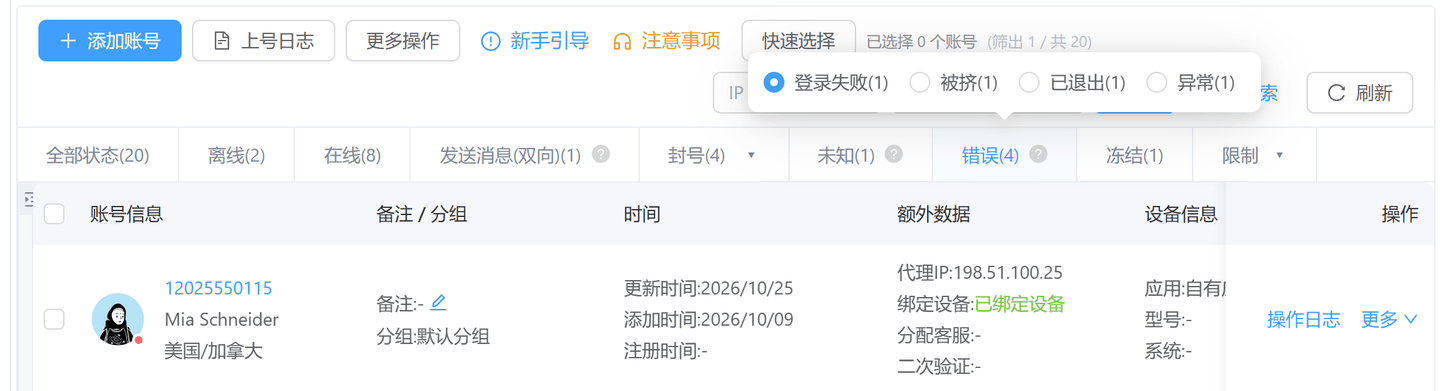
② Hover over the status dot at the bottom-right of an account's avatar to see the specific reason and the time it was checked.
③ Click Activity Log on the account's row to see when the status changed.
Note: Online status is checked automatically every few minutes, and freezes every 30 minutes. For an account you've just acted on, wait for the next check before clicking Refresh; you can also select accounts and use More Actions > Detect Frozen / Detect Restrictions/Bans to check manually.
3. How to handle each status
| Status | Meaning | Fix |
|---|---|---|
| Offline | The account isn't currently connected | Select the account > More Actions > Log In to reconnect; if it won't connect, the exit proxy is most likely down — see "What if it won't reconnect?" below |
| Kicked (under Error) | This account was logged in elsewhere, which displaced the current session | Don't use the same session file in more than one place at once; re-import it, or log in again by phone number |
| Login failed (under Error) | The login credentials are no longer valid | Re-import, or log in again by phone or QR code |
| Logged out (under Error) | The account has logged out | Re-import or log in again |
| Frozen | Frozen by Telegram: it can receive messages but can't send | Hover over the status to see the freeze time and appeal info, and appeal before the deadline if needed; don't use a frozen account for broadcasting |
| Banned | The account is banned by Telegram and can no longer log in | Contact your account vendor for a replacement; the Banned dropdown lets you view the ban reason by first login, no activity, after activity, or after restriction |
| Send Messages (Mutual) | The account is online, but Telegram won't let it message strangers unprompted | It can reply to messages the other side sent first, and message mutual contacts; don't use it for broadcasting for now, and lower the send rate |
| Unknown | Not checked yet, or the account isn't logged in | Newly added accounts are like this; wait for the next check; if it stays Unknown, run Log In on it |
Caution: If a frozen account isn't appealed, Telegram deletes it after the deadline. In the Agent Workspace, a frozen account's conversation also shows the deletion date at the top.
FAQ
1. What if it won't reconnect?
Most likely this account's exit proxy is down. In the account rail on the left of the Agent Workspace, right-click the account and click Change Proxy: when the system confirms the proxy really is down, it switches to a new one automatically. You can also switch one manually in the admin console via More Actions > Assign IP; see Assigning an exit IP to an account.
2. I can't see a just-imported account in the list?
The account list stays on the Online tab by default, and a just-imported account that hasn't finished being checked is in the Unknown status. Switch to the All statuses or Unknown tab to see it; once the check is done, it moves into Online.
3. Where did my "import-only" accounts go?
Import-only accounts don't appear in the account list. Open Login Log above the account list and, in the batch details, click to log in; the account appears in the list only after it logs in successfully.
4. The Agent Workspace says "This account is offline; messages can't be sent"?
The account this conversation belongs to has dropped. In the workspace account rail, right-click the account and click Log In Again; if it still won't connect, right-click and choose Change Proxy.
5. Why can't I import the same account from a file again?
An account you've already imported, or that's already in the account list, shows Already exists and is skipped when you import by file again.
6. Does deleting an account free up the device?
Yes. Delete frees up the device slot; a Take Offline account keeps its login session and still occupies the device.
For more, see Account status and detection and Login log and activity log.
Thanks for the feedback!
Still stuck? Reach us directly: Telegram @scrmqiye001 or email [email protected]
Last updated: