
Conversation list & searching chats
1. Overview
The conversation list sits to the right of the account bar and shows the private chats in the current scope: pinned conversations come first, and the rest are ordered by the time of their last message.
In the conversation list you can search conversations, filter by unread or archived, and right-click a conversation to pin, mute, archive, or tag it; you can also search all chat history and click a result to jump straight to that message, so you can quickly find a customer and what you talked about.
2. How it works
1. Which conversations does the list show?
① The conversation list shows only one-to-one private chats and web visitor conversations.
② When you select an account or a web chat site in the account bar, only that account's or site's conversations are shown; when you select All, it shows every conversation in the agent rail's current scope (for the owner and admins, All means the whole team; for an agent, it means the accounts under their own name).
2. How do I search and filter conversations?
① Type a keyword in the Search conversations box at the top of the conversation list to search by conversation name (including the display name), the customer's original nickname, and the text of the last message.
② Click the filter buttons: All shows every conversation; Unread shows only conversations with unread messages, and the number after it is the conversation count; Archived appears only when there are archived conversations.
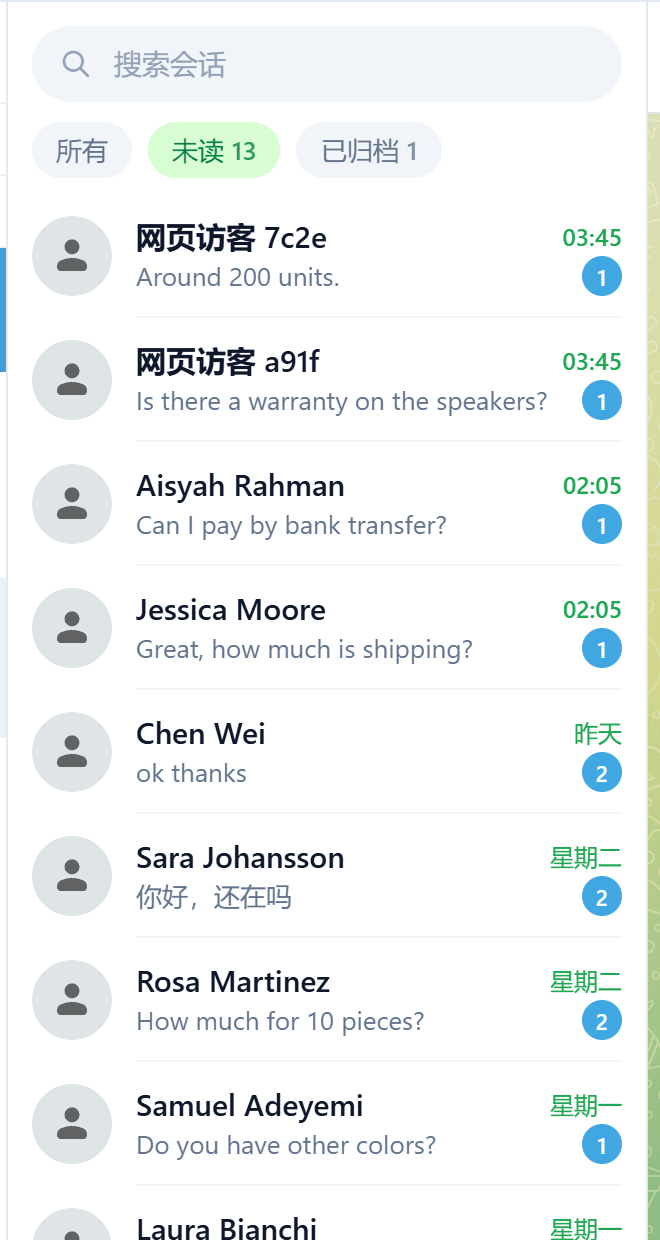
3. What does each row in the conversation list show?
| Element | Description |
|---|---|
| A red duplicate badge at the top-right of the avatar | The same customer has private chats on two or more of your team's accounts at once; see the profile card for which accounts |
| First line | The conversation name (bold when unread; the display name is shown if one is set), the mute icon, the check marks, and the time |
| Check marks | When the last message is one you sent: a single check means delivered, a double check means the other party has read it |
| Time | Today shows the time, yesterday shows "Yesterday", and within a week shows the day of the week |
| Second line | A preview of the last message; on the right is the unread count (gray for muted conversations), and a small dot for conversations manually marked unread |
| Third line | The Blocked mark and the conversation tags (up to 3 shown, with +N for more) |
Click a row to open the conversation; it's marked as read automatically once opened.
4. What's on the conversation right-click menu?
Right-click a conversation for the following actions:
| Action | Description |
|---|---|
| Archive chat / Unarchive | After archiving, the conversation moves into Archived |
| Mute notifications | Choose 8 hours, 1 week, or Always; an already-muted conversation shows Unmute |
| Pin chat / Unpin | Pinned conversations appear at the top of the list |
| Add a tag to the chat | Tag the conversation; see below |
| Mark as read / Mark as unread | Manually change the conversation's unread state |
| Add to Favorites | Adds a heart mark to the conversation row |
| Block / Unblock | Marks the conversation as Blocked and moves it into Archived; you can undo this at any time |
| Clear chat | Clears only what's shown on the Workspace side, without deleting messages; if the other party sends again, it shows up as normal |
| Delete chat | Removes the conversation from the list; it reappears if the other party sends again |
Note: Block is only a label inside the Workspace; it does not block the other party on Telegram. To block them on Telegram, use Block this user at the bottom of the profile card — see The customer profile card.
5. How do I tag a conversation?
① Right-click the conversation > click Add a tag to the chat.
② Click a preset tag — VIP, Complaint, Inquiry, Deal closed, or Follow up — or type one under Custom tag (up to 32 characters), pick a color, and click Add.
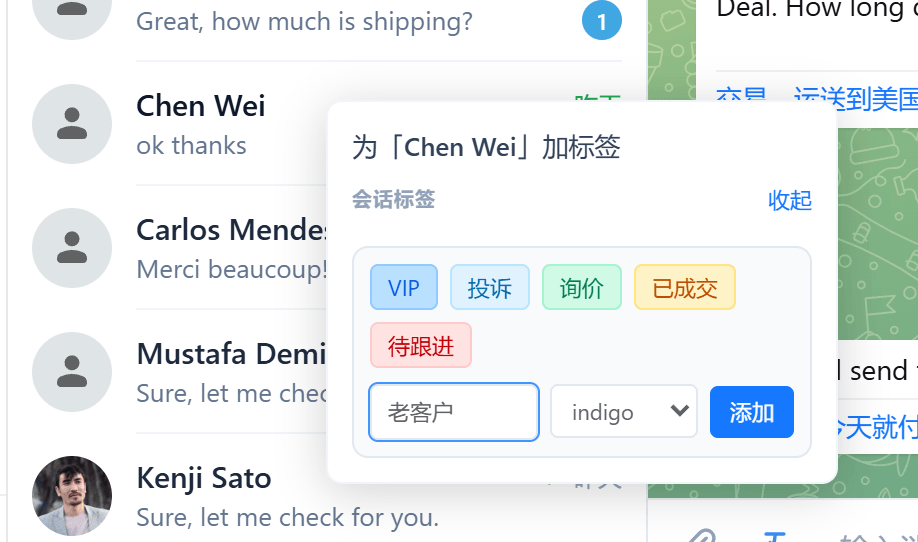
③ To remove a tag, click the × on it and confirm Remove.
Note: Conversation tags are shared among colleagues; the owner and admins can delete any tag, while everyone else can delete only the ones they added. These conversation tags and the tags under Contacts in the back office are two separate sets and don't affect each other.
6. How do I search chat history?
① Click the Search button in the chat window's top bar (the scope defaults to My chats, i.e. all conversations in the current list), or click the Search button on the profile card (the scope defaults to This chat).
② Type a keyword; the results show "N messages found" with the keyword highlighted.
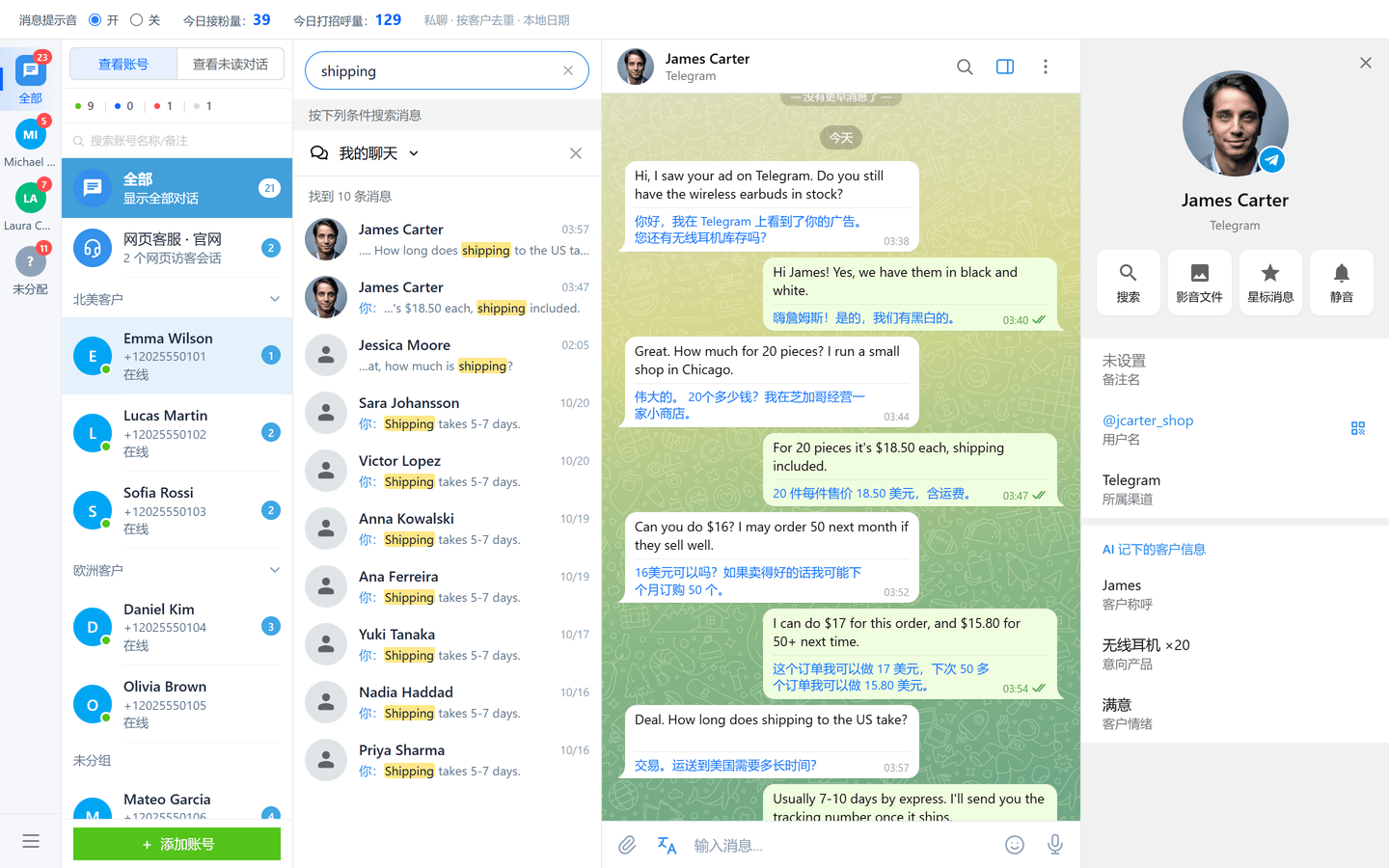
③ Click a result to jump to that message, where it's highlighted.
④ Press Esc or click Close search to exit search.
Note: For messages that have already loaded, any word fragment you type will find them; earlier messages that haven't loaded yet can only be matched by a whole word. If a Chinese search finds nothing, switch to This chat, click Load earlier messages, and search again.
FAQ
1. Do archiving, clearing, or deleting a chat delete the customer's messages?
No. These only change what's shown in the Workspace; they don't delete any of the customer's messages, and the customer isn't notified.
2. Do muted conversations still count as unread?
Yes. A muted conversation won't pop up an alert or play a sound, but its unread count is still included in the totals on the agent rail and the account bar, and in the conversation list its unread count is shown in gray.
Thanks for the feedback!
Still stuck? Reach us directly: Telegram @scrmqiye001 or email [email protected]
Last updated: