
Data screening: generating & screening numbers
1. Overview
The Data Screening menu has two tools, often used together:
| Tool | What it does | Cost | Where results go |
|---|---|---|---|
| Generate Phone Numbers | Generates phone numbers in bulk by country, area code, and prefix; the same number is never generated twice | Free | Download a TXT, or save straight into the broadcast number pool |
| Data Screening | Upload numbers, emails, or usernames and screen them by project (for example, whether they have a certain app, or whether they've been active recently) | Billed per record from your balance; the total is shown before you submit | Download a result file (Excel / TXT) |
A common workflow: use Generate Phone Numbers to generate and download a batch of numbers for your target country, then use Data Screening to screen them against the matching project, download the screening results, import them into the number pool or a contact library, and then create a broadcast task.
Note: A sub-account needs the Bulk Messaging permission (set in Agent Management) for Data Screening to appear in its left-hand menu. Only the main account can get a quote and place an order for Data Screening (because it draws from the balance); others can view prices and screening records.
2. How to use it
1. How do I generate phone numbers?
① After logging in to the back office, click Data Screening > Generate Phone Numbers in the left-hand menu.
② Fill in the following:
| Field | Notes |
|---|---|
| Select country | Once chosen, the country's common Number length and Custom prefix are pre-filled (for example, China: 11 digits, prefix 1); you can change them |
| State/Region, Area code | Only for the US and Canada: pick a state or province first, then an area code (all area codes in the region by default) |
| Number length | Digits excluding the country code, 1–15; fixed for the US and Canada |
| Custom prefix | A number-range prefix; digits only, and may be left blank |
| Quantity to generate | 1 to 1,000,000; next to it, how many this number range can generate at most and how many have already been generated |
| Generation method | Random (default) or Sequential |
③ Click Generate and download phone numbers to get a TXT file, one full number per line (with + and the country code).
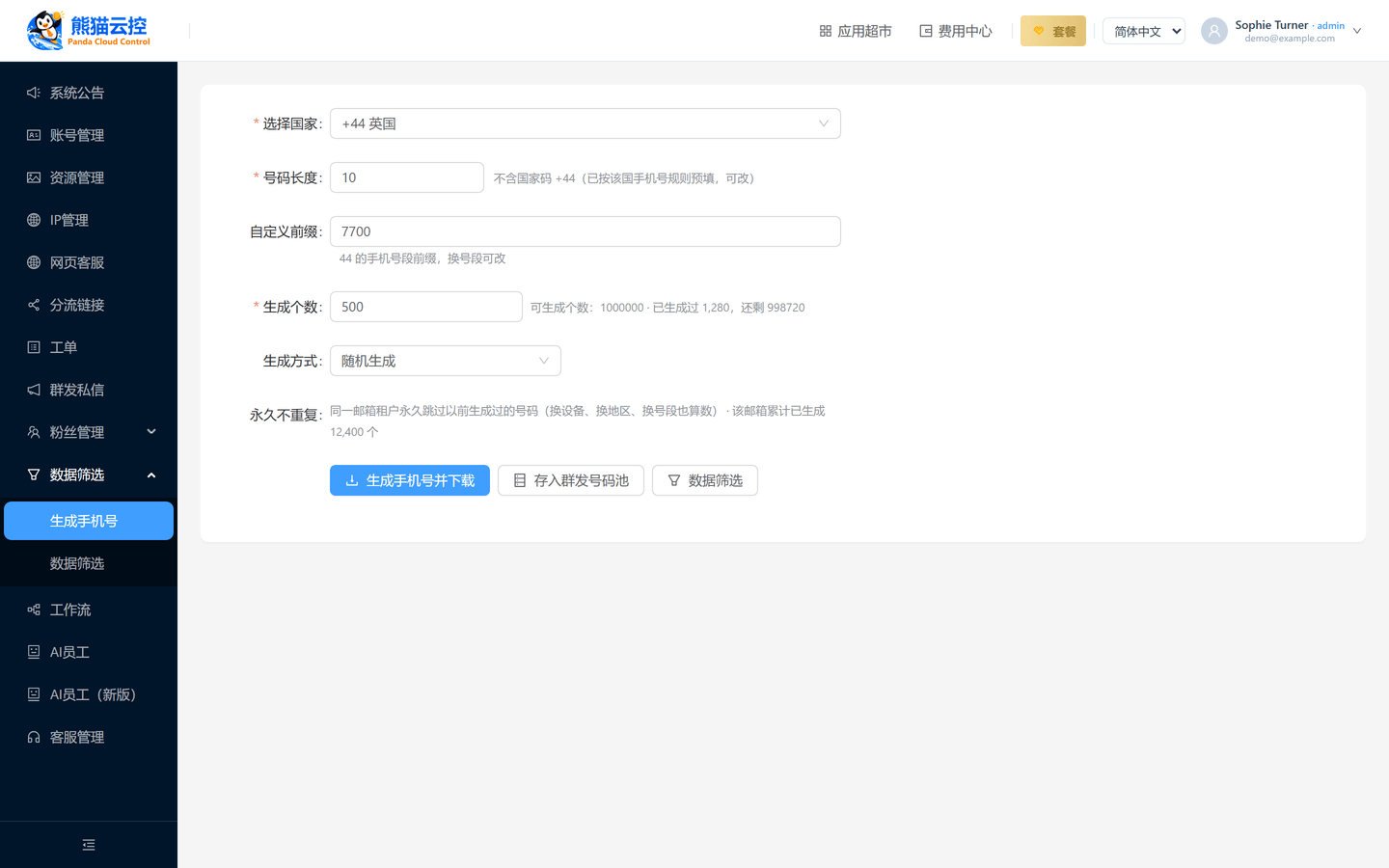
Note: Generating more than 100,000 at once prompts a confirmation first: the page will freeze for a few seconds during generation, so don't close it in the meantime.
2. How do I save generated numbers into the broadcast number pool?
① Choose the country, number range, and quantity as in the previous step.
② Click Save to the broadcast number pool, then click Save in the confirmation dialog.
③ The system creates a number pool named "Generated-Country-N," visible under Bulk Messaging > Number Pool and under Pick from the number pool when creating a task.
Note: Up to 200,000 can be saved at a time; save more in batches (downloading has no such limit).
Caution: Numbers a given main account has generated are recorded permanently and won't be generated again, even on another device or with another number range. When you click Save to the broadcast number pool, the numbers are already generated and recorded as used before the confirmation dialog appears; if you click Cancel at that point, this batch of numbers still won't appear again.
3. How do I view screening projects and prices?
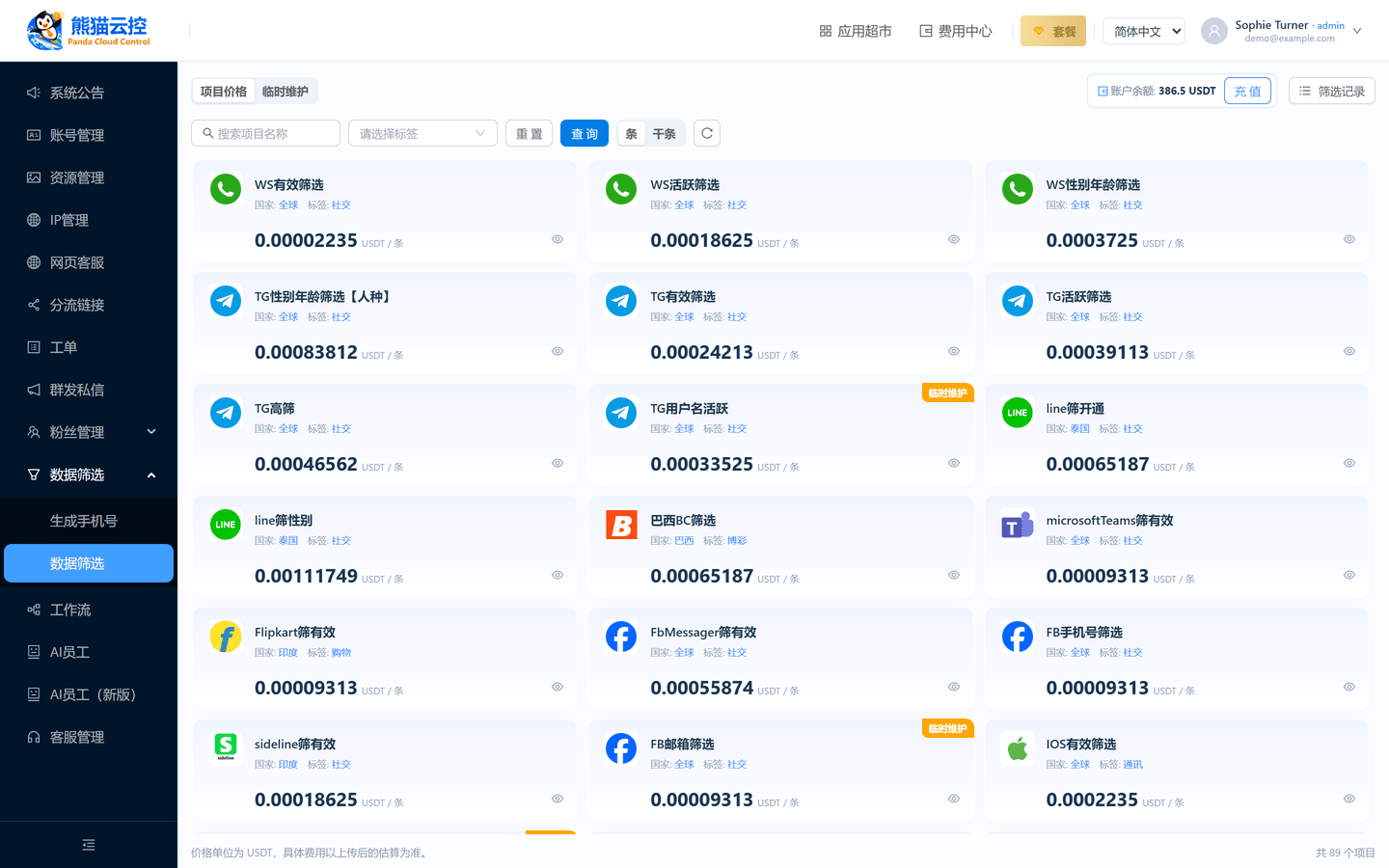
① Click Data Screening > Data Screening in the left-hand menu; you first see project cards: project name, country, tag, and reference unit price (USDT per record, switchable to "per thousand").
② You can search by project name and filter by tag; the Under maintenance tab shows only projects under maintenance, which can't be ordered for the time being.
③ The top-right (visible to the main account) shows Account balance and a Top Up button; click Screening records to view all screening tasks.
④ Click the eye icon in a card's top-right to view Project details: reference unit price, data type (phone numbers / email addresses / usernames), project status, and result format (TXT / Excel).
4. How do I submit a screening task?
① Click a project card to enter that project's task list, then click the add button with the project name in the top-left.
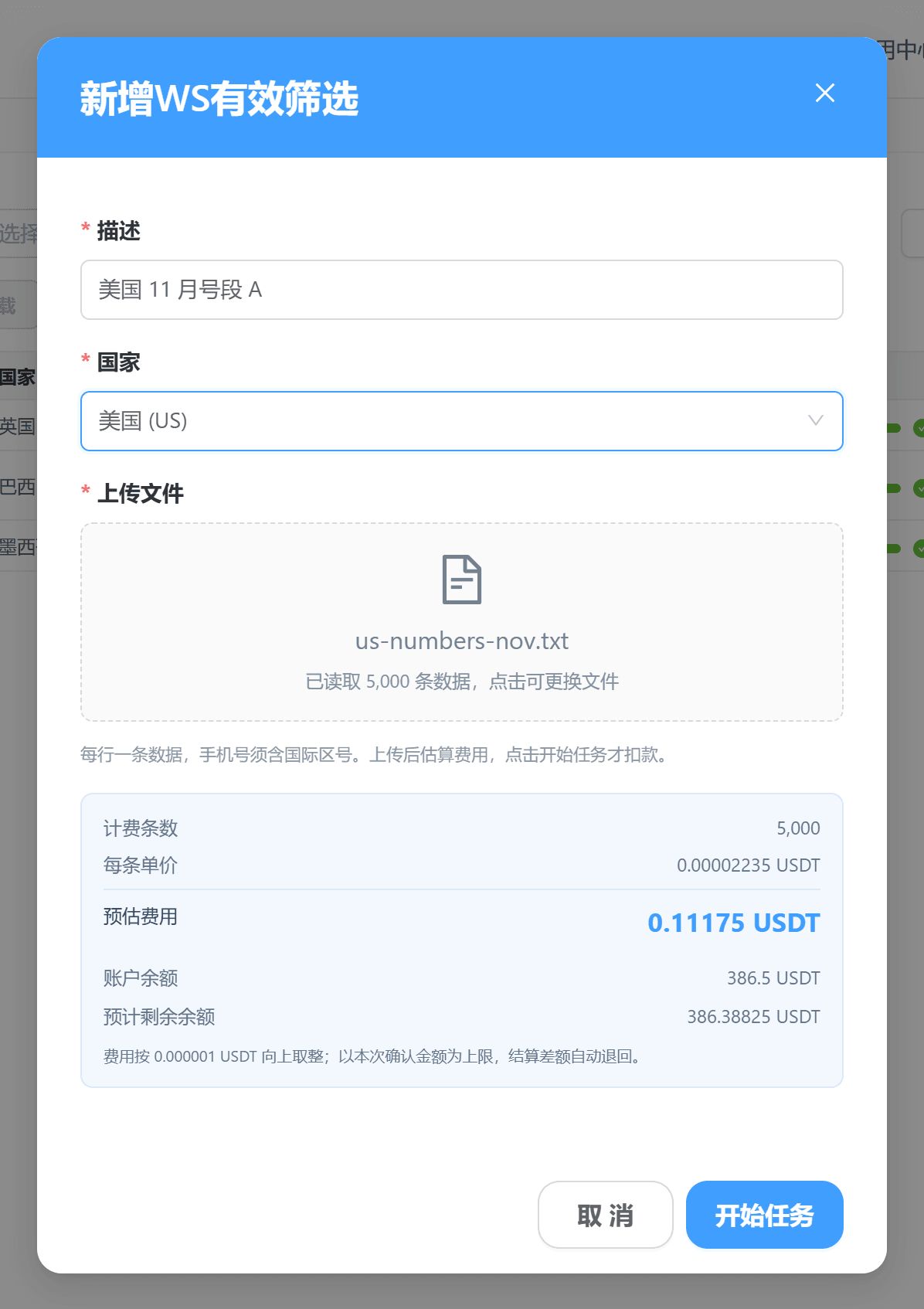
② Enter a Description (up to 120 characters) and choose a Country; for a country not in the list, choose Other country (enter country code) and then enter the two-letter country code and area code.
③ Upload a TXT file: UTF-8 encoded, up to 10 MB, up to 200,000 rows, one record per line; phone numbers must include the international dialing code.
④ Wait for the automatic estimate, and check Billable records, Unit price per record, Estimated cost, Account balance, and Estimated remaining balance.
⑤ If your balance is insufficient, click Top up now, then come back and re-upload after topping up.
⑥ Click Start task; the estimated cost is deducted from your balance.
5. How do I check progress and download results?
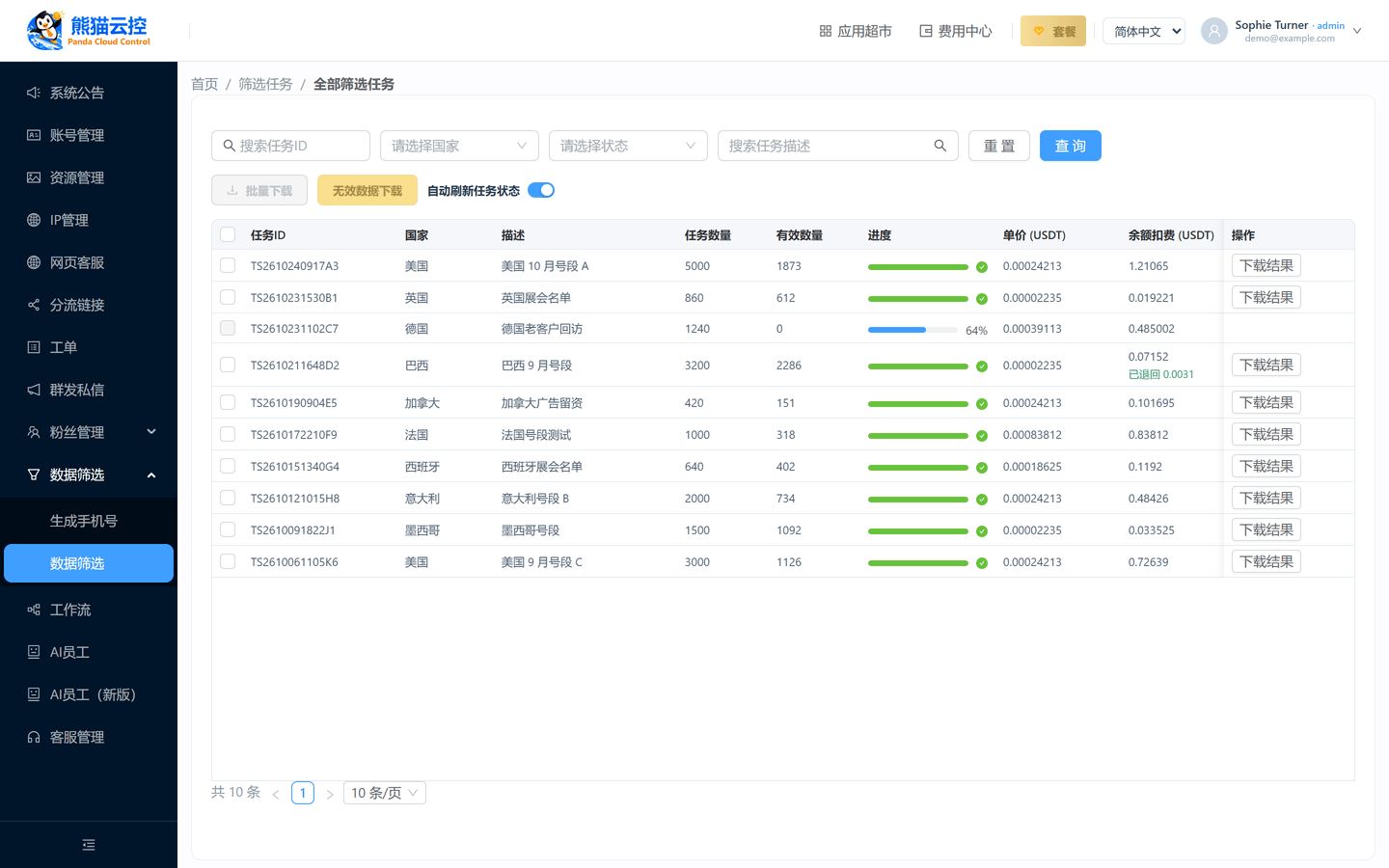
① In the task list, check Progress and Task status; turn on the Auto-refresh task status toggle to have the list update by itself.
② Once the status becomes Completed, click Download results, choose a file format (Excel or TXT; some projects also let you choose conditions such as days since last active, age, or gender), click Generate download link, and then click the link to download.
③ To download several tasks at once, select the completed tasks and click Bulk download.
Caution: Download links are valid for 30 days, so download and save your result files promptly.
| Task status | Meaning |
|---|---|
| Quote pending confirmation | Estimated but not yet paid; click Continue submitting in the list to confirm payment |
| Submitting / Queued / Screening | Paid and being processed |
| Completed | Results can be downloaded |
| Closed / Failed | Didn't complete; settled at the actual cost, with any overcharge refunded |
| Submitted, pending verification | Something went wrong at submission and the charge is held for now; don't reorder — contact support to resolve it |
FAQ
1. How is screening billed?
The card shows a reference unit price; the quote you get after uploading your file is what applies. Quotes expire and need to be re-estimated afterward. When you click Start task, the confirmed amount is charged; after the task completes, fails, or is closed, it's settled at the actual cost, with any overcharge refunded automatically, and the final charge never exceeds the confirmed amount. You can view charges and refunds under Buy Devices > Balance History.
2. Can screening results go straight into the number pool?
No. You download the screening results, then import them into the number pool or a contact library yourself. What can be saved directly into the number pool is Generate Phone Numbers.
3. Are screening results 100% accurate?
No. A person's privacy settings, query limits, and the like all affect the results, so treat them as a reference.
4. Do all generated numbers have Telegram?
Not necessarily. Generation only produces correctly formatted numbers; to screen them first, use Data Screening.
Thanks for the feedback!
Still stuck? Reach us directly: Telegram @scrmqiye001 or email [email protected]
Last updated: