
Top-ups & top-up records
1. Overview
Your Panda Cloud Control balance is topped up with USDT, currently only on the TRC-20 network. After placing an order, transfer the exact amount shown on the page; once it arrives on-chain, your balance updates automatically.
The balance sits with the main account and is shared by the whole team: buying devices, data screening, and AI employee usage are all deducted from it.
Note: Only the main account can see Top Up and Top-up Records. When a sub-account (including an admin) needs to top up, ask the main account to do it.
2. How to use it
1. How do I top up?
① After logging in to the back office, click Billing Center in the top-right, then click Top Up in the sub-nav. Clicking Go to top-up when your balance is low on the Buy Devices page also brings you here.
② Choose a top-up amount: 100 / 200 / 500 / 1000 / 2000 / 5000 / 10000 USDT, or enter one under Custom amount (at least 1).
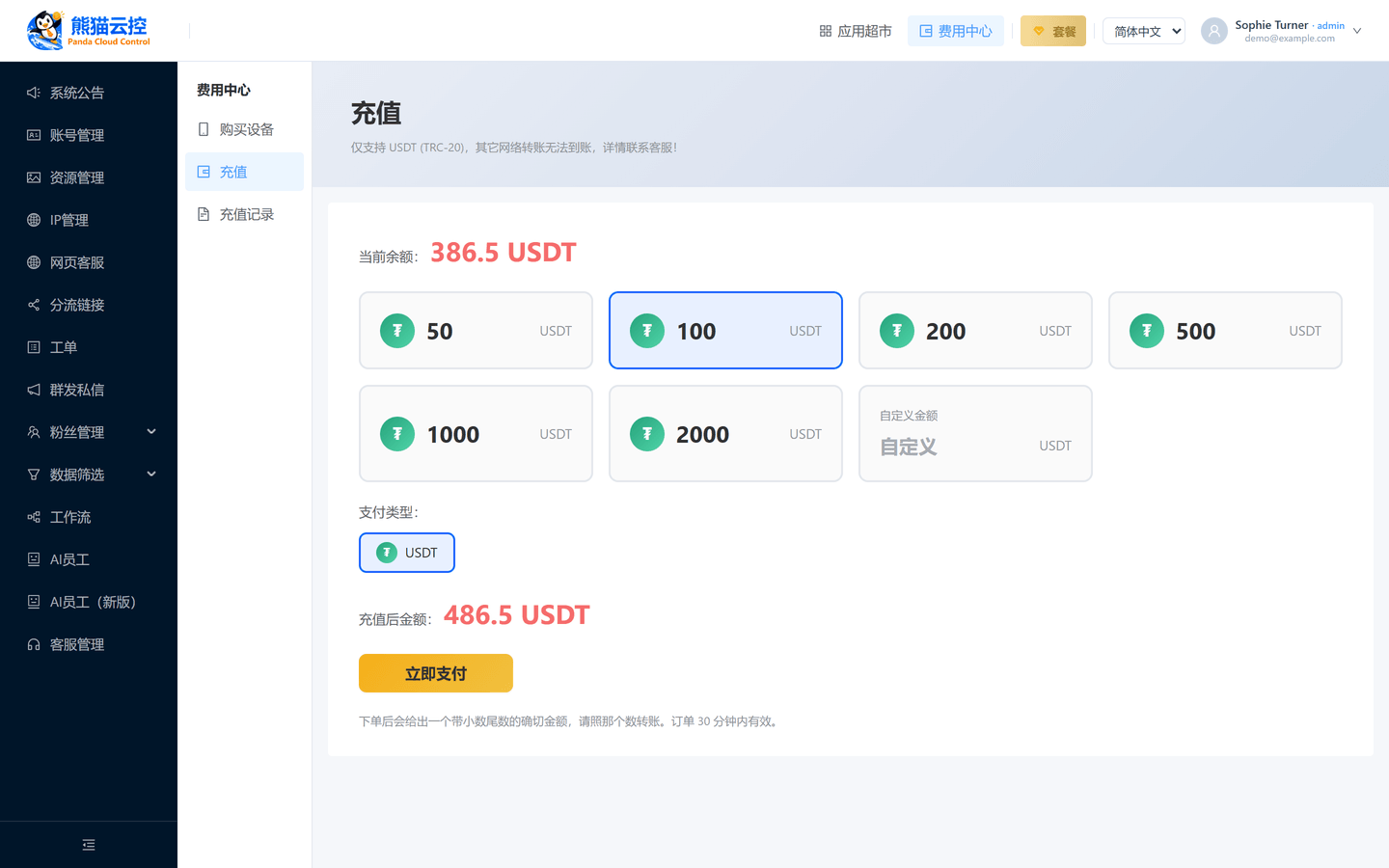
③ Check Balance after top-up and click Pay now. The system creates an order and opens USDT (TRC-20) transfer.
④ Open your wallet or exchange, select the TRC-20 network for USDT, and scan the QR code or click Copy address.
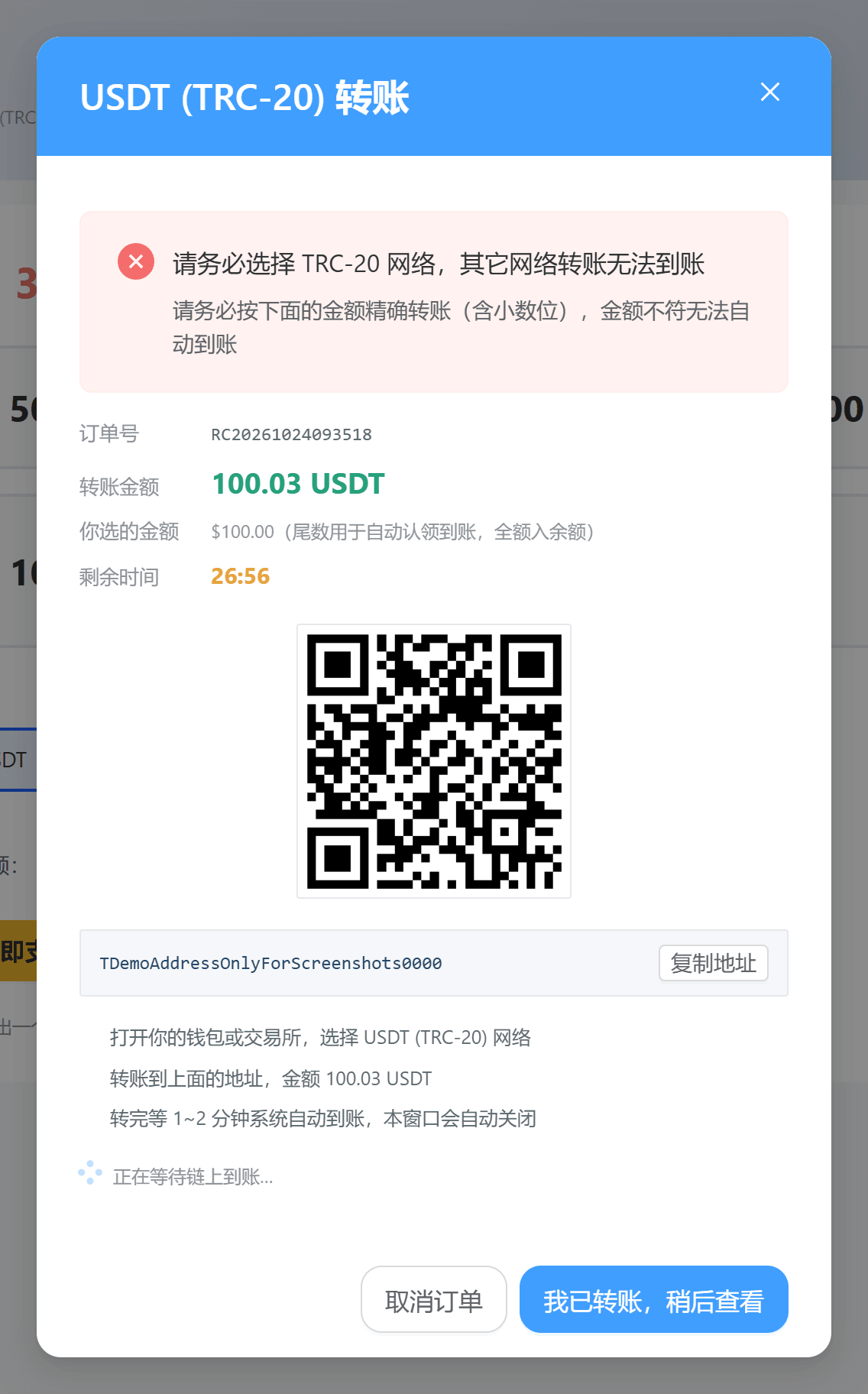
⑤ Transfer exactly the Transfer amount shown in the dialog, matching the decimals exactly.
⑥ After transferring, wait about 1–2 minutes; the system credits it automatically, and the dialog shows "Top-up received, balance updated" and closes on its own.
Caution: Only the TRC-20 network for USDT is supported; funds sent on other networks can't be credited. The transfer amount must exactly match the Transfer amount in the dialog — a mismatched amount can't be credited automatically.
Note: If the page says "After transferring, contact support to confirm receipt," automatic crediting is currently off, so after transferring please contact us to confirm.
2. Why does the transfer amount have decimals?
The Transfer amount in the dialog may be your chosen amount plus a small decimal tail (for example, choose 100 and you transfer 100.37); the system uses this tail to tell which order it is. The tail is also credited to your balance in full.
3. How long is an order valid?
- Each order is valid for 30 minutes, with a Time remaining countdown in the dialog.
- If nothing arrives within 30 minutes, the order voids automatically and shows "Order expired." If you did in fact transfer, please contact us to resolve it manually, and provide the order number and transfer record.
- Clicking I've transferred, check later or the close button in the top-right just closes the dialog; the order stays valid.
- Clicking Cancel order voids the order outright.
Note: Once the dialog is closed, you can't reopen the payment details for the same order. Note the Order number and Transfer amount before closing.
4. How do I view top-up records?
① Click Billing Center in the top-right, then click Top-up Records in the sub-nav; the list shows the 50 most recent top-up orders, including Order number, Amount, Channel, Created, and Status.
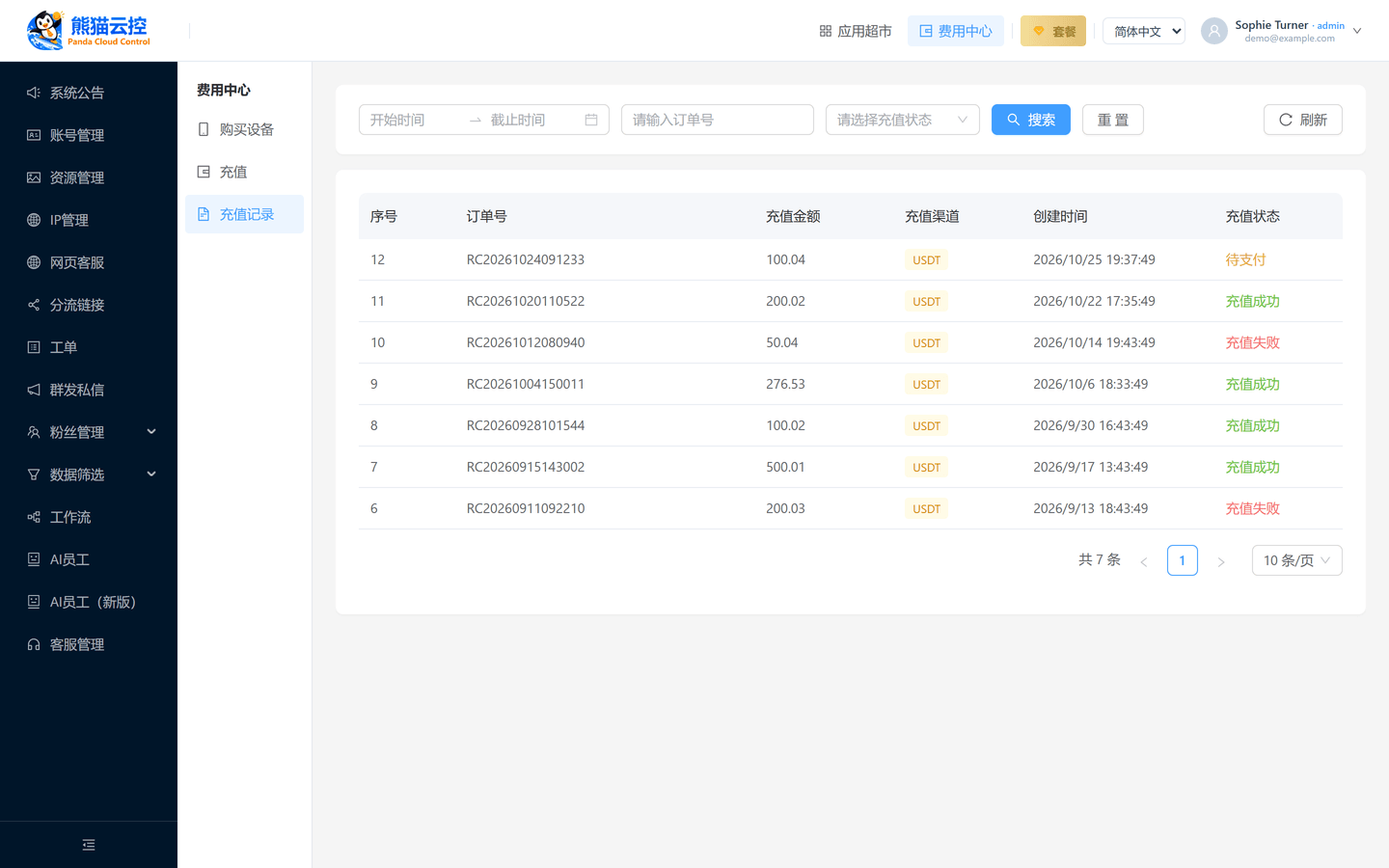
② You can filter by date range, order number, and status; fill them in and click Search.
③ There are three statuses:
| Status | Notes |
|---|---|
| Pending payment | Waiting for your transfer, or waiting for receipt to be confirmed |
| Top-up succeeded | Credited to your balance |
| Top-up failed | Voided by timeout, canceled by you, or rejected |
Note: Records of buying devices with your balance aren't here — see Buy Devices > Purchase Records; for every balance movement in and out, see Buy Devices > Balance History.
FAQ
1. What if it's been a long time and my transfer hasn't been credited?
First check three things: the network is TRC-20; the amount exactly matches the Transfer amount in the dialog (including the decimals); and the transfer was completed within the order's validity window. If all is correct and it's still not credited, please contact us and provide the order number and transfer record.
2. Where do I see balance the platform added for me?
Balance the platform adds for you manually doesn't appear in Top-up Records; you can only see it under Buy Devices > Balance History.
Thanks for the feedback!
Still stuck? Reach us directly: Telegram @scrmqiye001 or email [email protected]
Last updated: