
Step 3: Add Telegram accounts
1. Overview
After buying devices, you can add Telegram accounts. Session protocol-account files provided by a vendor can be bulk-imported all at once; for your own accounts, you can log in by receiving a verification code on the phone number, or by scanning a QR code with the Telegram app on your phone.
2. Steps
1. How do I bulk-import a vendor's accounts?
① After logging in to the admin console, click Account Management in the left menu > Telegram > click Add Account.
② Set Account add method to session protocol-account file, and drag the zip package the vendor gave you (containing .session and .json) into the upload area; you can select several at once.
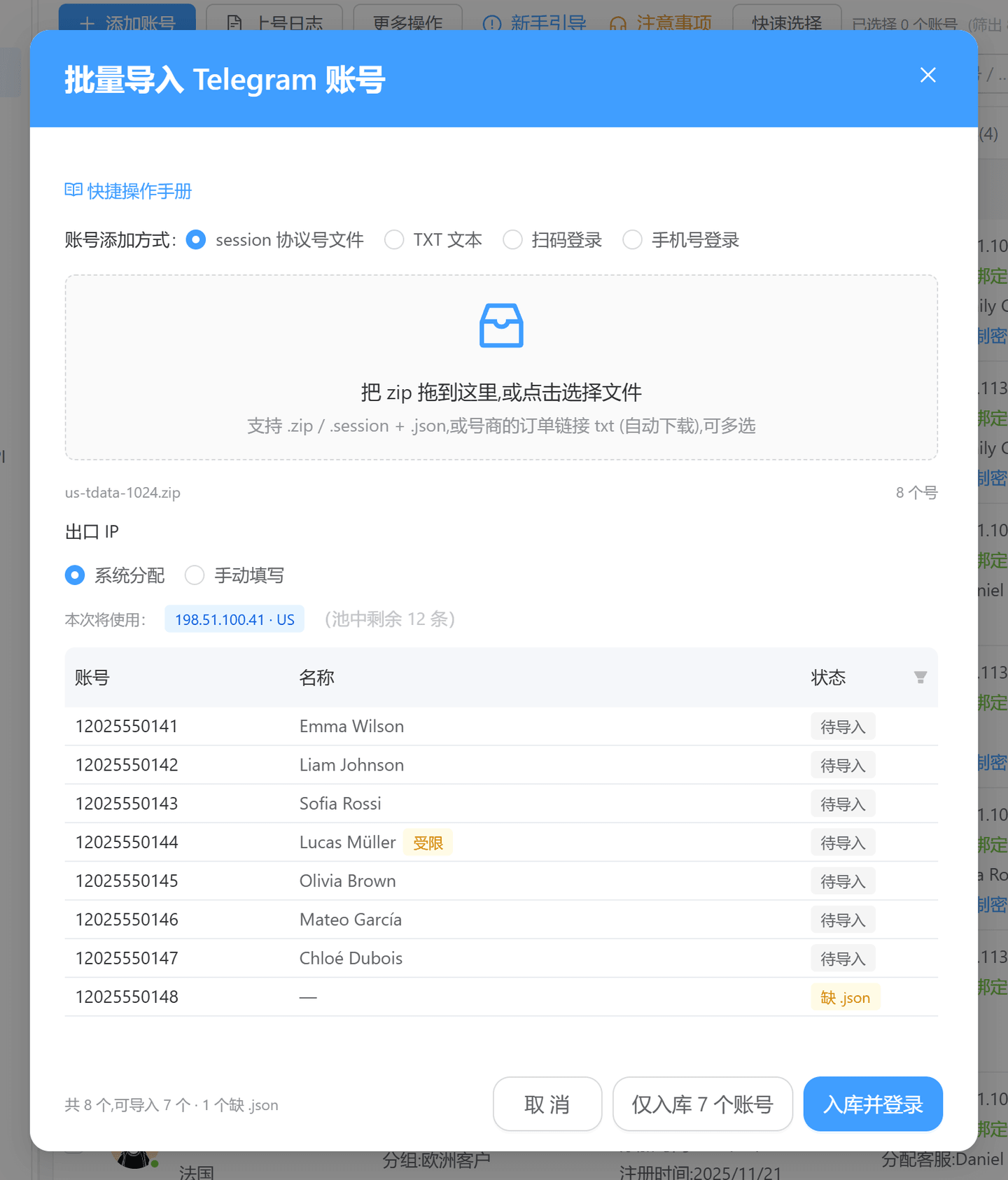
③ Leave Exit IP on System-assigned.
④ Click Import and log in, and wait for each account to log in one by one.
Note: If the vendor gives you one .txt StringSession file per account, choose TXT text as the Account add method.
2. How do I log in my own accounts?
① In the Add Account dialog, set Account add method to Phone number login.
② Enter the phone number with its country code (such as +8613812345678) and click Send code.
③ The code is sent inside this account's Telegram app (a message from the official Telegram account), not by SMS. Enter it and click Submit code; for an account with two-step verification, also enter the password and click Submit password.
You can also choose QR code login: in the Telegram app on your phone, open Settings > Devices > Link Desktop Device and scan the QR code on the page.
3. Where do I see them after importing?
By default the account list shows only Online accounts. While a just-imported account hasn't finished being checked, switch to the All statuses tab to see it; once the check is done, it moves into Online.
Note: We recommend creating a few account groups, so you can pick sending accounts by group later when broadcasting; see Account groups.
For more detail, see How do I add a Telegram account? and How do I bulk-import Telegram accounts?.
Next step: Step 4: Give each account an exit IP
Thanks for the feedback!
Still stuck? Reach us directly: Telegram @scrmqiye001 or email [email protected]
Last updated: