
Sign-up, log-in & the back office
1. Overview
Panda Cloud Control has two systems: the back office (managing accounts, broadcasts, and configuration) and the Agent Workspace (handling customers), both logged in with the same account.
- Main account: registered with an email, has every menu, and can top up, buy devices, and create sub-accounts.
- Sub-account: created by the main account under Agent Management, and logged in with a username and password assigned by the main account — see Adding agents & setting permissions.
2. How to use it
1. How do I get into the two systems?
① Open app.xiongmaoscrm.com; the page shows Select a system.
② Click Enter the TG Cloud Control system for the back office, or Enter the agent system for the Agent Workspace.
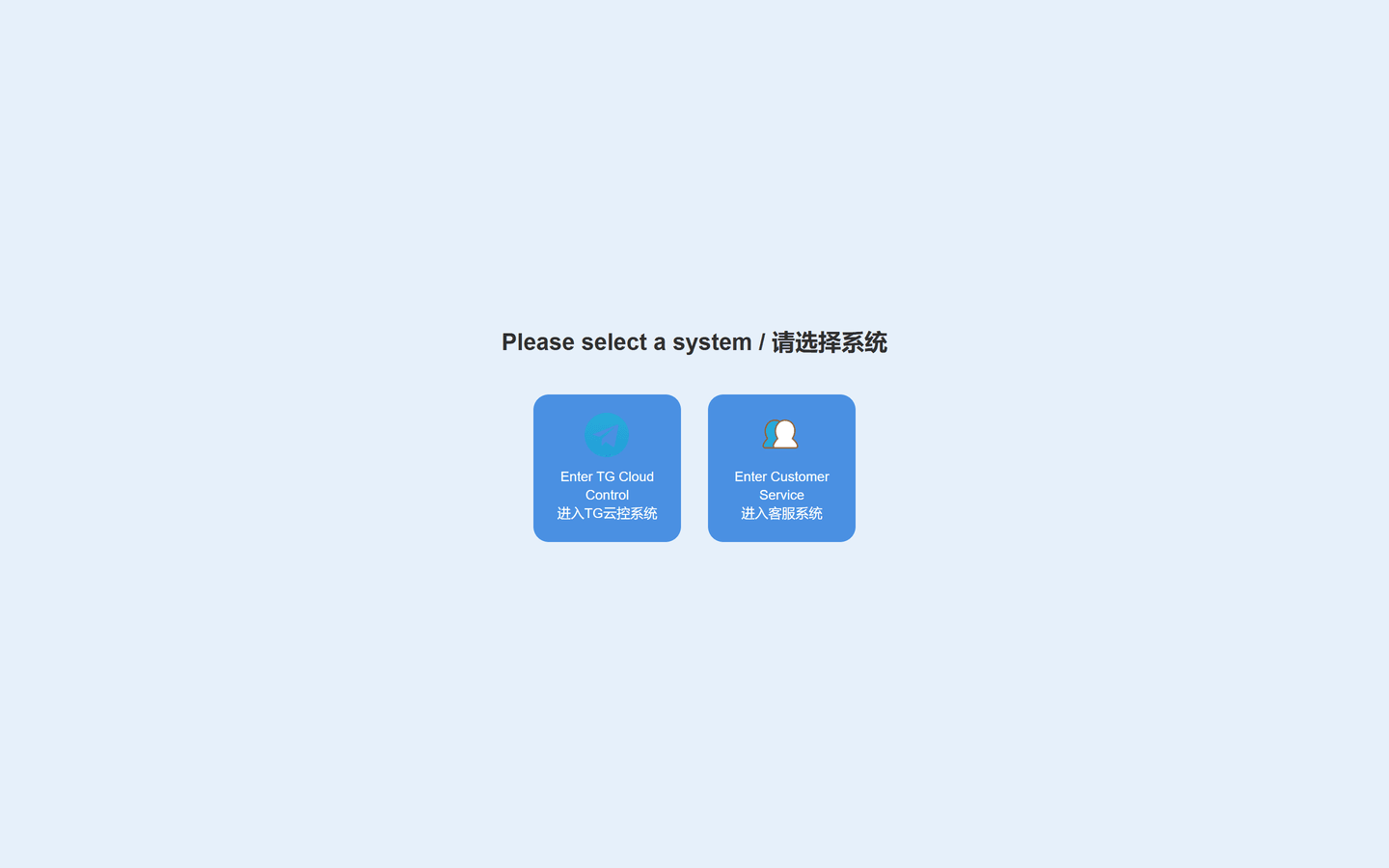
Note: The two systems share one login. After logging in to one, switching to the other needs no second login; within the same browser, only one account can be logged in at a time, and logging out on either side logs you out on both.
2. How do I register a main account?
① On the login page, click Sign up now.
② Enter an Email address, a Name / title, and a password (at least 8 characters).
③ If the page has an Email verification code field, click Get code and enter the code you receive by email.
④ Make sure "I have read and agree to the User Agreement and Privacy Policy" is checked, then click Sign up and log in; on success you go straight into the system.
Note: Each registered email is its own separate main account. After signing up, balance and devices are both 0; to log in a Telegram account, first top up and then buy devices.
3. How do I log in?
① Open the login page. The first time, the interface is in English by default; you can choose Simplified Chinese from the language dropdown in the top-right, and your choice is remembered after that.
② Choose a login method:
- Main account: click Main account login and enter your registered email and password.
- Sub-account (admin, agent): click Sub-account login and enter the username and password assigned by the main account.
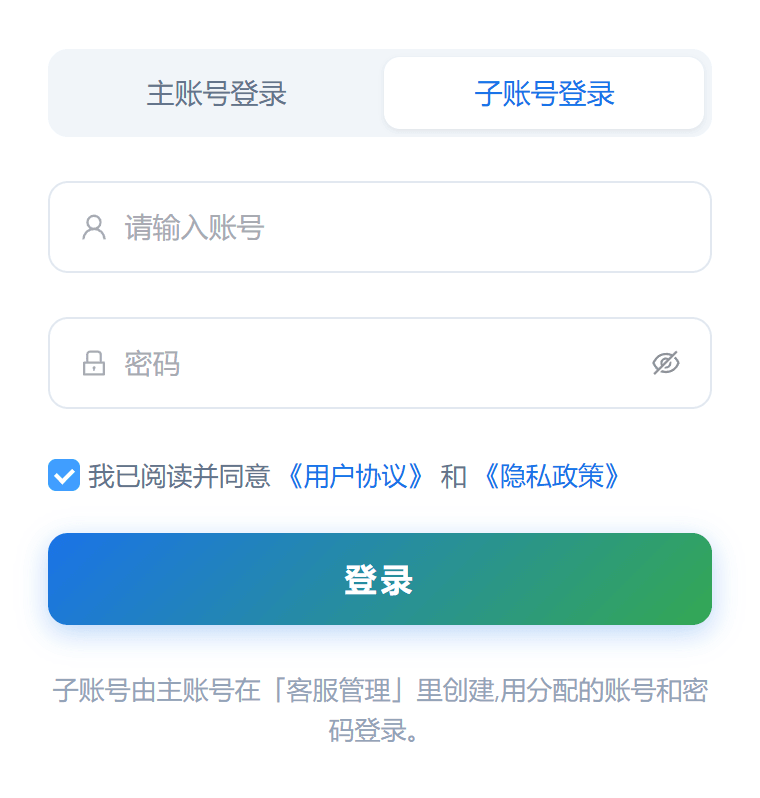
③ Make sure the User Agreement and Privacy Policy are checked, then click Log in.
④ The back office opens System Announcements by default after login; the Agent Workspace goes straight to the conversations screen.
Note: If the page has Google login, a main account can also sign in with a Google account. If that email is already registered, you log in to the same account; if not, a new main account is created automatically.
4. How do I change my password?
① Back office: click your name in the top-right > choose Change password. Agent Workspace: click the three-line menu in the lower-left > Settings > Change password.
② Fill in Old password, New password (≥ 8 chars), and Confirm new password, then click Save new password.
③ After saving, use the new password the next time you log in.
5. What if I forget my password?
- A sub-account forgot their password: ask the main account or an admin to click Reset Password under Agent Management to get a temporary password. After logging in with it, the system asks you to set a new password right away.
- The main account forgot the password: self-service recovery isn't supported yet, so please contact us to resolve it. A main account that signs in with Google can keep using Google login.
6. What does the back office look like?
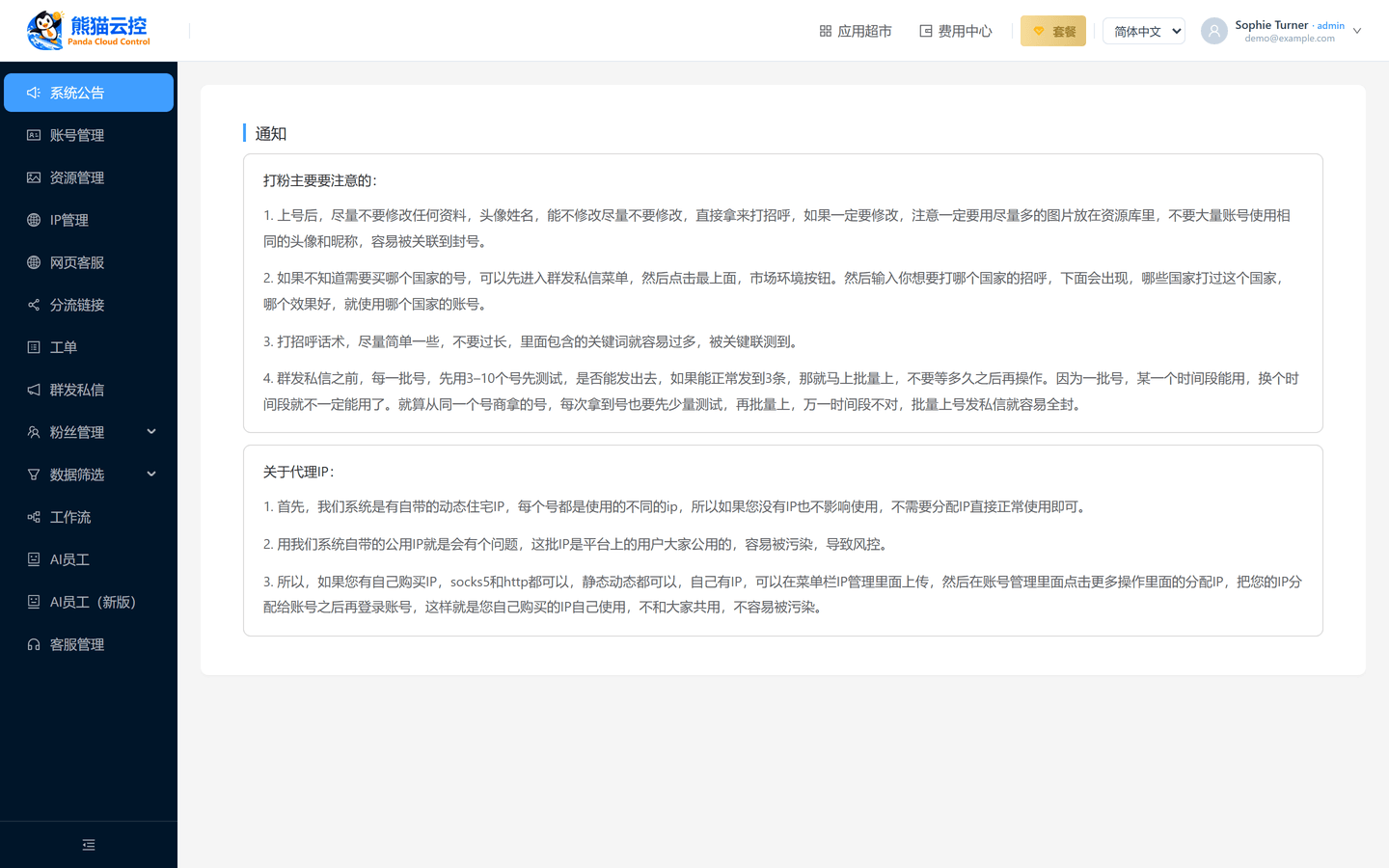
① The top bar's top-right, in order:
- App Market: visible to the main account and admins; installs Web Chat on standalone stores — see App market.
- Billing Center: visible to the main account and admins; its sub-nav has Buy Devices, Top Up, and Top-up Records.
- Plans tab: visible to the main account and admins; opens Buy Devices.
- Language dropdown: Simplified Chinese and English.
- Your name: the dropdown has Go to the Agent Workspace, Change password, and Log out.
② The left-hand menu includes: System Announcements, Account Management, Resources, IP Management, Web Chat, Work Orders, Bulk Messaging, Contacts, Data Screening, Workflows, AI Employees, AI Employees (new), and Agent Management. Clicking Account Management or Resources adds a sub-nav to the right of the menu: Account Management has the various channels (Telegram, Telegram Bot, Instagram, Facebook, X, VK, WhatsApp, WhatsApp API, Signal, LINE), and Resources has the four media types.
③ Which menus each person sees depends on their role and the permissions the main account grants: only the main account can see Top Up and Top-up Records; management menus such as Account Management, IP Management, Web Chat, Work Orders, Workflows, AI Employees, and Agent Management are visible only to the main account and admins.
④ The button at the bottom of the menu collapses or expands it; collapsed, it shows only icons.
7. How do I switch between the two systems and log out?
① Back office > Agent Workspace: click your name in the top-right > Go to the Agent Workspace; available to everyone.
② Agent Workspace > back office: click the three-line menu in the lower-left > Go to the back office; visible only to the main account and admins.
③ Log out: in the back office, click your name in the top-right > Log out > Log out; in the Agent Workspace, click the three-line menu in the lower-left > Settings > the ⋮ in the top-right > Log out.
FAQ
1. What if login says "wrong email or password"?
Make sure you picked the right login method: a main account logs in with its registered email under Main account login, and a sub-account logs in with its assigned username under Sub-account login. If you still can't log in, see "What if I forget my password?" above.
2. Do sub-accounts cost extra?
No. Sub-accounts don't occupy a device and aren't billed separately.
Thanks for the feedback!
Still stuck? Reach us directly: Telegram @scrmqiye001 or email [email protected]
Last updated: