
Handling web visitors
1. Overview
A conversation a visitor starts in your website's chat widget arrives in the Agent Workspace and is answered from the conversation list, just like conversations from Telegram, WhatsApp, and other channels. Agents can see which site a visitor came from and which page they came in on, which helps them gauge what the customer needs.
For adding and setting up the chat widget, see How do I add a web chat widget?.
2. Steps
1. Where do I view visitor conversations?
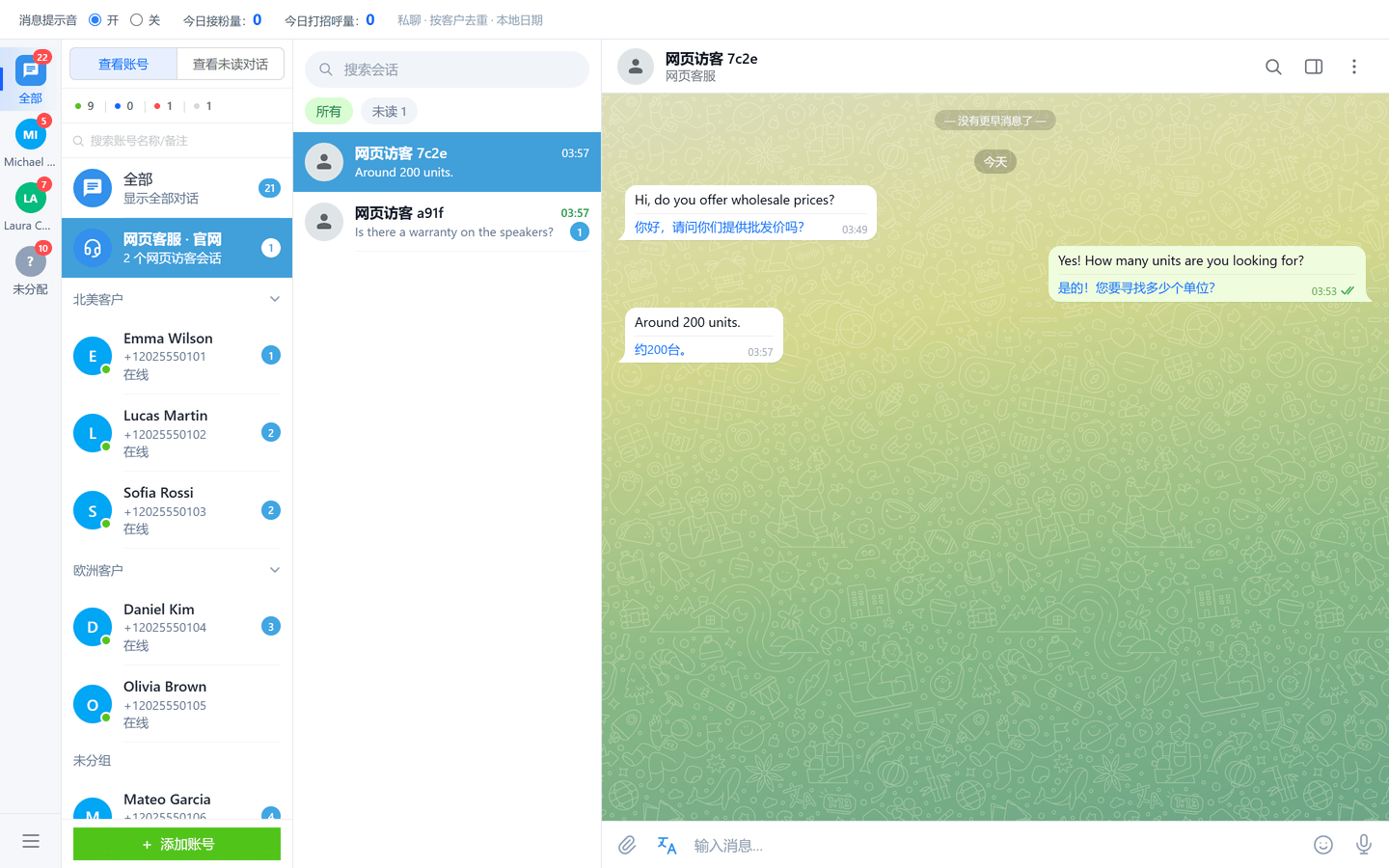
① Log in to the Agent Workspace; in the account panel on the left, each site has a "Web Chat · site name" row, and clicking it shows only that site's visitor conversations.
② When you select All in the account panel, the conversation list shows visitor conversations too.
③ A visitor conversation is named like "🌐 Official site visitor #number," with the site name first and a number to tell different visitors apart.
2. Who can see visitor conversations?
- If a site has an agent assigned under Web Chat in the admin console, that site's visitor conversations are visible only to that agent and to the owner and administrators.
- For a site with no agent assigned, the conversations sit under Unassigned in the agent rail of the Agent Workspace.
Note: To change who handles a site, the owner or an administrator can edit Assign agent under Web Chat in the admin console.
3. How do I reply to visitors?
① Click a visitor conversation, type in the input box, and send. You can send text, emoji, and images, and you can also use canned replies and translation.
② The visitor receives the reply in their chat window in real time. If the visitor has collapsed the chat window and the site has Unread preview turned on, a message preview pops up above the launcher to alert them.
4. How do I see a visitor's source information?
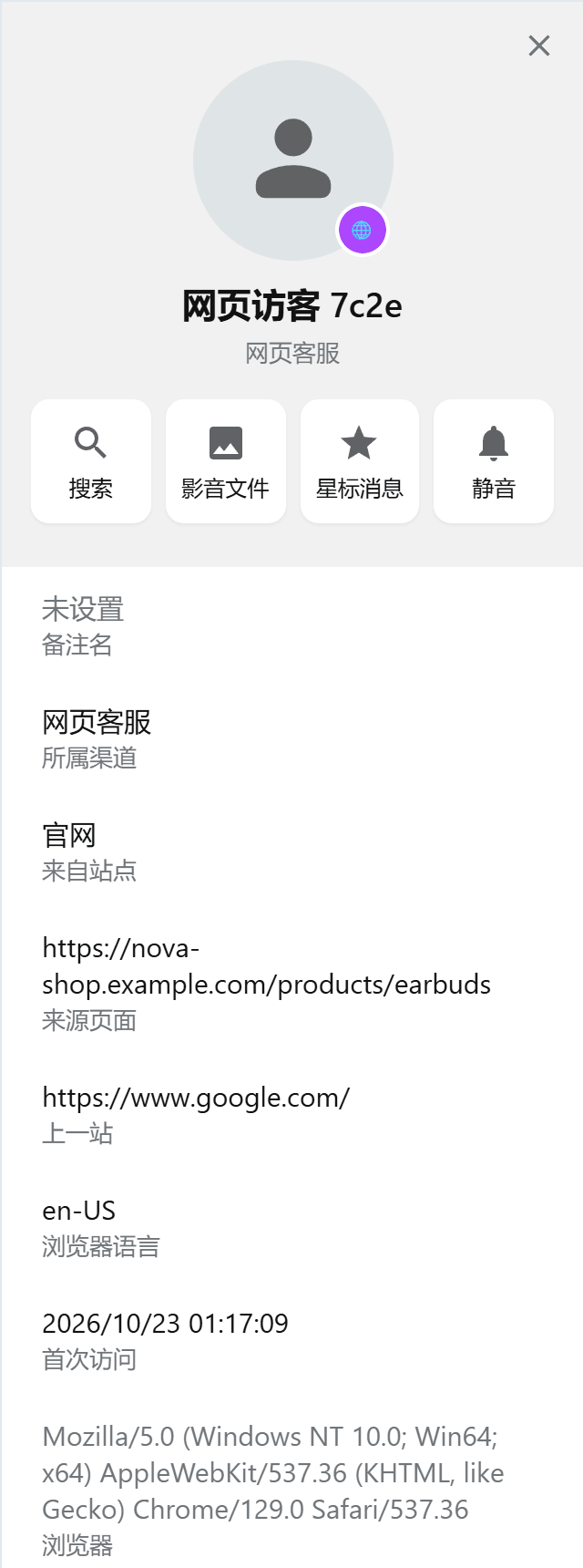
When you open a visitor conversation, the profile card on the right shows the following:
| Field | What it means |
|---|---|
| From site | Which site's chat widget the visitor came in through |
| Source page | The web address the visitor was on when they first opened the chat |
| Referrer | The URL the visitor came to your site from (for example a search engine or an ad page) |
| Browser language | The language set in the visitor's browser, useful as a reference for the translation language |
| First visit | The time the visitor first opened the chat |
| Browser | The visitor's browser and device information |
Note: Information that couldn't be captured isn't shown — for example, there's no Referrer when a visitor opens your site by typing the address directly.
FAQ
1. If the same visitor comes back, does it become a new conversation?
When the same browser visits again, it continues the original conversation. If the visitor switches device or browser, or clears their browser data, they count as a new visitor.
2. How large an image can a visitor send?
An image a visitor sends in the chat window is at most 10 MB.
3. Why can't I see a certain site's visitor conversations?
This site may be assigned to another agent. Only the assigned agent and the owner and administrators can see them; to view them, ask the owner or an administrator to change the assignment.
Thanks for the feedback!
Still stuck? Reach us directly: Telegram @scrmqiye001 or email [email protected]
Last updated: