
Bulk-editing account profiles
1. Overview
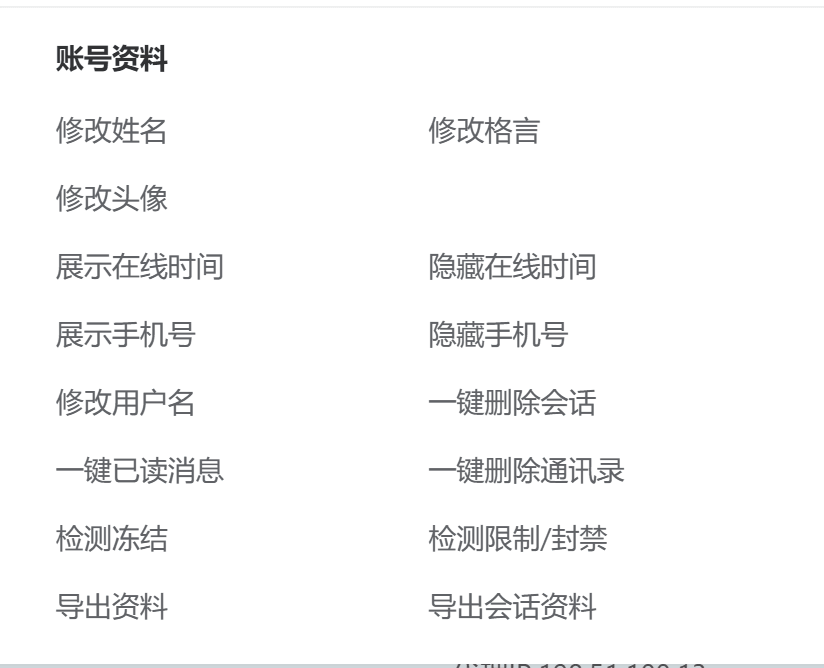
In the Account Profile section of Bulk Actions under Account Management > Telegram, you can bulk-edit your Telegram accounts' name, avatar, bio, and username, set whether to show the last-seen time and phone number, and also mark messages as read, delete conversations, delete contacts, and export account and conversation info in one click.
These changes are synced straight to Telegram, so what the other person sees is the updated profile.
Note: avatars and names can be picked in bulk from the media groups under Resources; we recommend preparing plenty of different avatars and nicknames first, see Resources (avatars, nicknames, message media).
2. Steps
1. How do I bulk-change names?
① Tick the accounts, click Bulk Actions > Change Name, and choose the scope.
② In the Choose a new name dialog, pick one of two options:
- Pick from a name group: choose a nickname media group, and the system assigns them to the accounts in the order the media were added, cycling through when there are not enough.
- Enter manually: fill in the Last name and First name; a field left empty stays unchanged. All the selected accounts are changed to the same name.
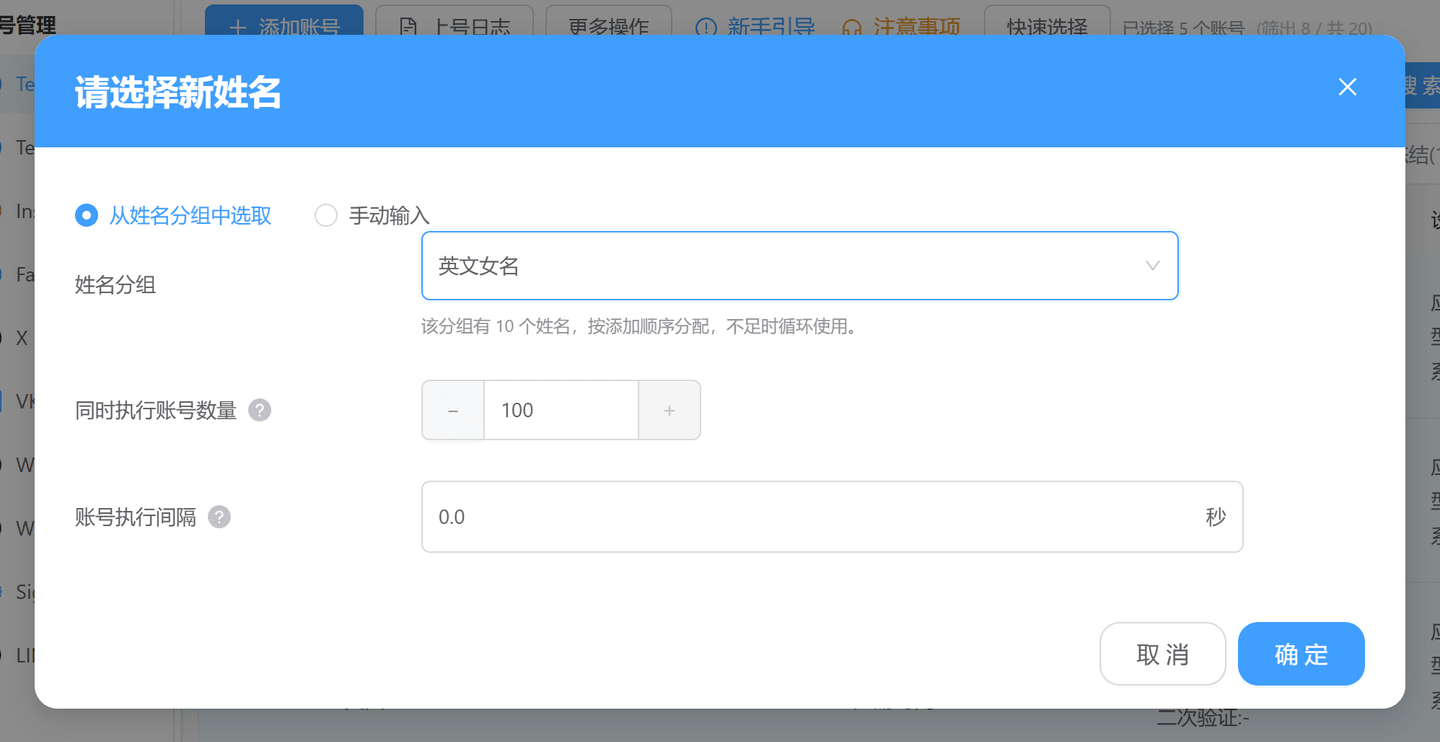
③ Adjust Concurrent accounts (1–100, default 100) and Interval between accounts (0–3600 seconds, default 0) as needed, then click Confirm.
④ Check each account's result in the progress dialog.
Note: a nickname is split at the first space, with the given name before the space and the surname after it, for example Anna Smith.
Note: once it finishes, "Undo (restore N original names)" appears at the bottom of the progress dialog, which can change this batch of accounts back to their original names. This button only works until you close the dialog.
2. How do I bulk-change avatars?
① Tick the accounts, click Bulk Actions > Change Avatar, and choose the scope. To change only one account, you can also click that account's avatar in the list directly.
② In the Choose a new avatar dialog, pick one of three options:
- Pick from an avatar group: choose an avatar media group, then choose Random within the group or In order within the group.
- Upload manually: choose a JPEG or PNG image (up to 10 MB), and either Upload original or Crop and upload. All the selected accounts use the same image.
- Don't set a new avatar: used only to delete the old avatar.
③ Set Delete the old avatar?: choosing Yes deletes the existing history avatars in Telegram (keeping this new one).
④ Adjust Concurrent accounts and Interval between accounts as needed, click Confirm, and check the results in the progress dialog.
3. How do I change the bio and username?
① Change the bio: click Bulk Actions > Change Bio, choose the scope, enter the bio (up to 140 characters), and click Save. Leaving it empty clears the bio.
② Change the username: click Bulk Actions > Change Username, choose the scope, and enter a template using {n} for the sequence number, for example xiongmao{n}; the system numbers from 1 in execution order. If the template has no {n}, a number is appended at the end automatically. Leaving it empty clears the username.
Note: a @username is unique across all of Telegram; one already taken by someone else shows "@… is already taken", and the other accounts are changed as usual.
4. How do I set privacy?
① Click Bulk Actions, choose Show Last Seen, Hide Last Seen, Show Phone Number, or Hide Phone Number, and choose the scope.
② Click Apply Settings in the confirmation dialog. The chosen item is set to visible to everyone or to nobody for the selected accounts.
Note: this operation overwrites the item's existing privacy rule and exception list.
5. How do I mark all read, delete conversations, and delete contacts in one click?
| Operation | Description |
|---|---|
| Mark All Read | Marks the selected accounts' unread messages as read (including archived chats). This is synced to Telegram, so the other person may see the read status |
| Delete Conversations | Deletes the selected accounts' private-chat conversations and the history that has been read, keeps Saved Messages, and does not delete the other person's copy |
| Delete Contacts | Deletes the selected accounts' current Telegram contacts without deleting conversations. If contact sync is on in the mobile app, the contacts may be re-uploaded |
① Click the corresponding operation under Bulk Actions and choose the scope.
② Check the number of accounts in the confirmation dialog, confirm, and check each account's result in the progress dialog.
Caution: Delete Conversations and Delete Contacts cannot be undone; confirm the scope and the number before running.
6. How do I export profiles?
- Export Profiles: exports each account's phone number, first name, last name, username, bio, and membership status as a CSV file.
- Export Conversation Info: exports each account's conversation names, usernames, types, unread counts, and last-message times, without the chat content.
After clicking, choose the scope, and the system reads each account one by one, downloading automatically once all are done.
FAQ
1. I changed the avatar, so why is the old one still there?
When changing the avatar, Delete the old avatar? defaults to No, and Telegram keeps the history avatars. To delete them, run it again and choose Yes. The progress dialog shows how many old avatars were actually deleted for each account.
2. What should I watch out for when bulk-editing profiles?
We recommend spacing out avatar and name changes rather than doing them all at once; using the same avatar and nickname across one batch of accounts makes them easy to link together. You can prepare more media, and lower Concurrent accounts and raise Interval between accounts appropriately.
Thanks for the feedback!
Still stuck? Reach us directly: Telegram @scrmqiye001 or email [email protected]
Last updated: