
Other bulk actions
1. Overview
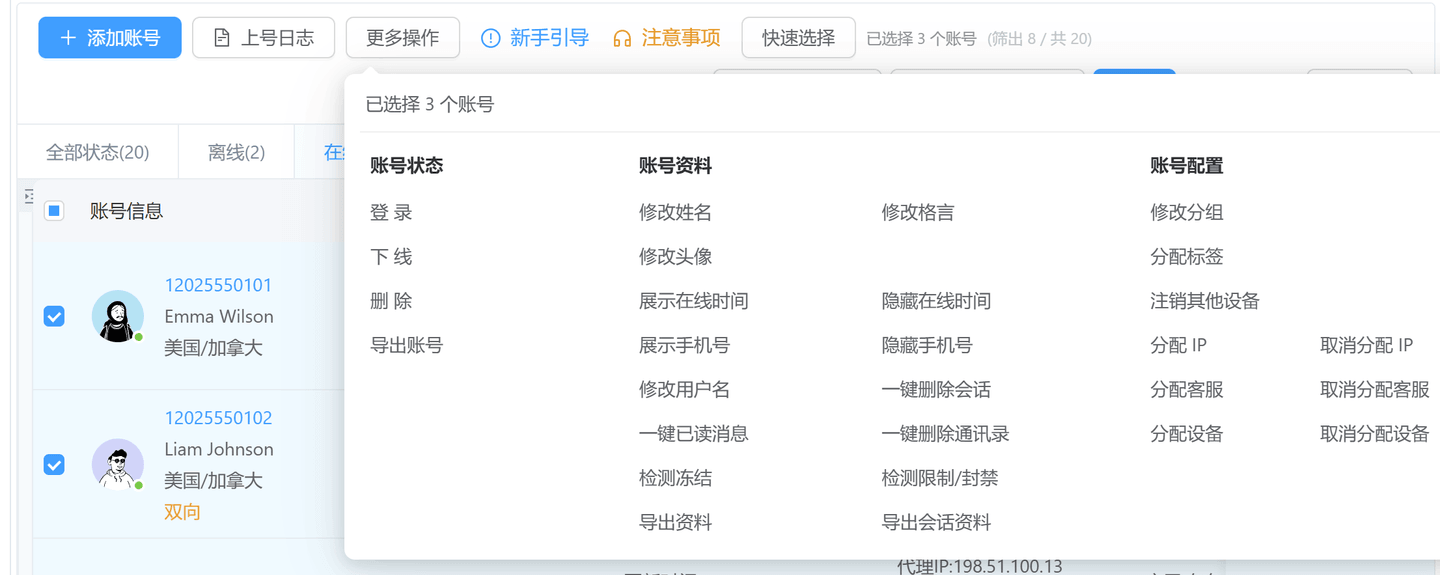
Besides editing profiles, assigning IPs, and assigning agents, Bulk Actions under Account Management > Telegram also offers these bulk operations: log in, take offline, delete, export accounts, assign tags, log out other devices, and assign or unassign devices.
All bulk operations follow the same flow: tick the accounts > click the operation under Bulk Actions > choose the scope > fill in the parameters and confirm > watch the progress, see Telegram account management.
2. Steps
1. How do I log in in bulk?
Log In reconnects accounts that are already in the list, using their saved sessions, with no verification code needed. Accounts whose authorization has expired need to be imported again or logged in with a verification code.
① Tick the accounts, click Bulk Actions > Log In, and choose the scope.
② Choose the IP option in the Account Login dialog; if you are not sure, choose Use the best option automatically. To pick IPs by country, see Assigning exit IPs to accounts.
③ Set Concurrent accounts (1–100, default 100) and Interval between accounts (0–3600 seconds, default 0).
④ Click Start logging in [N] accounts and watch the login progress.
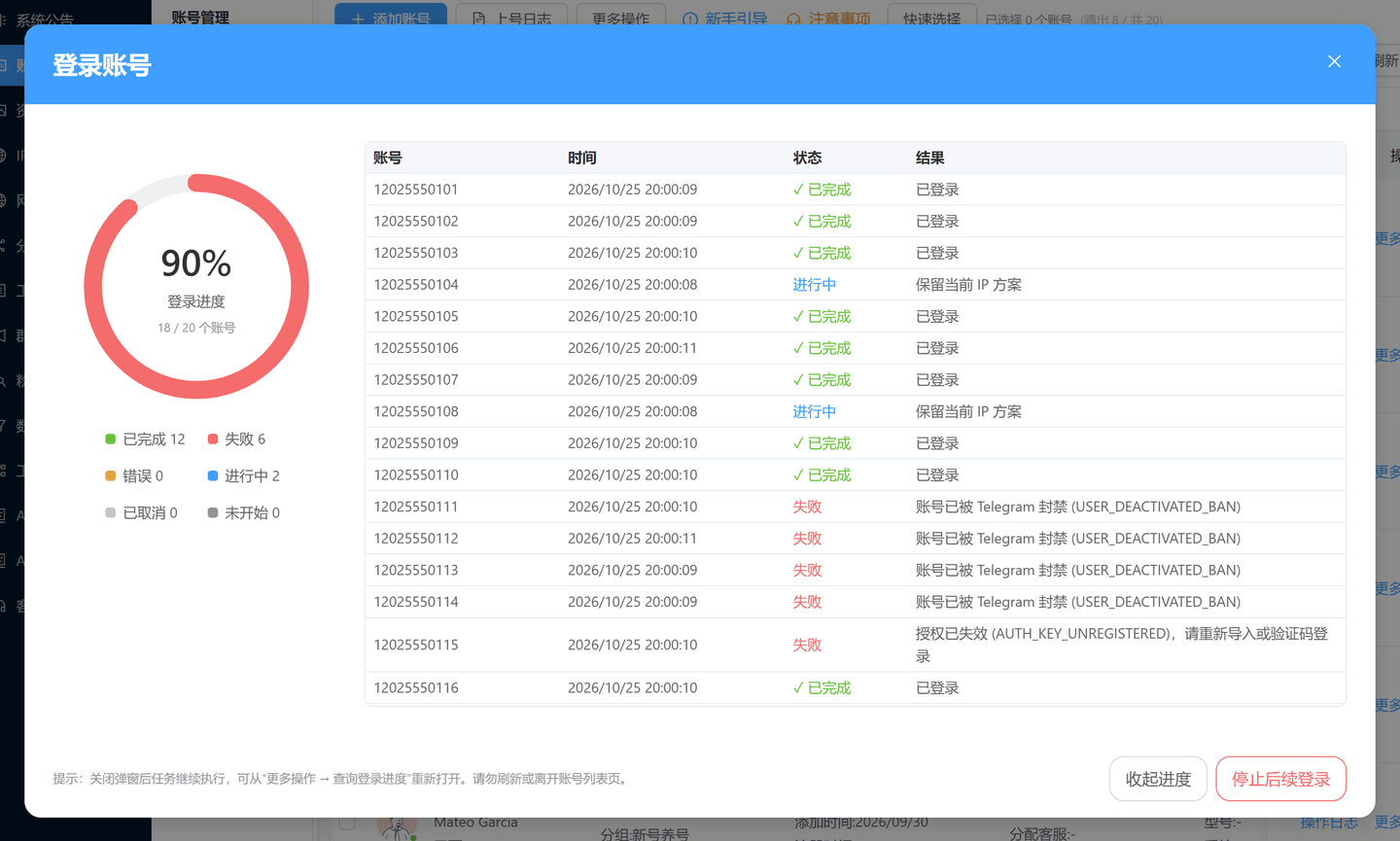
Note: the task keeps running after you close the progress dialog, and you can reopen it from Bulk Actions > Check Login Progress. While it is running, please do not refresh the page or leave the account list page. To stop partway, click Stop remaining logins.
2. How do I take an account offline?
Take Offline keeps the account's login session and only pauses the connection: once offline it no longer sends or receives messages, and it will not come back online automatically after a system restart.
① Tick the accounts, click Bulk Actions > Take Offline, choose the scope, and click Confirm in the confirmation dialog.
② To bring them back, run Log In on these accounts, or reassign an IP.
Note: an offline account still occupies a device.
3. How do I delete an account?
Delete logs the account out: the Telegram session is removed, the account disappears from the list, and it must be logged in or imported again to be used. Contacts and notes are not deleted.
① Tick the accounts, click Bulk Actions > Delete, choose the scope, and click Confirm exit in the confirmation dialog.
② To delete only one account, you can also click More > Delete in the Actions column of the account's row.
Caution: deletion cannot be undone. Before deleting, make sure you no longer need these accounts and check the number in the confirmation dialog.
4. How do I export the account list?
Click Bulk Actions > Export Accounts, choose the scope, and a CSV file downloads directly, including the account, nickname, country, IP, note, agent, group, friends count, contacts count, status, login time, offline time, import time, registration time, and more.
5. How do I assign tags to accounts?
① Tick the accounts, click Bulk Actions > Assign Tags, and choose the scope.
② Choose Add tags, Remove tags, or Replace all tags.
③ Type a tag and press Enter (up to 20), then click Save.
Note: choosing Replace all tags overwrites the existing tags; leaving it empty clears all tags. Tags are shown in the Tags column of the list.
6. How do I log out other devices?
Log Out Other Devices kicks every Telegram session each account has logged in elsewhere, keeping only the login here in Panda Cloud Control.
① Tick the accounts, click Bulk Actions > Log Out Other Devices, and choose the scope.
② Click Start logging out in the confirmation dialog and check each account's result.
Caution: the other person's phone receives a "new device logged in" type of notification. This cannot be undone.
7. How do I assign and unassign devices?
- Assign Device: binds the selected accounts to idle devices that you have purchased and that have not expired, one device per account; if there are not enough idle devices, the whole batch does not run.
- Unassign Device: releases the device binding of the selected accounts.
The binding is shown in Bound Device in the Extra Data column of the list. To buy devices, see Buying devices.
Note: whether you can log in a new account depends only on "devices purchased − accounts logged in", regardless of whether an account is bound to a device.
FAQ
1. Can I close the progress dialog while a bulk operation is running?
Apart from Log In, other bulk operations can only be stopped while running by clicking Stop (stops after the current account finishes), which stops once the current account is done. Log In can be minimized with Collapse progress, and the task continues in the background.
2. What is the difference between deleting and taking offline?
Take Offline only pauses the connection and the login session remains, so you can log in again at any time; Delete logs the account out, the account disappears from the list, and it must be logged in or imported again to come back.
Thanks for the feedback!
Still stuck? Reach us directly: Telegram @scrmqiye001 or email [email protected]
Last updated: