
Using canned replies
1. Overview
Canned replies let you save your common wording as templates. While handling customers, a single click drops a template's content into the input box, and a double-click sends it straight away, saving you from typing the same thing over and over.
A template can contain several blocks of content (text, images, video, voice, files), which are sent one block at a time in order. Templates come in two types, Personal and Shared: personal templates are visible only to you, while shared templates can be used by the whole team and are maintained centrally by a supervisor. When sending, you can also choose Send translated to translate automatically into the customer's language.
2. How it works
1. How do I open canned replies?
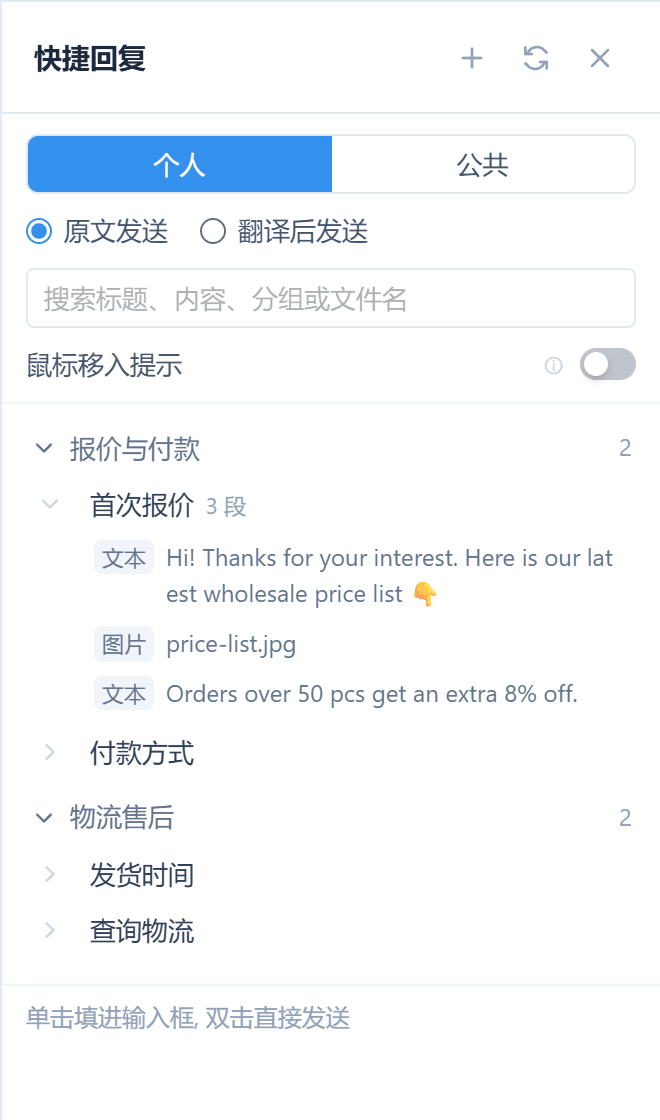
① In the Agent Workspace, click the hamburger menu (☰) in the bottom-left > click Canned Replies, and the panel appears to the right of the chat window.
② The top-right of the panel has three buttons: Manage templates (+), Refresh, and Collapse. Whether the panel is open or closed is kept as-is the next time you open the Workspace.
Note: On a phone, canned replies are under More in the chat window's top bar.
2. How do I use canned replies?
① At the top of the panel, choose Personal or Shared.
② Choose a send mode: Send original or Send translated.
③ When needed, use the search box to find a template by title, content, group, or file name.
④ Single-click a template: its text drops into the input box, where you can edit it before sending.
⑤ Double-click a template: every block is sent straight away, in order.
⑥ Click the small arrow to the left of a template to expand it and see each block; an individual block also drops in on a single click and sends on a double click.
Note: With Send translated, the text and image captions are translated into this conversation's sending language (their language if one is set, otherwise the target language of the global outgoing translation), and if translation fails the whole item is not sent; Block Chinese, when on, is checked here too.
Note: With Hover to preview on, resting the mouse on a template shows its full content without expanding it.
3. How do I create and manage templates?
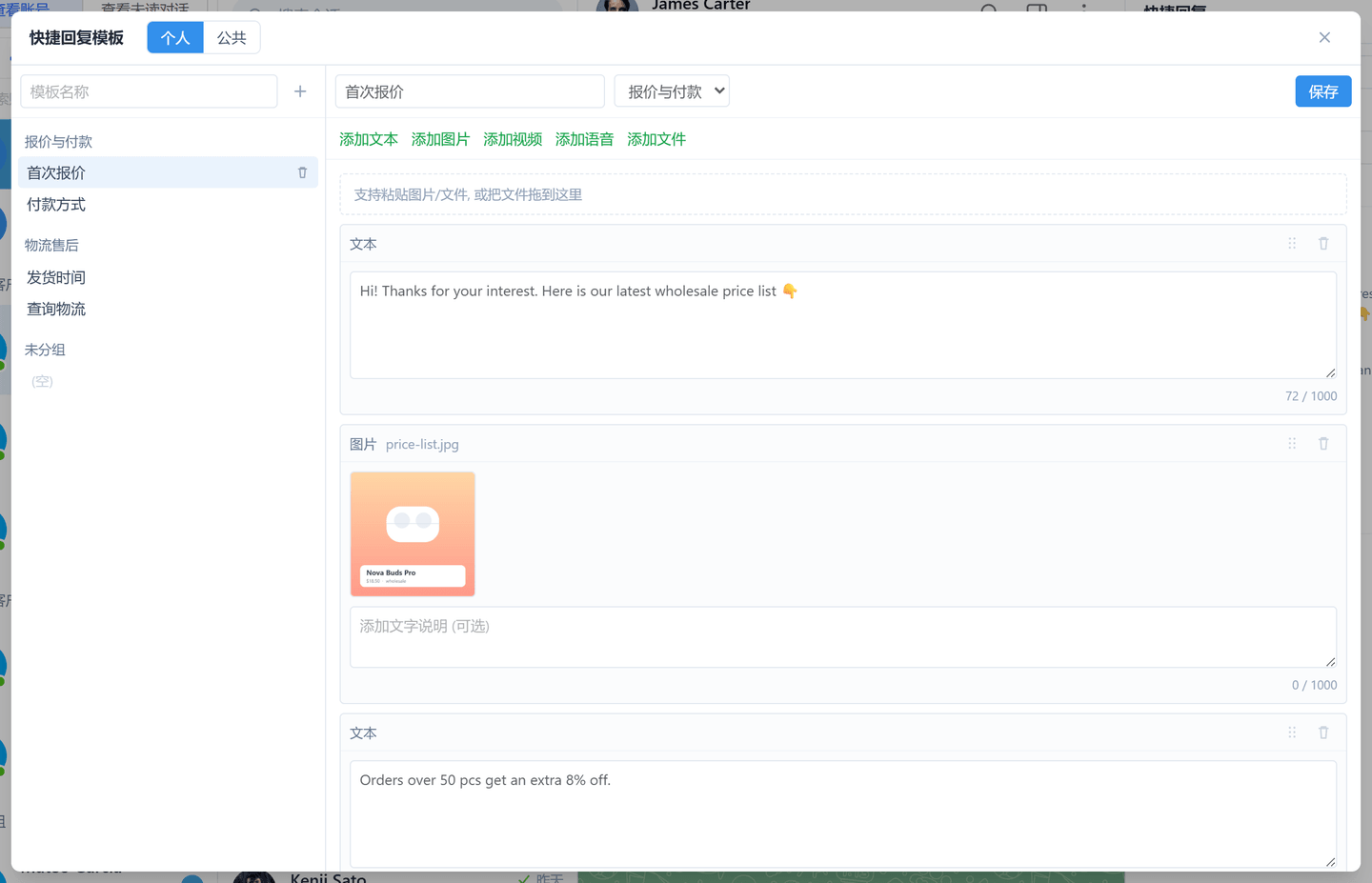
① Click Manage templates (+) at the top-right of the panel to open the Canned reply templates window.
② At the top, choose Personal or Shared.
③ In the left column, click New group (+) and enter a group name; hovering over a group lets you New template, Rename, or Delete group.
④ In the right column, edit the template: fill in the template name, pick a group, and click Add text, Add image, Add video, Add voice, or Add file to add content blocks; you can also paste directly or drag files in.
⑤ Each block can be dragged to reorder or deleted.
⑥ When you're done, click Save.
| Limit | Description |
|---|---|
| Blocks per template | Up to 20 |
| Text per block | Up to 1,000 characters |
| Deleting a group | Templates in the group aren't deleted; they move back to Ungrouped |
4. What's the difference between personal and shared templates?
| Type | Who can see and use it | Who can edit it |
|---|---|---|
| Personal | Only you | Only you |
| Shared | Everyone under the same owner account | Only the owner and admins |
Note: When an agent opens the management window for shared templates, a message says "Only supervisors can edit shared templates."
FAQ
1. What if a double-click send stops partway?
Multiple blocks are sent in order; if one block fails, sending stops and a message tells you which block it stopped at and why. Follow the message to resolve it, then send the remaining blocks individually.
Thanks for the feedback!
Still stuck? Reach us directly: Telegram @scrmqiye001 or email [email protected]
Last updated: