
Contact library
1. Overview
A contact library is a batch of reusable recipients, which can be usernames, phone numbers, or links. When you create a broadcast task, choose Pick from a contact library; after the task runs, each person's send result is written back to the library. You can therefore always see how many each library has sent, how many failed, and how many are still unsent, and you can also export the failures, or clear the send status and send to the whole library again.
Anyone with the Contacts permission can use contact libraries; to choose Pick from a contact library in a broadcast, you also need the Bulk Messaging permission. The main account and admins can see and use every contact library; ordinary agents can only see and use the ones they created.
2. How to use it
1. How do I create a contact library?
① After logging in to the back office, click Contacts > Contact Library in the left-hand menu. (You can also open it from the Bulk Messaging page via More Resources > Contact Library.)
② Click Add Database.
③ Enter a title (for example, "Aug TG contacts – SE Asia"), choose a type — Username, Phone number, Link, or Other — and optionally add a note.
④ Paste your list, or click Import txt / csv. One entry per line; put a display name after # (a broadcast's {name} uses it); phone numbers must include the country code.
⑤ Click Create; a message reads "Library created, N added (M skipped as duplicates)."
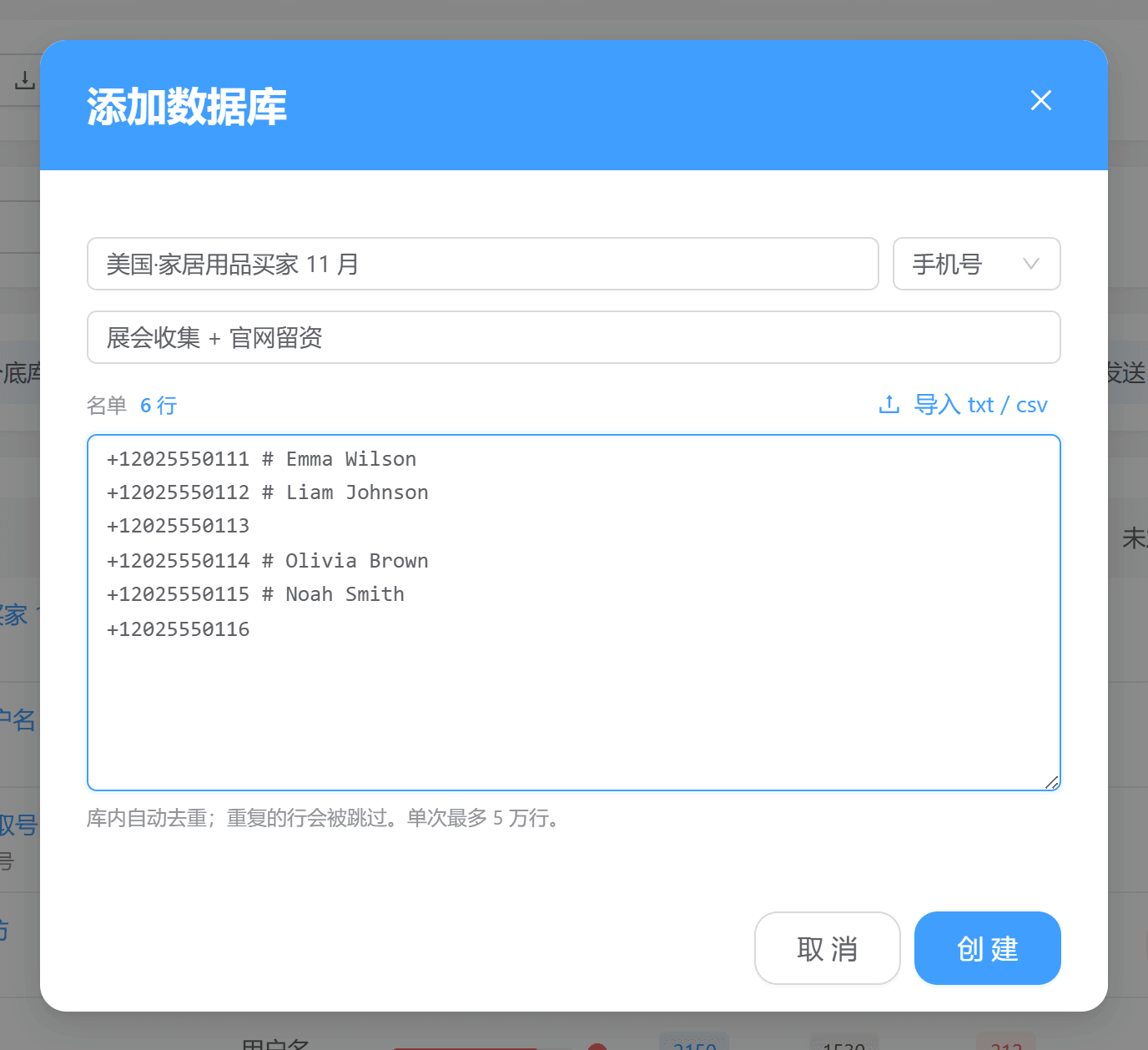
Note: Duplicates within a library are removed automatically; up to 50,000 rows per import and up to 200,000 people per library. The type is only for display and does not validate number formats.
Note: Using Take numbers and create a contact library from the contact data pool also creates a contact library automatically.
2. How do I use a contact library in a broadcast?
① Click Bulk Messaging in the left-hand menu, click Add, and in step 1, Data source, choose Pick from a contact library.
② Under Select contact library, pick a library; the dropdown shows each library's "unsent / total."
③ For Sending scope, choose Send to unsent only (default) or Resend the whole library. A single task draws at most 5,000 people.
④ From there, build the task as usual; see How do I create a broadcast task?. Each person's send result is written back to the contact library.
3. How do I review send results?
① In the contact library list, check Progress, Count, Succeeded, Failed, and Not sent.
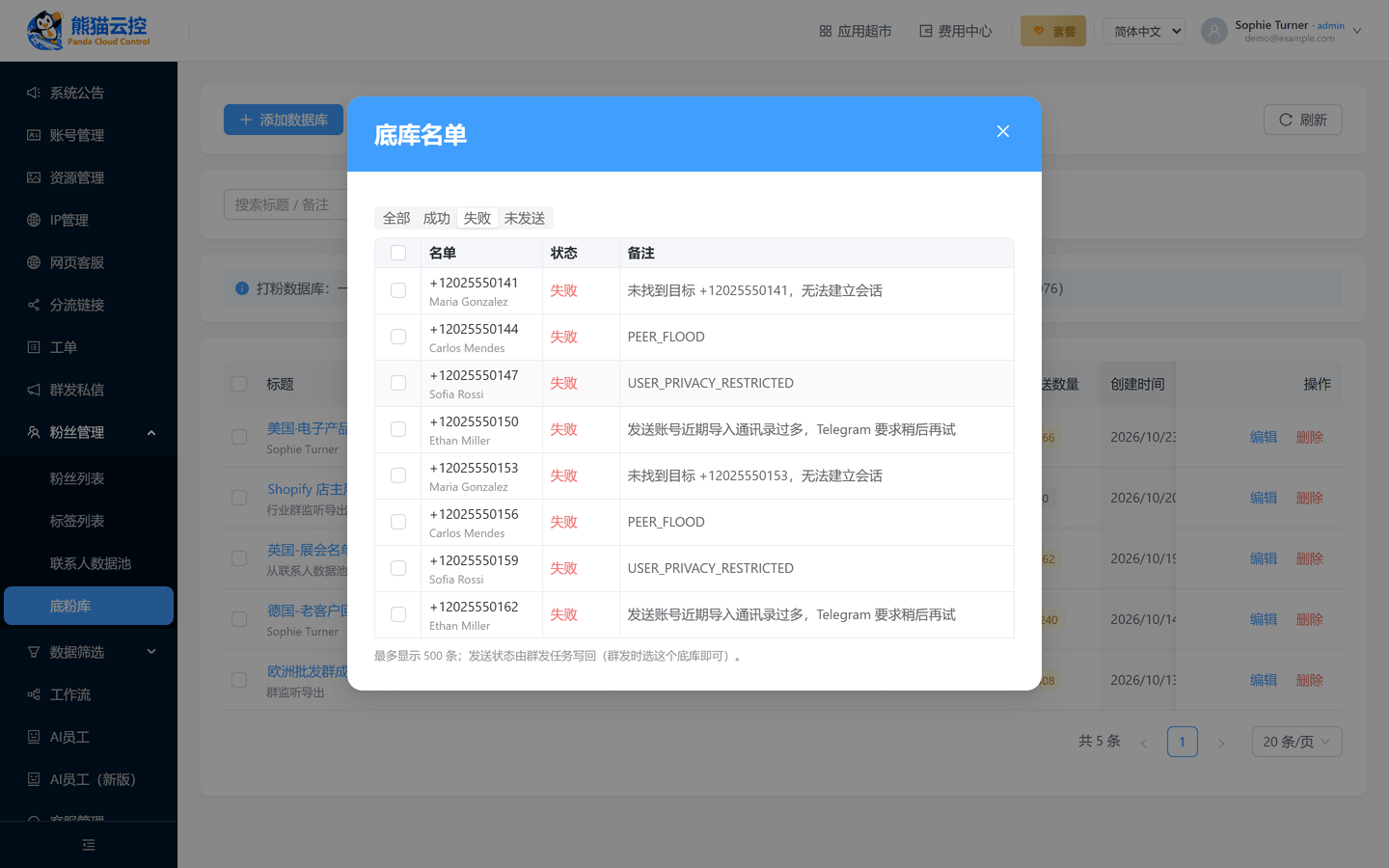
② Click a title to open Library Contents, where you can switch between All, Succeeded, Failed, and Not sent; failed rows show the reason in the Note column. Up to 500 are shown.
4. How do I resend the failures?
① Select the contact libraries (select none to export every library that has failures).
② Click Export failed data to download a CSV file (library, entry, display name, and failure reason).
③ Clean them up and create a new library, or use Edit to append them back into a library and send again.
5. How do I send to the whole library again with new copy?
① In the Actions column, click Edit > Clear send status.
② Click Clear status in the confirmation dialog: everyone marked succeeded or failed reverts to Not sent, while the list itself stays the same.
③ Create a new broadcast task and select this library; Send to unsent only then sends to the whole library again.
6. How do I edit or delete a contact library?
① Click Edit to change the title, type, or note; under Append list you can add people to the library, and choosing Overwrite first clears the existing list (including send status) before loading the new one.
② In Library Contents, you can select entries and click Delete selected to remove just those.
③ In the Actions column, click Delete: the library's list and send records are deleted together.
Caution: Overwrite, delete, and clear send status can't be undone.
FAQ
1. Can I run two tasks from the same contact library at once?
Not recommended. If you create a new task with Send to unsent only before the previous one finishes, the same people may be messaged by both tasks. Wait for the previous task to finish before creating the next one.
2. What's the difference between a contact library and the number pool?
Numbers in the number pool are locked once taken and marked used once sent to, which suits one-off broadcasts to strangers; a contact library can be reused, has results written back to it, and can have its status cleared to send to the whole library again.
Thanks for the feedback!
Still stuck? Reach us directly: Telegram @scrmqiye001 or email [email protected]
Last updated: