
Work orders
1. Overview
Work Orders is for reconciling with outside promoters. When a promoter drives contacts to your accounts, you can create a work order: scope a set of accounts and a tracking period, and the system automatically counts how many contacts those accounts gained during that period, so both sides settle against the same figures.
You can send a work order to a promoter via a share link, and they can see the real-time figures without logging in to the back office.
Each work order tracks three numbers:
| Figure | Meaning |
|---|---|
| Leads | Contacts these accounts gained |
| Duplicates | The same person also reached another account in this work order (counted as a duplicate from the second time on) |
| Valid | Leads − duplicates; settlement is usually based on valid |
Note: Only the main account, and admins granted the Account Management (channel accounts, work orders) permission, can see this page.
2. How to use it
1. How do I create a work order?
① After logging in to the back office, click Work Orders in the left-hand menu, then click Create Work Order.
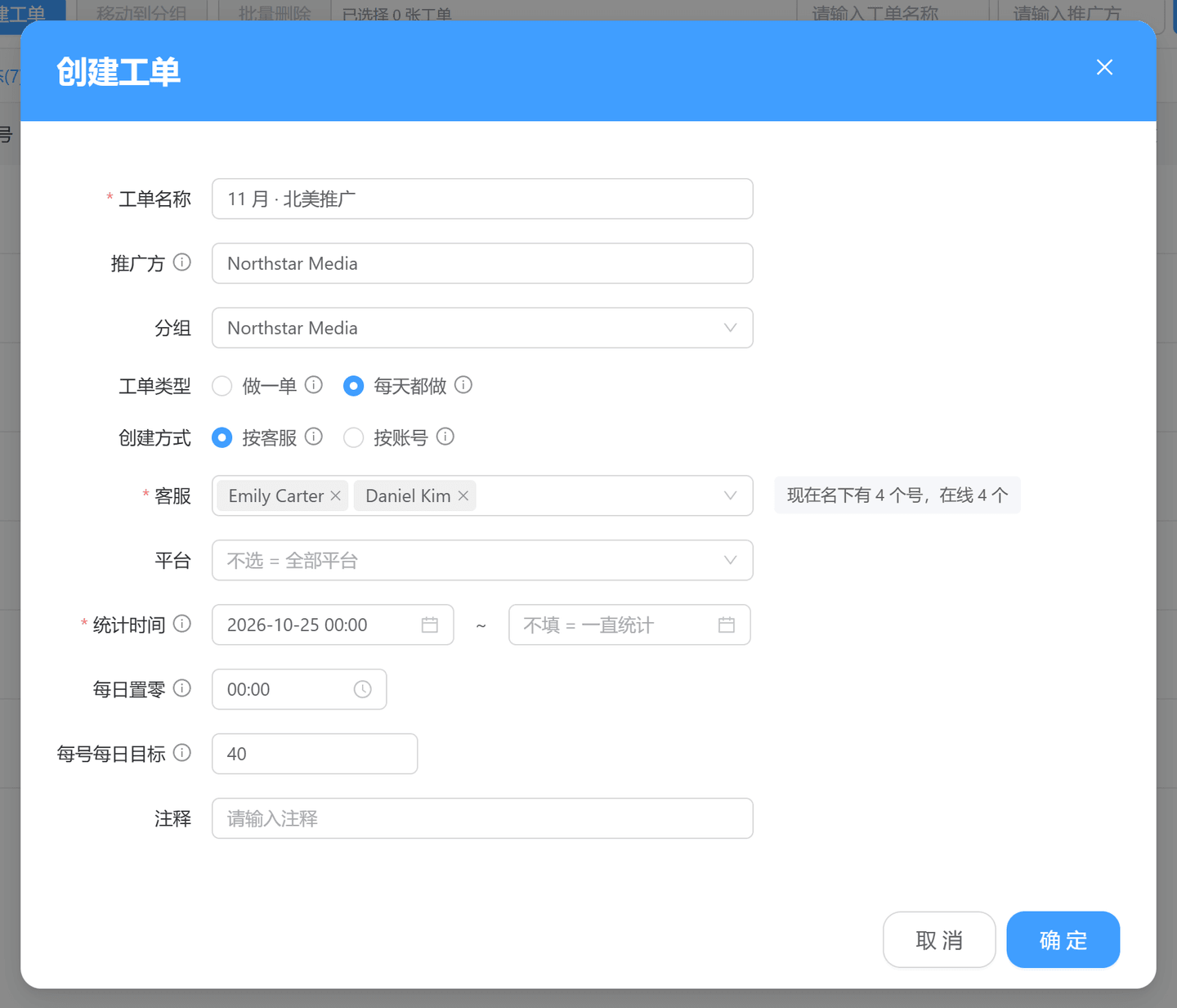
② Enter a Work order name (for example, "October Facebook campaign") and a Promoter (their name or a note), and choose a Group.
③ Choose a Work order type:
| Work order type | Notes |
|---|---|
| One-time | A target for this single job; it ends once met. Tracks the total gained from the start time until now |
| Daily | A target per day, reset to zero at the daily reset time and counted again. Tracks how many were gained today, settled day by day |
④ Choose a Creation method (which accounts to scope):
- By agent: pick one or more agents and track the accounts under them; you can use Platform to limit tracking to accounts on certain platforms, or leave it unset for all platforms. When the accounts under an agent change, the work order follows along automatically — no need to edit it.
- By account: select a set of accounts directly; the list is fixed and doesn't change with the agents.
⑤ Set the Tracking period: pick a start time; leaving the end time blank means tracking continues indefinitely.
⑥ Set the target according to the work order type:
- One-time: enter the Target per account, i.e., how many valid leads each account should gain for this job.
- Daily: set the Daily reset time (Beijing time) and enter the Daily target per account.
Setting the target to 0 means no target.
⑦ Optionally fill in Notes, then click OK; the page confirms "Work order created."
Note: When tracking by agent, if an account changes agents partway through, a contact is credited to the agent who held the account at the time the contact was gained; figures already counted don't change when an account is transferred.
2. How do I read the work order list?
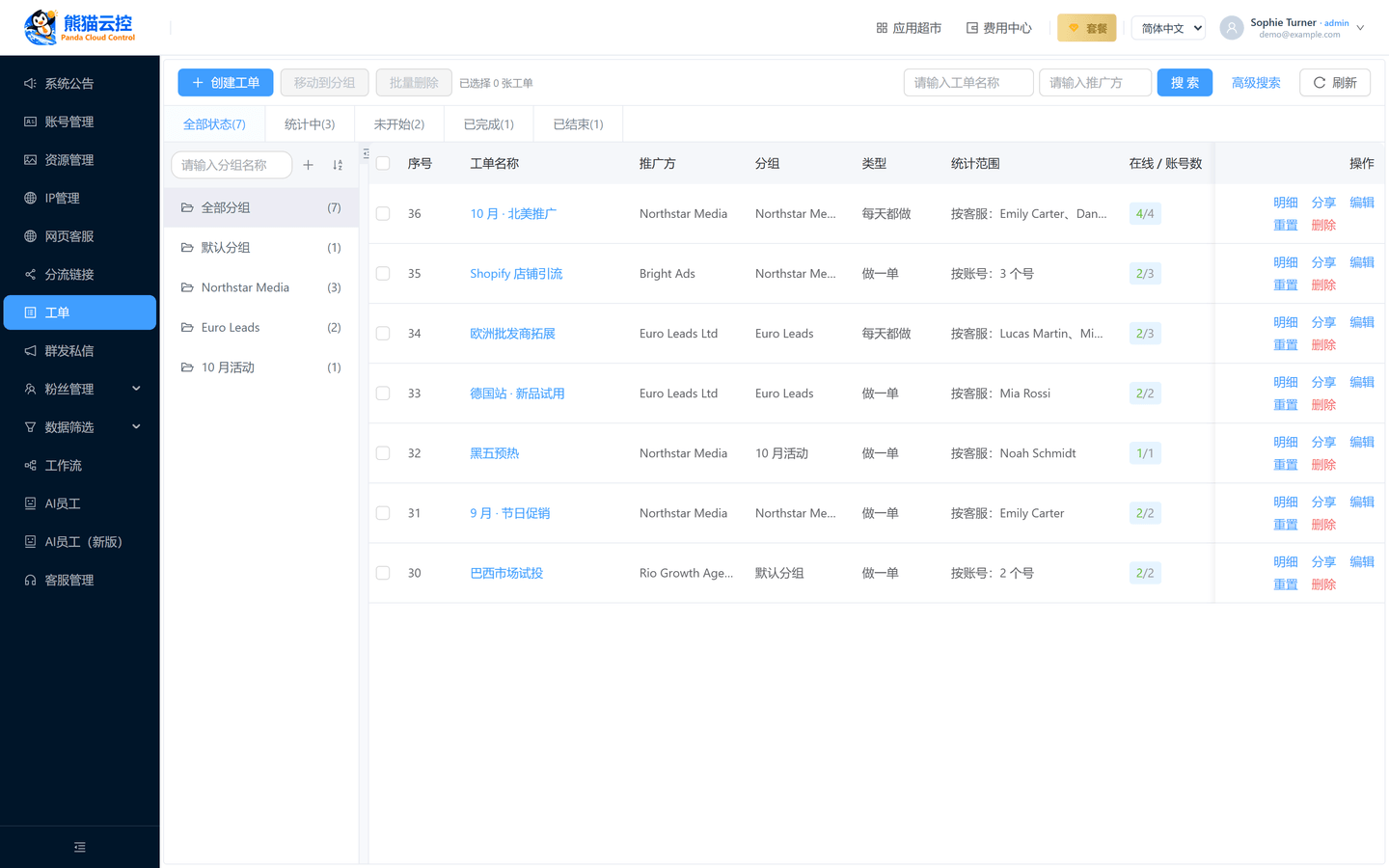
① Above the table are status tabs: All statuses, Tracking, Not started, Completed, and Ended.
| Status | Meaning |
|---|---|
| Not started | The start time hasn't arrived yet |
| Tracking | Currently tracking |
| Completed | A One-time order's valid leads have met the target |
| Ended | The end time has passed |
② The main columns are Work order name, Promoter, Group, Type, Scope, Online / accounts, Status, Today's leads, Total leads, Completed / target, Tracking period, Daily reset, and Share. Today's leads and Total leads are shown as "leads | duplicates | valid."
③ Each row's Actions column has Details, Share, Edit, Reset, and Delete.
Note: "Today" counts from the daily reset time; "total" counts from the work order's start time. In Completed / target, a one-time order uses total valid, a daily order uses today's valid, and the target = target per account × number of accounts.
④ The top-right lets you search by work order name and promoter; click Advanced search to also filter by type, creation method, and agent.
3. How do I view work order details?
① Click the work order name or Details in the Actions column to open Work Order Details.
② The top shows today's and total leads, duplicates, and valid counts; below, you can switch between By account, By agent, and By day:
- By account: each account's online status, today's leads, total leads, completion, and most recent acquisition time. Click Leads to see which contacts the account gained (contact account, nickname, acquisition time, whether it's a duplicate, etc.).
- By agent: a roll-up by agent of the data for the accounts under each agent.
- By day: one row per day, suited to reconciling daily work orders.
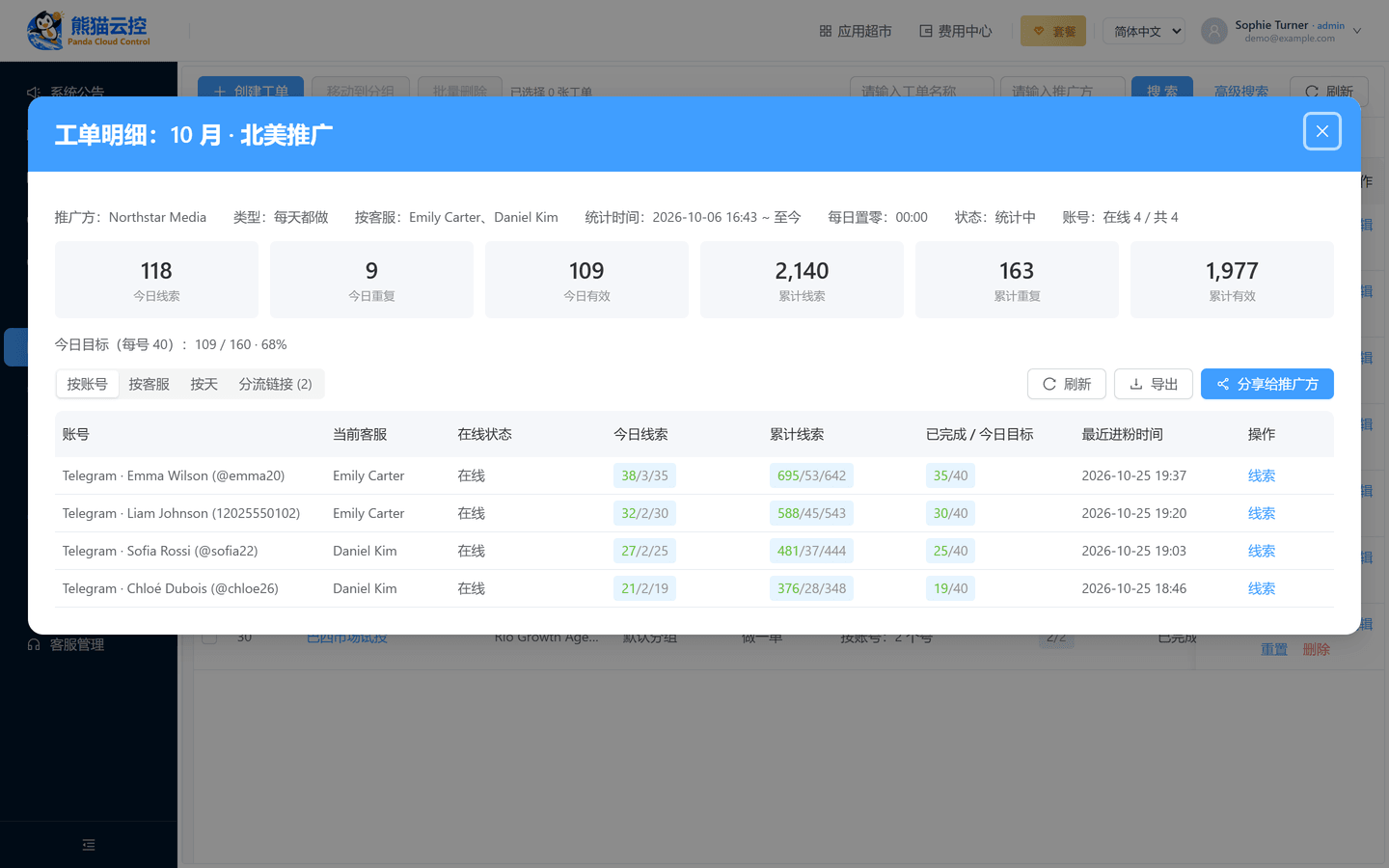
③ Click Export to download the current view as a CSV file.
Note: An account no longer in the work order's scope shows No longer in scope: contacts gained earlier still count toward this work order, while contacts gained afterward are no longer counted.
4. How do I share with a promoter?
① In the Actions column, click Share to open the Share with promoter dialog.
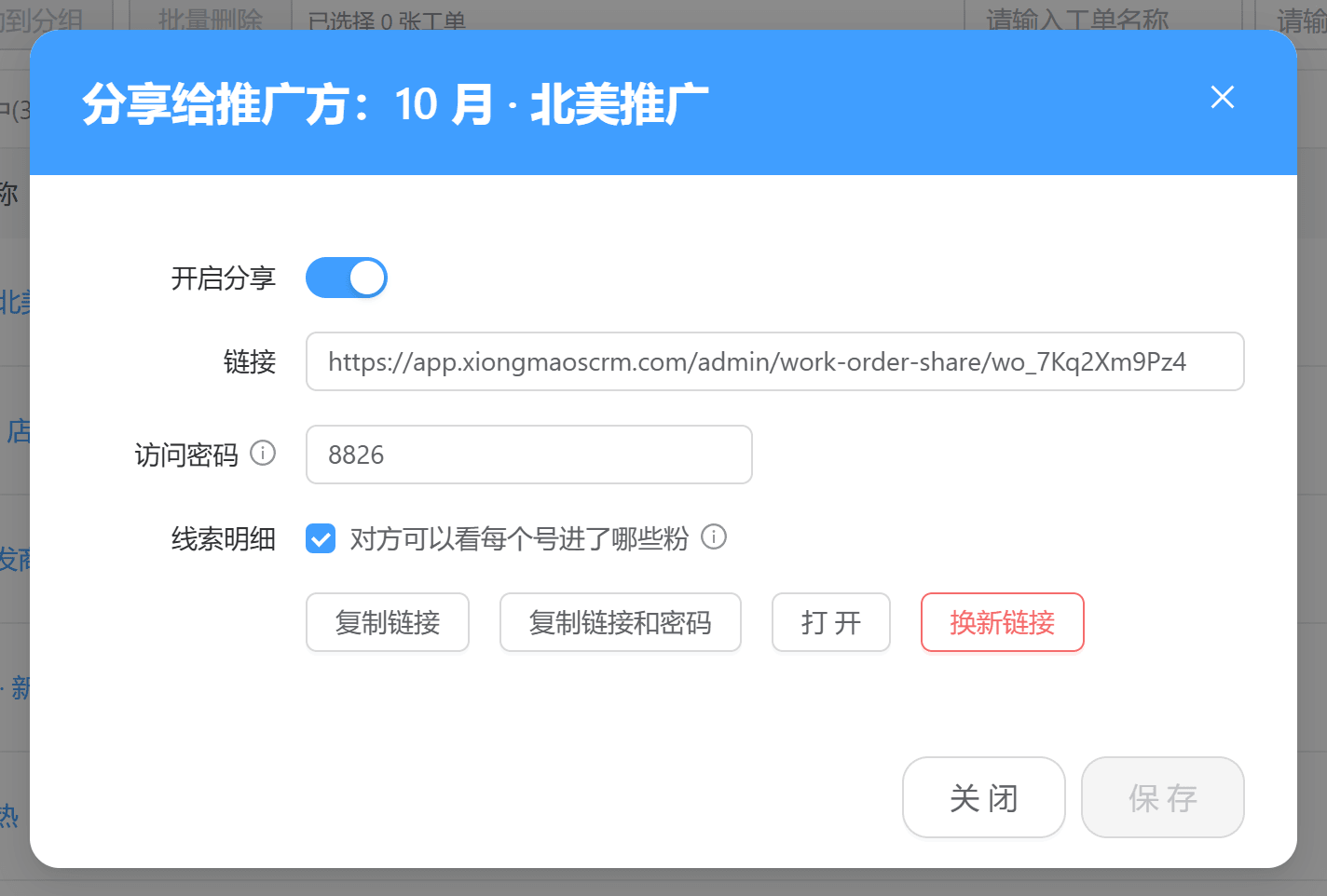
② Turn on Enable sharing. Optionally set an Access password (leave it blank and anyone with the link can view), and choose whether to check Lead details (checked, the promoter can see which contacts each account gained).
③ Click Save, then click Copy link or Copy link & password to send to the promoter.
④ If you sent the link to the wrong person, click New link; the old link stops working immediately and you'll need to resend the new one to the promoter.
Note: What the promoter sees on the link is real-time data, the same as what you see in the back office. Once you turn off Enable sharing, the link no longer opens.
5. How do I manage work orders with groups?
① The group panel on the left has All groups, Default group, and the groups you create (you can divide them by promoter, month, campaign, etc.). Click New group at the top of the panel to create one; hover over a group to rename or delete it.
② Select several work orders and click Move to group to move them in bulk.
③ Hover over a group and click Share whole group with promoter; with a single link, they can see all the work orders currently in the group and the totals. Work orders moved into the group later are visible too, and ones moved out are no longer visible.
Note: Deleting a group doesn't delete its work orders — they return to the Default group — and the whole-group share link stops working.
6. How do I reset, edit, or delete a work order?
- Edit: change the work order's name, promoter, scope, times, target, and so on.
- Reset: start tracking over from now — the start time changes to now, previously counted figures reset to zero, and what the promoter sees resets too. Contacts gained earlier remain in the contact list; they just no longer count toward this work order.
- Delete: removes only this tracking sheet, and the promoter's share link stops working; your accounts and the contacts in the contact list are unaffected. Select several work orders to use Bulk delete.
FAQ
1. Which contacts count as "gained" in a work order?
A work order counts all contacts newly gained by those accounts during the tracking period, regardless of which channel the contacts came from. If the same accounts are running other promotions at the same time, those contacts are counted toward the work order too.
2. Does a work order affect account or contact data?
No. A work order is just a tracking sheet; creating, resetting, or deleting one never changes the data in your accounts or the contact list.
Thanks for the feedback!
Still stuck? Reach us directly: Telegram @scrmqiye001 or email [email protected]
Last updated: