
How do I add a Telegram account?
1. Overview
A Telegram personal account is Panda Cloud Control's core channel. Once added, the private messages this account receives arrive in the Agent Workspace, and the account can also be used for bulk messaging.
There are two ways to add a single account:
- Scan a QR code: use the Telegram app already signed in on your phone to scan the QR code, linking Panda Cloud Control as a new device on that account.
- Phone number: enter the phone number and sign in with the verification code sent to that account's Telegram app.
If you have session files, TXT text, or order links from an account vendor and need to add many accounts at once, see How do I bulk import Telegram accounts?.
Note: Each account uses one device slot. When there aren't enough slots, you'll be prompted with "Please buy more on the Buy Devices page before signing in." Only one person on a team can be adding accounts at any given moment.
2. Steps
1. Adding by QR code in the admin console
① Log in to the admin console, then click Account Management > Telegram > Add Account.
② Under Add method, choose Scan QR code, and click Generate QR code.
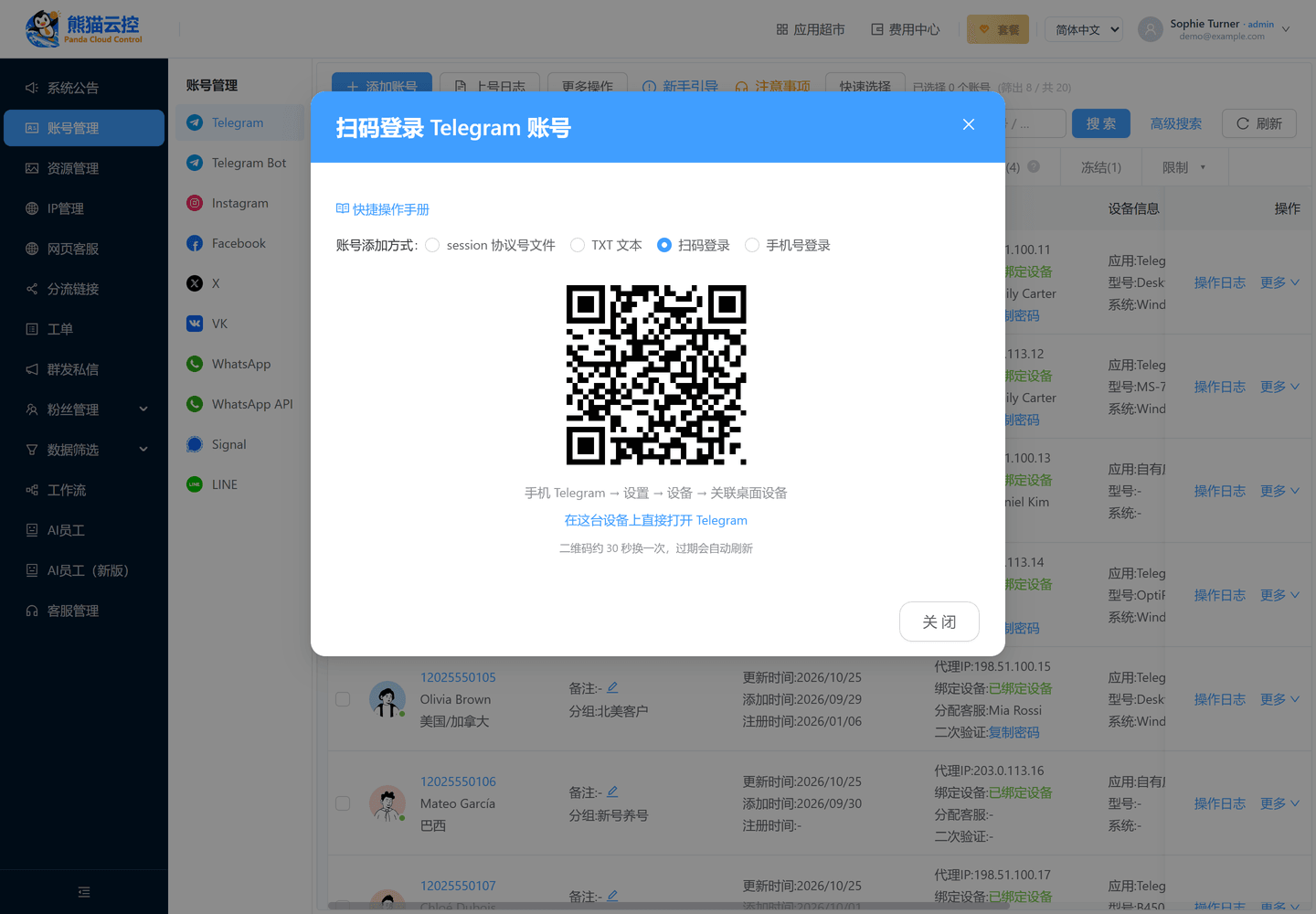
③ Open Telegram on your phone, go to Settings > Devices > Link Desktop Device, and scan the QR code on the page. The QR code refreshes about every 30 seconds and renews automatically when it expires, so there's nothing to do by hand.
④ If this account has two-step verification enabled, after scanning the page prompts "This account has two-step verification; you also need to enter the password." Enter the Two-step verification password and click Submit password.
⑤ When the page shows "Logged in successfully; the account will appear in the list shortly," the account has been added.
2. Adding by phone number in the admin console
① Click Account Management > Telegram > Add Account, and under Add method choose Phone number.
② In Phone number (with country code), enter the number, for example +8613812345678.
③ Choose the Exit IP:
| Option | What it does |
|---|---|
| System-assigned (default) | Assigns this account a dedicated exit IP from the platform IP pool; the page shows the IP and country under "Will use this time:" |
| Enter manually | Pick one of the proxies you imported under IP Management, or type socks5://username:password@host:port directly. Once set, this proxy is always used — for signing in and for sending and receiving afterward |
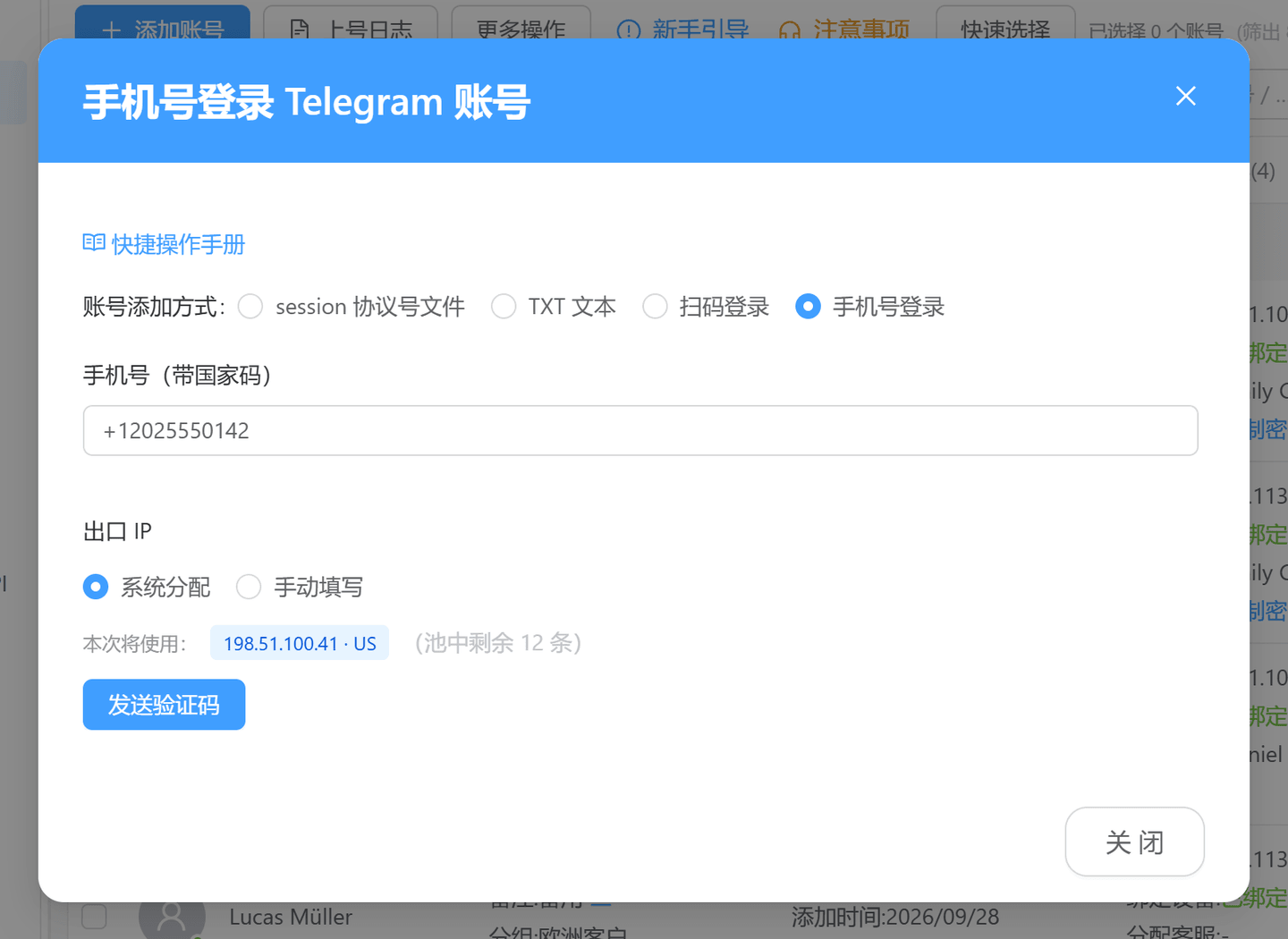
④ Click Send code. The code is delivered inside this account's Telegram app (the chat with the blue official "Telegram" account), not by SMS. Enter it in Code and click Submit code.
⑤ If this account has two-step verification enabled, also enter the Two-step verification password and click Submit password.
⑥ When the page shows "Logged in successfully; the account will appear in the list shortly," the account has been added. To switch to a different number, click Start over with another account.
Note: If you stay on the code or password step too long (about 10 minutes) without doing anything, this login is canceled automatically and you'll need to start over.
3. Adding from the Agent Workspace
① Log in to the Agent Workspace, click Add Account at the bottom of the account panel on the left, and choose Telegram from the list on the right.
② The page defaults to phone-number login: pick the country under Country/Region and enter the full number under Phone number.
③ To assign a proxy to this account, pick one from the proxy pool under SOCKS5 proxy for this account (optional), or type the proxy host, port, username, and password by hand; you can also paste the whole string host:port:username:password into the first box. Leave it blank to connect directly.
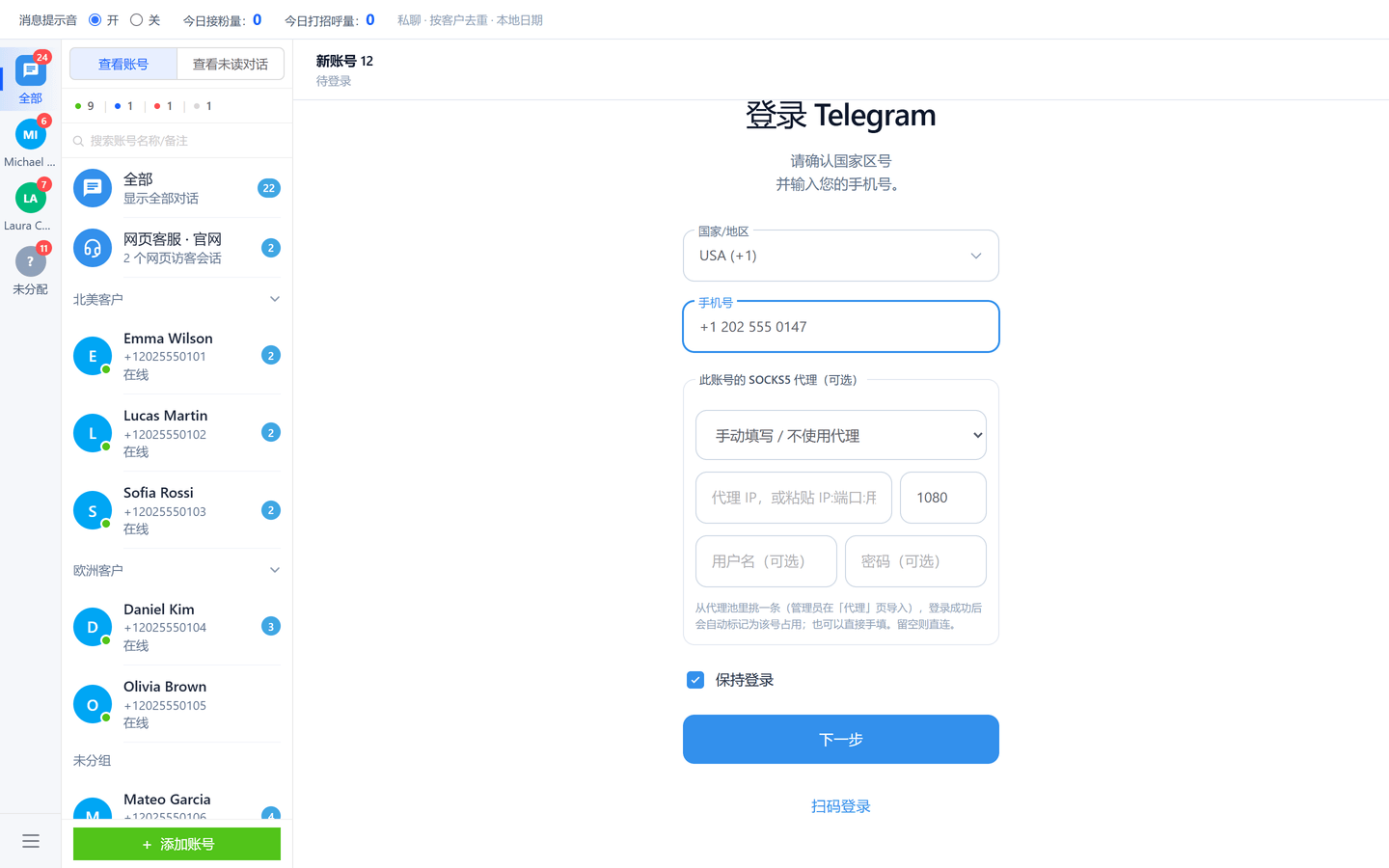
④ Click Next, enter the code received in the Telegram app under Code, and click Next again. For accounts with two-step verification enabled, enter the password under Password and click Next.
⑤ To sign in by QR code instead, click Scan QR code at step ②, open Telegram on your phone, and scan under Settings > Devices > Link Desktop Device. For accounts with two-step verification enabled, after scanning you also enter the Two-step verification password and click Log in. Click Use phone number instead to switch back to the phone-number method.
⑥ When the page shows "Linked successfully," the account appears in the account panel. An account an agent adds themselves is automatically assigned to them.
Note: A regular agent can only add accounts from the Agent Workspace after the owner grants the Add accounts in the workspace permission under Agent Management.
FAQ
1. Why am I not receiving the code?
The code is delivered inside the Telegram app already signed in on this account, not by SMS. On a phone or computer already signed in to this account, check the message from the official "Telegram" account.
2. What do I do about "Response timed out"?
Check that the proxy you entered works, or try again later. When signing in by phone number in the admin console, you can switch back to System-assigned and try once more.
3. It says the platform IP pool is out of free exit IPs?
When you choose System-assigned, the platform IP pool has no free exit IP at the moment, so the login is refused. Switch to Enter manually and use your own proxy, or contact our support.
4. I added the account, so why can't I see it in the list?
An account takes a moment to appear in the list after it signs in, so click Refresh. A freshly added account hasn't completed its first status check yet; if the list is filtered to one status, switch to All statuses to see it.
Thanks for the feedback!
Still stuck? Reach us directly: Telegram @scrmqiye001 or email [email protected]
Last updated: