
The chat window
1. Overview
The chat window sits in the middle of the Workspace and is where you and the customer send and receive messages. You can send text, emoji, images, video, files, and voice, and several images can be combined into an album; you can also reply to, edit, forward, star, and recall messages.
Images you receive can be viewed full-screen, voice can be played at faster speeds, and links show a preview automatically. When a message couldn't be sent, a red exclamation mark and the reason appear beside the bubble so you can deal with it promptly.
2. How it works
1. What's in the chat window's top bar?
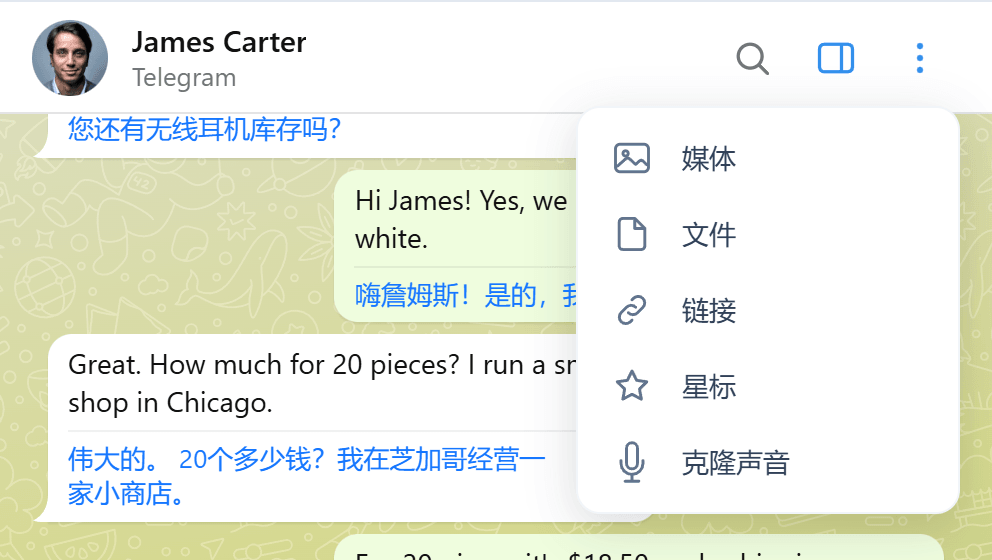
① On the left are the customer's avatar and name (the display name is shown if one is set), with the channel in gray below, for example Telegram or Web chat. Clicking here pops up the customer profile card.
② On the right, in order: Search (search chat history), Show customer info / Hide customer info (open or collapse the right-hand profile card), and More. More contains Media, Files, Links, and Starred, which open a browser of this conversation's content in the profile-card area.
2. How do I send text and emoji?
① Type in the Message… box at the bottom; press Enter to send and Shift+Enter for a new line.
② To the left of the input box are the paperclip (Add attachment) and the translate button; to the right are Emoji, the AI employee toggle (present only when an AI employee is configured), and the send button.
③ An unsent draft is saved automatically on this computer per conversation, so if you switch to another conversation and come back, the draft is still there.
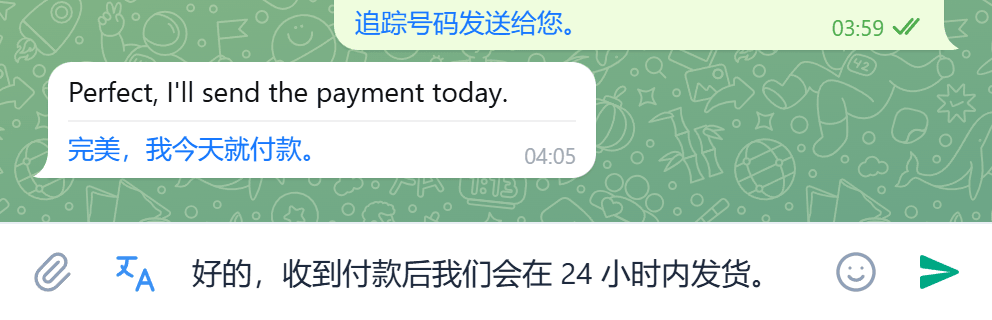
Note: For how to use the translate button, see Translating the customer's language; for the AI employee toggle, see Letting the AI employee handle customers.
3. How do I send images, video, and files?
① Pick files in any of three ways: click the paperclip > choose Photo or video, Document, or Music; drag files straight into the message area; or paste in the input box.
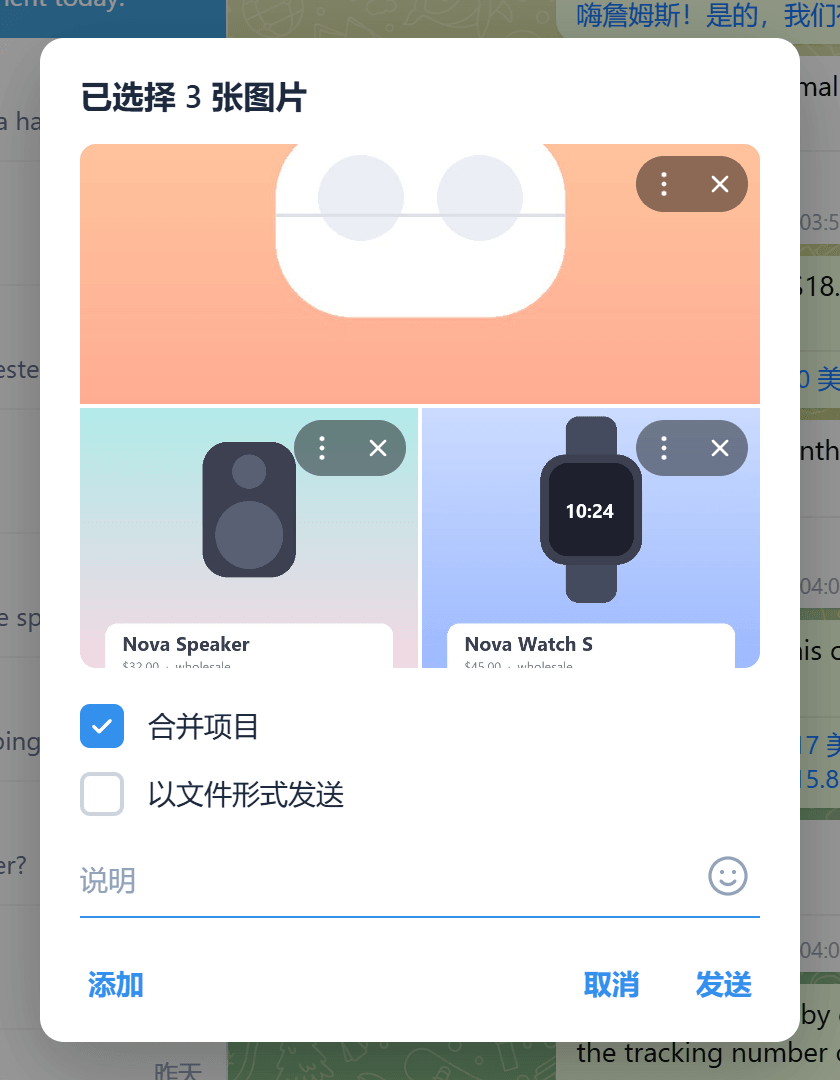
② Once the send preview dialog opens, you can click Add to keep choosing files; the top-right of each item lets you replace or remove it.
③ When multiple files are selected, Combine items is checked by default and they're sent as an album; each album holds up to 10 items, and any beyond that are split into multiple groups automatically.
④ With Send as files checked, images and video are sent as the original files, without compression.
⑤ If you like, write some text in Caption, then click Send.
Note: Progress is shown while sending; on failure the button becomes Retry, and anything already sent won't be sent again. Currently only Telegram supports combining into an album; other channels send images one at a time.
4. How do I send a voice message?
① When the input box is empty, click the microphone button on the right. The first time, the browser asks for microphone permission — please click Allow.
② While recording, it shows "Recording" and the elapsed time.
③ Click the send button to send the voice message, or click Cancel to discard it. Recordings shorter than 0.5 seconds are discarded automatically.
5. What's on the message right-click menu?
Right-click a message for the following actions:
| Action | Description |
|---|---|
| Reply | Reply by quoting this message; press Esc to cancel the quote |
| Edit | You can edit only your own text messages; an edited message shows "edited" |
| Copy | Copies the message text |
| React | Tap an emoji to react to this message |
| Forward | Forward to another conversation; see below |
| Star / Unstar | Save this message and find it later under Starred messages on the profile card |
| Report | This item appears only on messages sent by the other party |
| Delete | Recalls this message; once recalled it shows "Message deleted" |
6. How do I forward a message?
① Right-click the message > click Forward.
② In the Forward to… window, search for and click the target conversation.
③ When it shows "Forwarded ✓", the forward is done.
Note: What's forwarded is a copy, without any "Forwarded from" label.
7. How do I view messages I've received?
① Images: click to view full-screen, where you can zoom, drag, and download; use the ← → keys to page through and Esc to close.
② Video: click to play. Voice: click the waveform to jump to any point, and switch among 1x, 1.5x, and 2x speed.
③ Files: click the file card to download. Links: a preview card is shown automatically; click to open in a new tab.
④ When the other party is typing, it shows "{name} is typing…".
⑤ Marks on a bubble: AI means it was sent by the AI employee; "edited" means it was changed; a star means it's starred; for your own messages, a single check means delivered and a double check means the other party has read it.
⑥ Scrolling to the top loads earlier messages automatically; once everything is loaded, it shows "— No earlier messages —".
FAQ
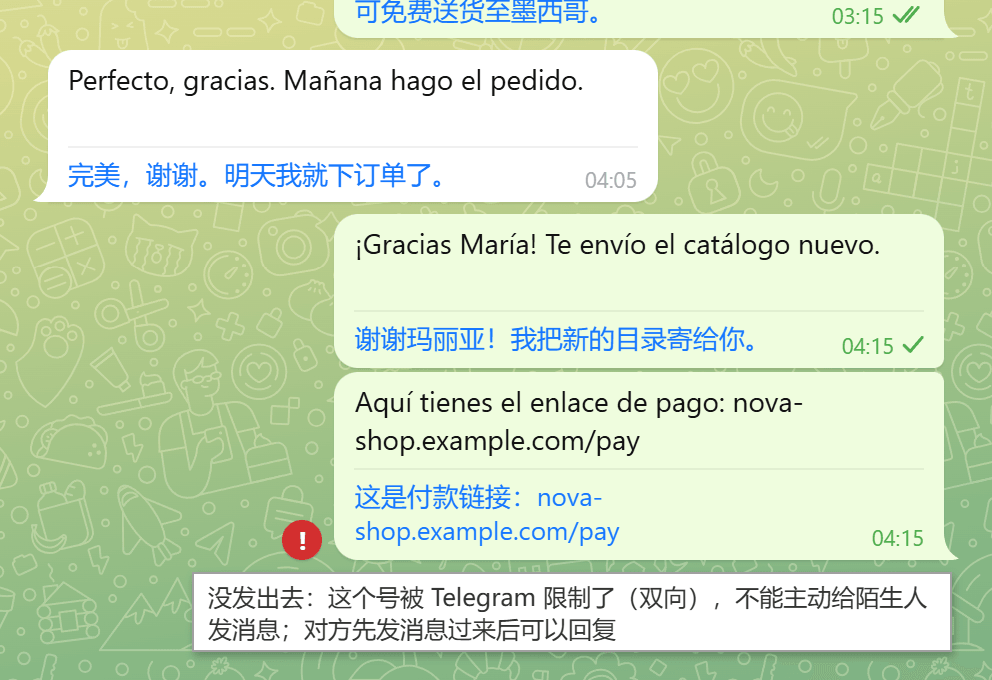
1. What does a red exclamation mark beside a message mean?
It means this message didn't reach the customer. Rest the mouse on the exclamation mark to see the reason, for example "Not sent: the recipient has blocked this account", "Not sent: sending too fast, rate-limited by Telegram, try again in a moment", or "Not sent: this account has been restricted by Telegram (both directions) and can't message strangers first; you can reply once they message you first".
2. What do the red or yellow banners above the input box mean?
| Banner | Description |
|---|---|
| "This account is offline; messages can't be sent" | The account this conversation belongs to has dropped offline; please reconnect it in the account bar or change its proxy |
| "This account has been frozen by Telegram: it can receive messages but can't send" | The account is frozen and can only receive, not send; if there's a deletion date, it's shown too |
| "The customer hasn't messaged in over 24 hours: past Instagram's reply window, the message may not go out" | Instagram's reply-window rule: after 7 days you can no longer reply and must wait for the customer to message first |
| "The customer hasn't messaged in over 24 hours: WhatsApp only allows approved template messages; ordinary messages will fail" | The 24-hour reply-window rule for WhatsApp API numbers |
For how to handle offline and frozen accounts, see Handling offline, frozen & banned accounts.
Thanks for the feedback!
Still stuck? Reach us directly: Telegram @scrmqiye001 or email [email protected]
Last updated: