
Send control
1. Overview
Send Control (message send control) is a global setting that applies to all broadcast tasks: within a set number of hours, how many messages in total the broadcast tasks created by each console account (the main account and each agent are counted separately) can send at most. A task that hits the limit does not fail; it waits in place and continues sending automatically once quota in the time window frees up.
This is one shared setting for the whole team; anyone with the Bulk Messaging permission can view and change it.
2. How to use it
1. How do I set up Send Control?
① After logging in to the back office, click Bulk Messaging in the left-hand menu > click Send Control at the top, and Message Send Control opens on the right.
② Enter the Message limit (1–100,000 messages) and the Limit window (1–720 hours).
③ Turn on the Enable limit switch; next to it, it shows "at most M messages within N hours".
④ Click Save.
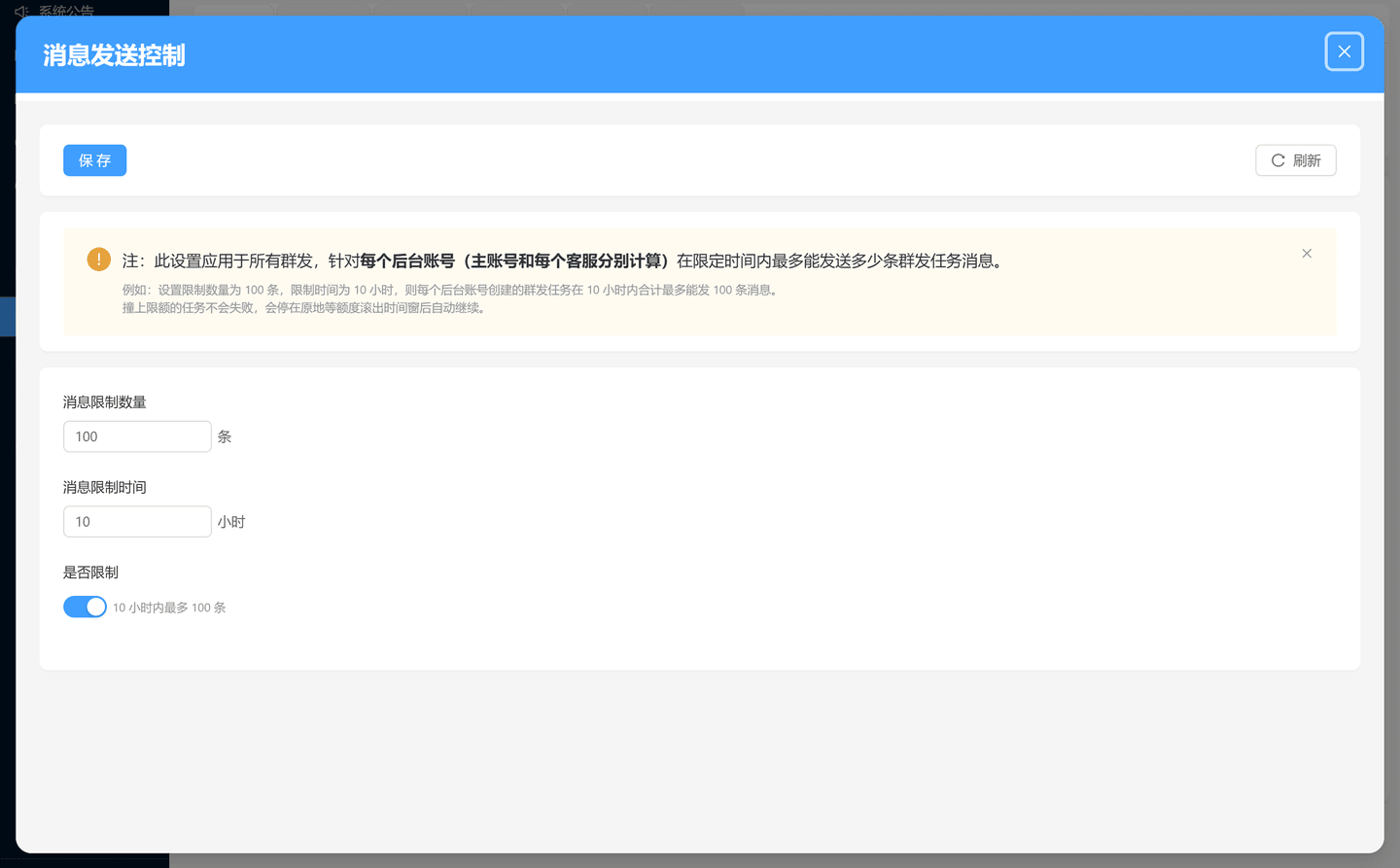
Note: Turning off Enable limit means no rate limiting. It is off by default if it has never been set.
2. What happens when a task hits the limit?
① The task does not fail; its status still shows Running.
② The system checks periodically and, once quota in the time window frees up, continues sending automatically.
Note: If a task stays Running for a long time with no new send records, first check whether it has hit Send Control or the day's Daily cap.
FAQ
1. What is the difference between Send Control and the Daily cap?
The Daily cap is each task's own setting — the most targets that task sends in a day; see Sending rules and rate control. Send Control is a global setting that limits by "at most so many messages within so many hours" and applies to all broadcast tasks. Both apply at once; whichever is hit first is the one the task waits on.
2. If I change Send Control, do running tasks need to be restarted?
No. Once saved, it applies to all tasks, with no need to stop them.
Thanks for the feedback!
Still stuck? Reach us directly: Telegram @scrmqiye001 or email [email protected]
Last updated: