
Workspace settings & the desktop app
1. Overview
The Agent Workspace's settings are gathered in the hamburger menu (☰) at the bottom-left, including the sound and desktop notifications for new messages, changing your password, the interface language, translation settings, chat wallpaper, and page zoom.
Besides using it in a browser, Panda Cloud Control also offers a Windows desktop app that opens straight into the Agent Workspace and works exactly like the web version.
2. How it works
1. What's in the hamburger menu?
① Click the hamburger menu (☰) at the bottom-left of the Workspace, and a menu slides out on the left.
② The top of the menu shows your avatar, name, and connection status (Connected, Syncing…, Reconnecting, Connection error).
③ Below that, in order: Canned Replies (opens the canned-replies panel), Enter the back office (visible only to the owner and admins), and Settings.
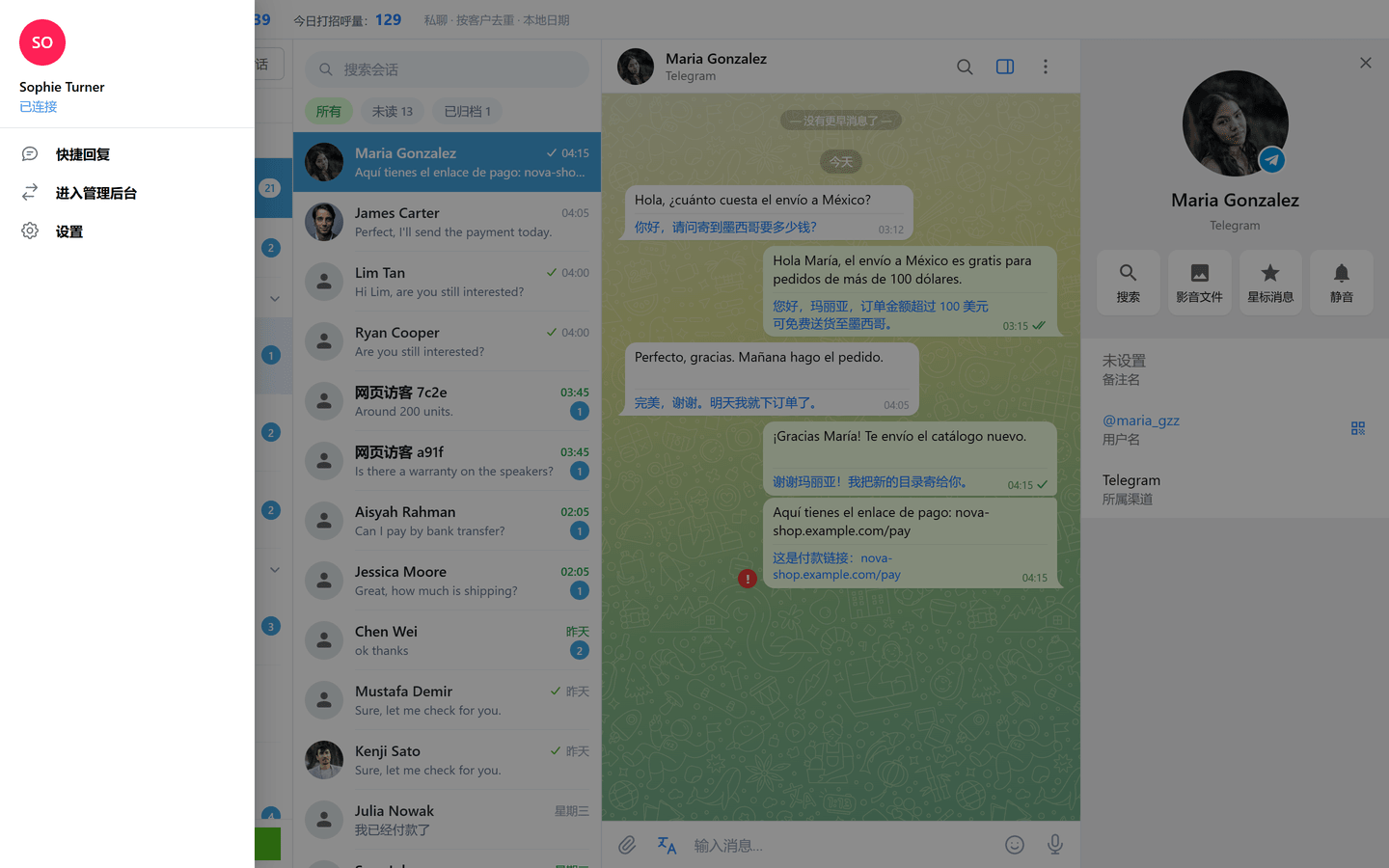
Note: The small dot on the hamburger menu shows the connection status: a flashing yellow dot means syncing or reconnecting, and red means a connection error.
2. What options are in Settings?
① Click the hamburger menu (☰) > click Settings to open the settings window. The top shows your avatar, name, email, and role (Admin or Agent).
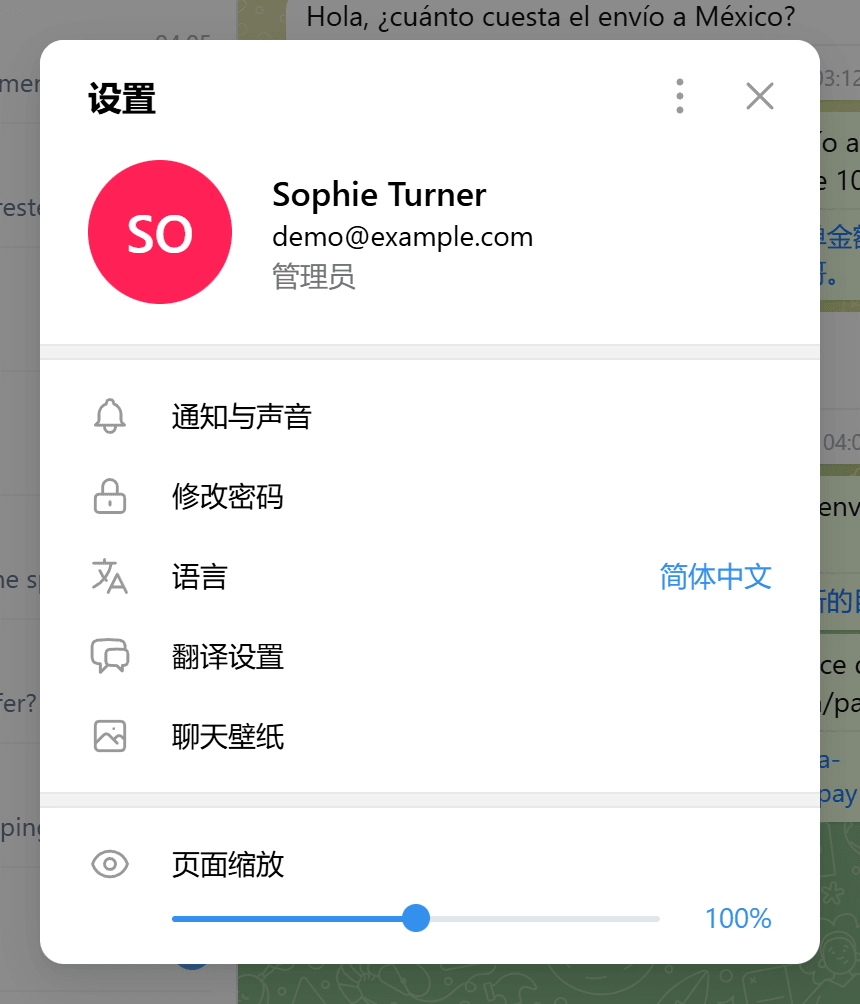
② The items are as follows:
| Setting | Description |
|---|---|
| Notifications & sound | Two toggles, Sound alerts and Desktop notifications, both on by default |
| Change password | Enter your old password and a new password (at least 8 characters), confirm it, and click Save new password |
| Language | The interface language; choose Simplified Chinese or English |
| Translation Settings | The global translation rules for incoming and outgoing messages — see Translating the customer's language |
| Chat wallpaper | Choose from 12 preset wallpapers, or click Choose from file to use your own image |
| Page zoom | Drag the slider among 80%, 90%, 100%, 110%, and 120%; it takes effect when you release |
③ Log out: click More (⋮) at the top-right of the settings window > click Log out > confirm Log out.
Note: Avatars are set by an admin in the back office under Agent Management; agents can't change their own.
Note: Translation settings, chat wallpaper, page zoom, and column widths are saved only in the browser on the current computer; on another computer you'll need to set them up again.
3. When do new messages trigger an alert?
A new message triggers an alert only when it meets all of these conditions: it's not in the conversation you currently have open (when the tab is in the background, messages in the current conversation also alert), it wasn't sent by you, the conversation isn't muted, and it's a conversation you can see.
① The favicon on the browser tab shows the unread number; when the tab is in the background, the title flashes "(N) new messages".
② Sound alerts: plays a sound when a new message arrives.
③ Desktop notifications: pops up a system notification when the tab is in the background; clicking the notification switches back to the Workspace and opens the relevant conversation.
Note: The first time you turn on desktop notifications, the browser asks whether to allow notifications. If you clicked Deny earlier, you'll need to turn them on manually under the 🔒 icon on the left of the browser's address bar.
4. How do I use the desktop app?
① The installer is the Windows edition of Panda Cloud Control; please contact us to get it. You can choose the install location during setup, and once installed you'll find Panda Cloud Control on your desktop and in the Start menu.
② The app opens straight into the Agent Workspace, skipping the system-selection page; when the owner or an admin needs to go to the back office, they click Enter the back office in the hamburger menu (☰).
③ After the web version updates, refreshing or reopening the app gives you the latest version — no reinstall needed.
④ The app allows only one window; opening it again switches to the window already open. Press the Alt key to show the menu bar, which has Refresh, Zoom in, Zoom out, Full screen, and more.
⑤ External links in chats open in your computer's default browser.
5. Can I use it on a phone?
Yes. Opening app.xiongmaoscrm.com in a mobile browser takes you straight into the Agent Workspace, where the interface is shown one screen at a time as "Accounts → Conversations → Chat → Profile card", and the Back button steps back one level at a time; long-pressing an account or conversation is the equivalent of the right-click menu on a computer.
Note: Phones support only staff (sub-account) logins; the owner and admins should log in on a computer. Phones also don't have Enter the back office or Page zoom.
Thanks for the feedback!
Still stuck? Reach us directly: Telegram @scrmqiye001 or email [email protected]
Last updated: