
Account groups
1. Overview
Account groups help you manage Telegram accounts separately by purpose, account provider, country, and so on. Once groups are set up, you can view accounts by group in the account list; when you pick the sending accounts for a new broadcast task, you can also choose directly by group. We recommend sorting accounts into groups right after importing them.
Creating, renaming, and deleting groups is all done in the group panel on the left of the Account Management > Telegram page.
2. Steps
1. How do I create a group?
① After logging in to the back office, click Account Management > Telegram in the left menu, then click + (New Group) at the top of the group panel on the left.
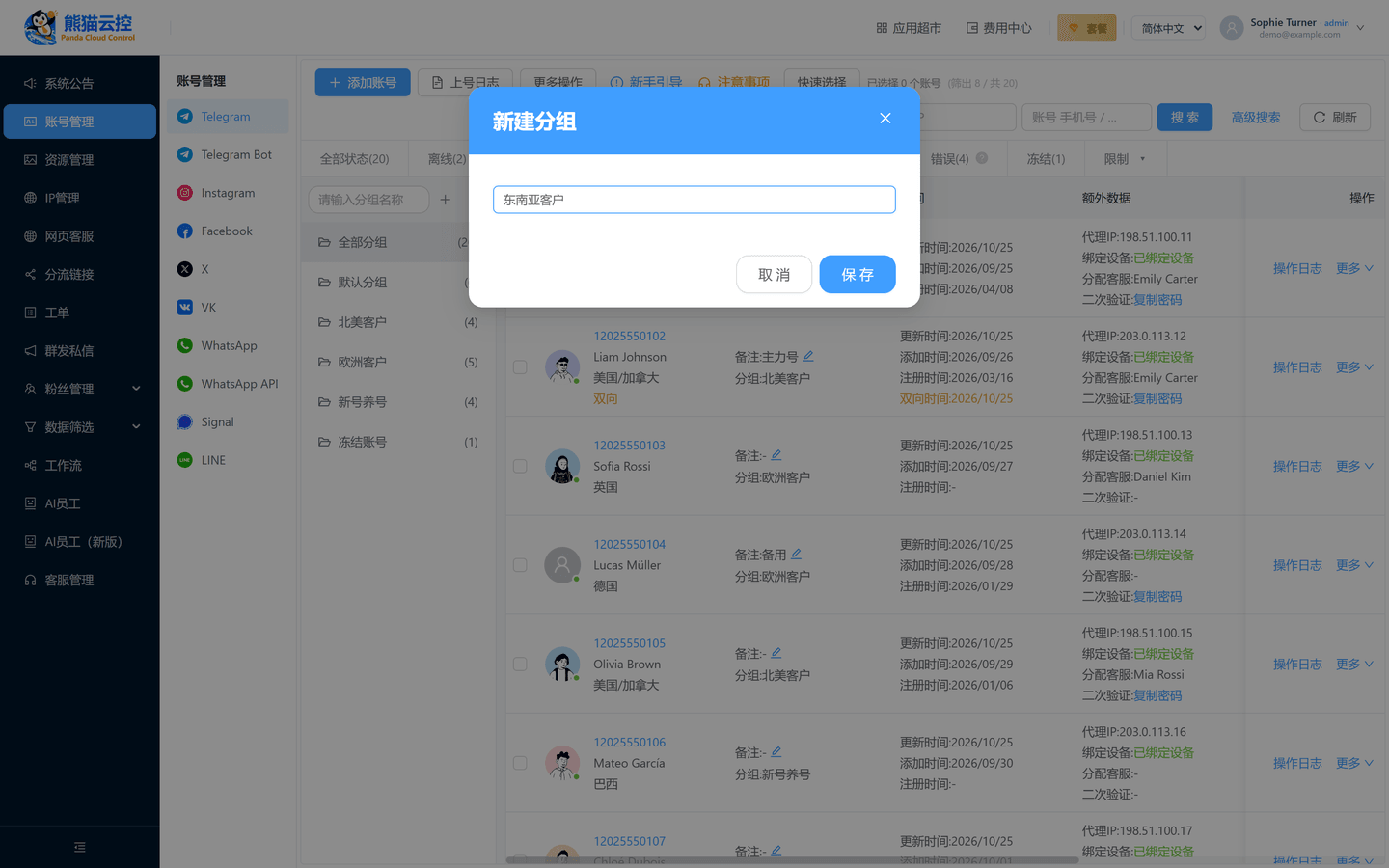
② Enter a group name (up to 40 characters) in the New Group dialog and click Save.
Note: the search box at the top of the group panel finds groups by name; the sort button next to it switches the order of the groups (by creation order or by name).
2. How do I rename or delete a group?
① Move the mouse over a group, and two icons appear on the right: Rename Group and Delete Group.
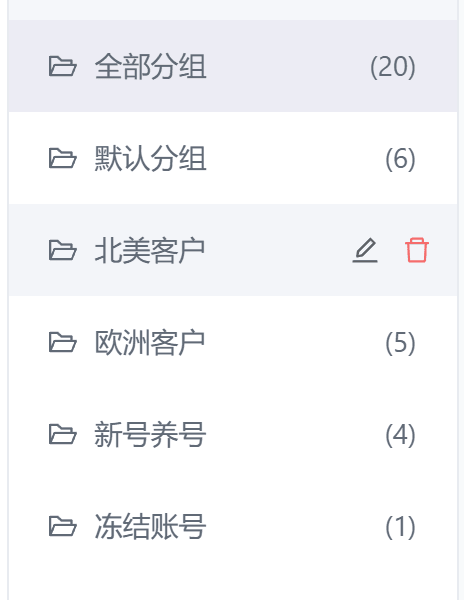
② Click Rename Group, change the name, and click Save.
③ Click Delete Group and confirm in the dialog. After deletion, the accounts in the group return to Default Group, and the accounts themselves are unaffected.
Note: All Groups and Default Group are built in and cannot be renamed or deleted.
3. How do I move accounts into a group?
3.1 Move one account
① Click More > Move to Group in the Actions column of the account's row.
② Choose a group (or choose Ungrouped to move it out of its group); it takes effect immediately.
3.2 Move accounts in bulk
① Tick the accounts you want to move, then click Bulk Actions > Change Group in the Account Settings section.
② Choose the scope: The N selected or All N.
③ Choose a group from the dropdown, click Save, and the page shows "N accounts moved".
4. Where can groups be used?
- Click a group on the left of the account list, and the table shows only that group's accounts; this works together with the status tabs.
- When picking the sending accounts for a new broadcast task, you can choose By account group and send using only the online accounts in the group, see How do I create a broadcast task?.
- If a group name contains the word "frozen", the Group dropdown in Advanced Search gains a Hide frozen accounts option, and choosing it excludes the accounts in those groups from the list.
Note: the account bar in the Agent Workspace can also be grouped, but that is the Workspace's own arrangement and is independent of the account groups here.
FAQ
1. Does deleting a group delete the accounts?
No. After a group is deleted, its accounts automatically return to Default Group, and the accounts' login status, contacts, and chat history are all unaffected.
2. Can an account be in several groups at the same time?
No. An account can be in only one group; after moving it to a new group, it automatically leaves the old one.
Thanks for the feedback!
Still stuck? Reach us directly: Telegram @scrmqiye001 or email [email protected]
Last updated: