
Login log & action log
1. Overview
Account Management > Telegram has two kinds of log:
- Login Log: records every batch of accounts imported by uploading a file, showing whether each account imported successfully and the reason for any failure, and letting you log in accounts that are Import only.
- Action Log: each account has its own, recording the status changes the system detects automatically, such as coming online, login failure, and logging out.
2. Steps
1. How do I view the Login Log?
① After logging in to the back office, click Account Management > Telegram in the left menu, then click Login Log at the top.
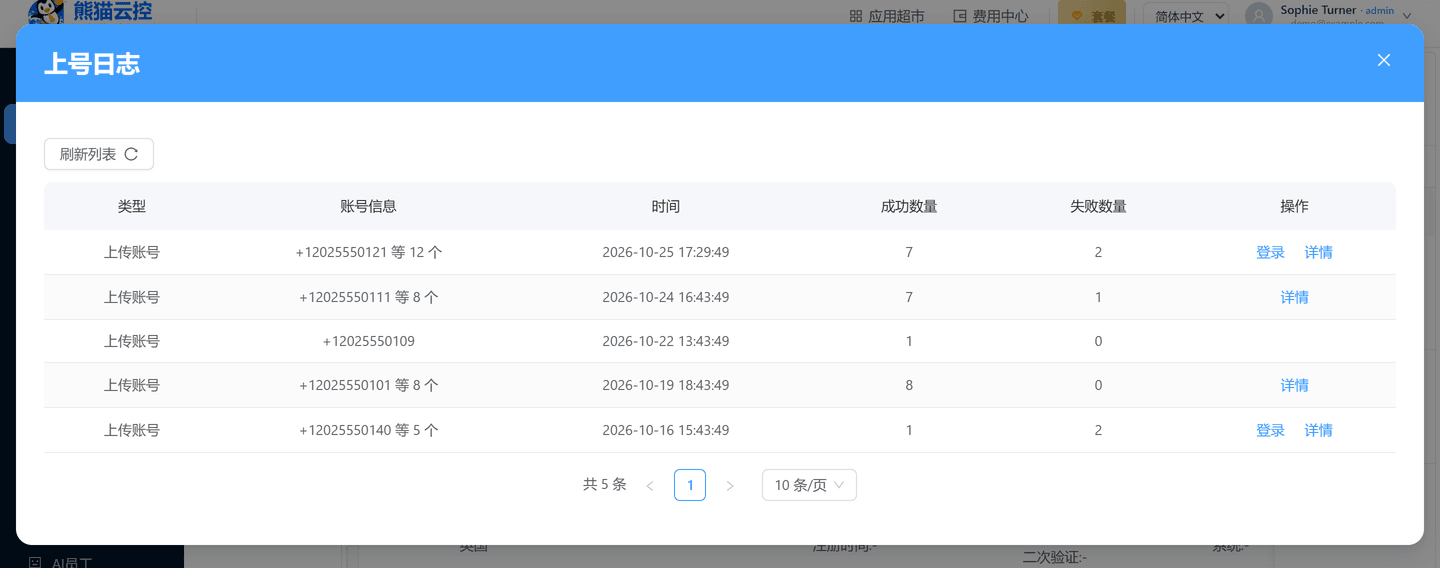
② Each row in the list is one import batch, with the columns Type, Account Info (the number for a single account, or "… and N others" for several), Time, Success Count, Failure Count, and Actions.
③ When a batch has accounts pending login, Log In appears in the Actions column; when there are several accounts or failures, Details appears.
Note: the Login Log only records imports from an uploaded file (session files, TXT, etc.); accounts logged in by QR code or phone number do not appear here. The list shows at most the latest 200 batches.
2. How do I log in accounts that are pending login?
① Click Log In in the Actions column of the batch.
② The system first checks the device count: if there is not a single available device, it prompts you to buy devices first; if there are not enough devices, it only logs in the first N.
③ The system logs them in one by one, showing "… logged in" or "… login failed: reason", and finally "Login complete: X succeeded, Y failed".
Note: login uses the exit IP chosen at import time. Only one batch can be logged in at a time; the Log In button on other batches turns gray.
3. How do I view the details of an import batch?
① Click Details in the Actions column of the batch.
② The top of the dialog shows the counts for "N accounts total · Success · Failed · Number issue · Pending login", and below, one row per account: Account Info, Nickname, Status, TG id, Failure reason. Accounts pending login can be logged in individually with Log In.
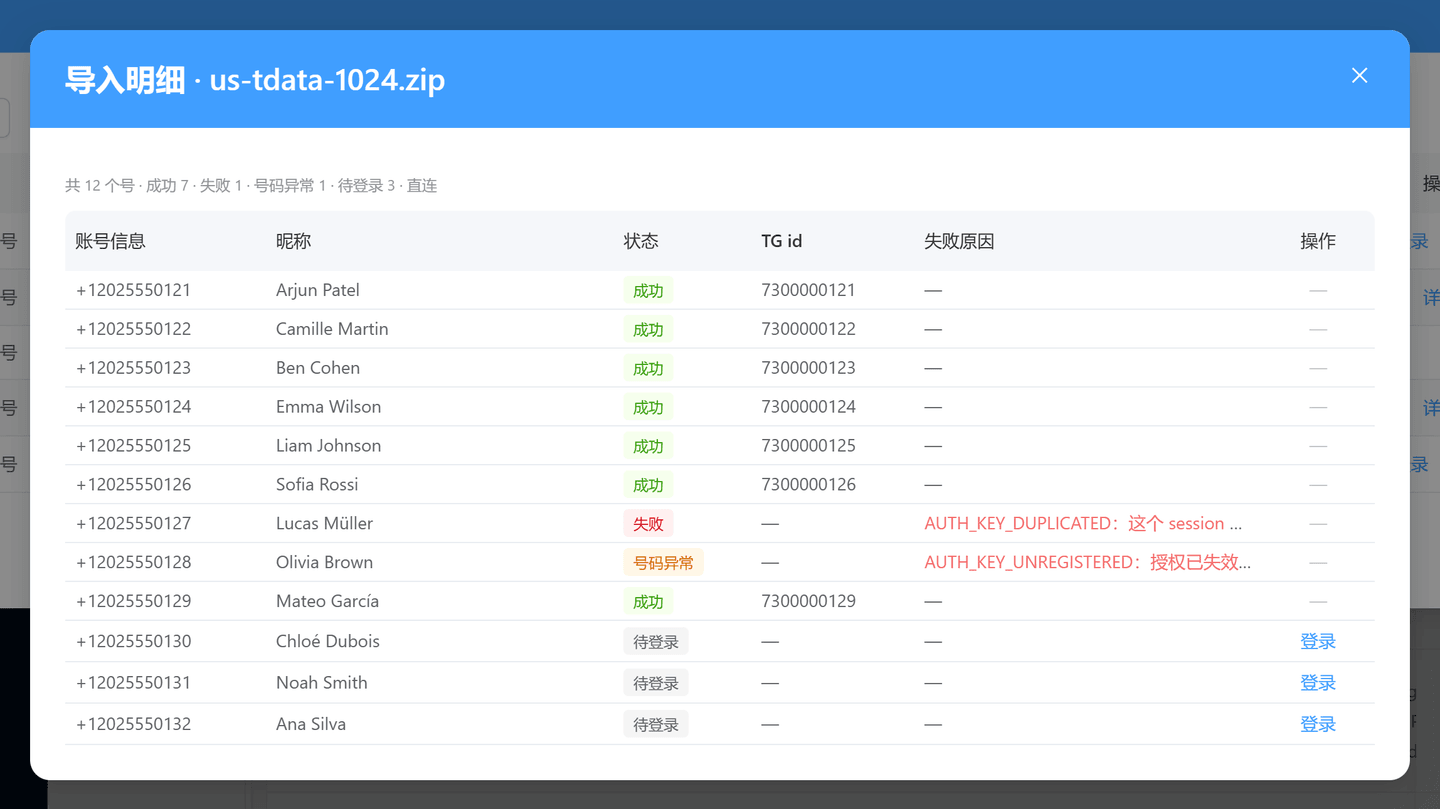
| Status | Meaning |
|---|---|
| Success | Already logged in and visible in the account list |
| Failed | A file or network problem; just import again after fixing it |
| Number issue | The account itself can no longer be used (banned, session expired, kicked elsewhere, etc.); retrying does not help, so we recommend asking your account provider for a replacement |
| Pending login | Not logged in yet; Import only accounts are here too; once logged in successfully you can view them in the account list |
4. How do I view an account's Action Log?
① Click Action Log in the Actions column of the account's row to open Account [number] log.

② The log is tabbed by Status: All, Not started, Canceled, Completed, Running, Error, Failed.
③ The table has the columns Action Type, Status, Result, and Time, showing at most the latest 1000 records.
④ Click Export Log to download a CSV file.
Note: bulk operations such as changing the name, changing the avatar, or changing the IP are not recorded in the Action Log; check their results in the progress dialog shown when they run.
FAQ
1. Why can't I find a QR-code login in the Login Log?
The Login Log only records batches imported by uploading a file. Accounts logged in by QR code or phone number appear directly in the account list, and their status changes can be viewed in the Action Log.
2. What do I do with an account that shows "Failed" in the import?
"Failed" is usually a file-format or network problem; just import again after fixing it. "Number issue" is a problem with the account itself, and importing again does not help. For how to bulk-import, see How do I bulk-import Telegram accounts?.
Thanks for the feedback!
Still stuck? Reach us directly: Telegram @scrmqiye001 or email [email protected]
Last updated: