
Quick start: the Agent Workspace
1. Overview
The Agent Workspace is where Panda Cloud Control handles customers. Private chats on the Telegram, WhatsApp, Instagram, and other social media accounts assigned to you, along with visitor conversations from the web chat widget, are all sent and received here in one place, so you don't have to switch back and forth between multiple apps.
From left to right, the Workspace is: the agent rail, the account bar, the conversation list, the chat window, and the customer profile card. This article introduces each area; for how to use them in detail, see the article for each area.
2. How it works
1. How do I get into the Agent Workspace?
① Open app.xiongmaoscrm.com in your browser, click Enter the Agent Workspace on the Select a system page, and log in with your owner account or a sub-account.
② If you're already in the back office, click your name at the top-right > click Go to the Agent Workspace to switch over.
③ In the back office, under Account Management > the Telegram list, click an account's phone number to open that account's conversations directly in a new tab.
④ You can also use the Windows desktop app, which opens straight into the Agent Workspace — see Workspace settings & the desktop app.
Note: Opening it in a mobile browser takes you straight into the Agent Workspace and supports only staff (sub-account) logins; the owner and admins should log in on a computer.
2. What areas make up the Workspace?
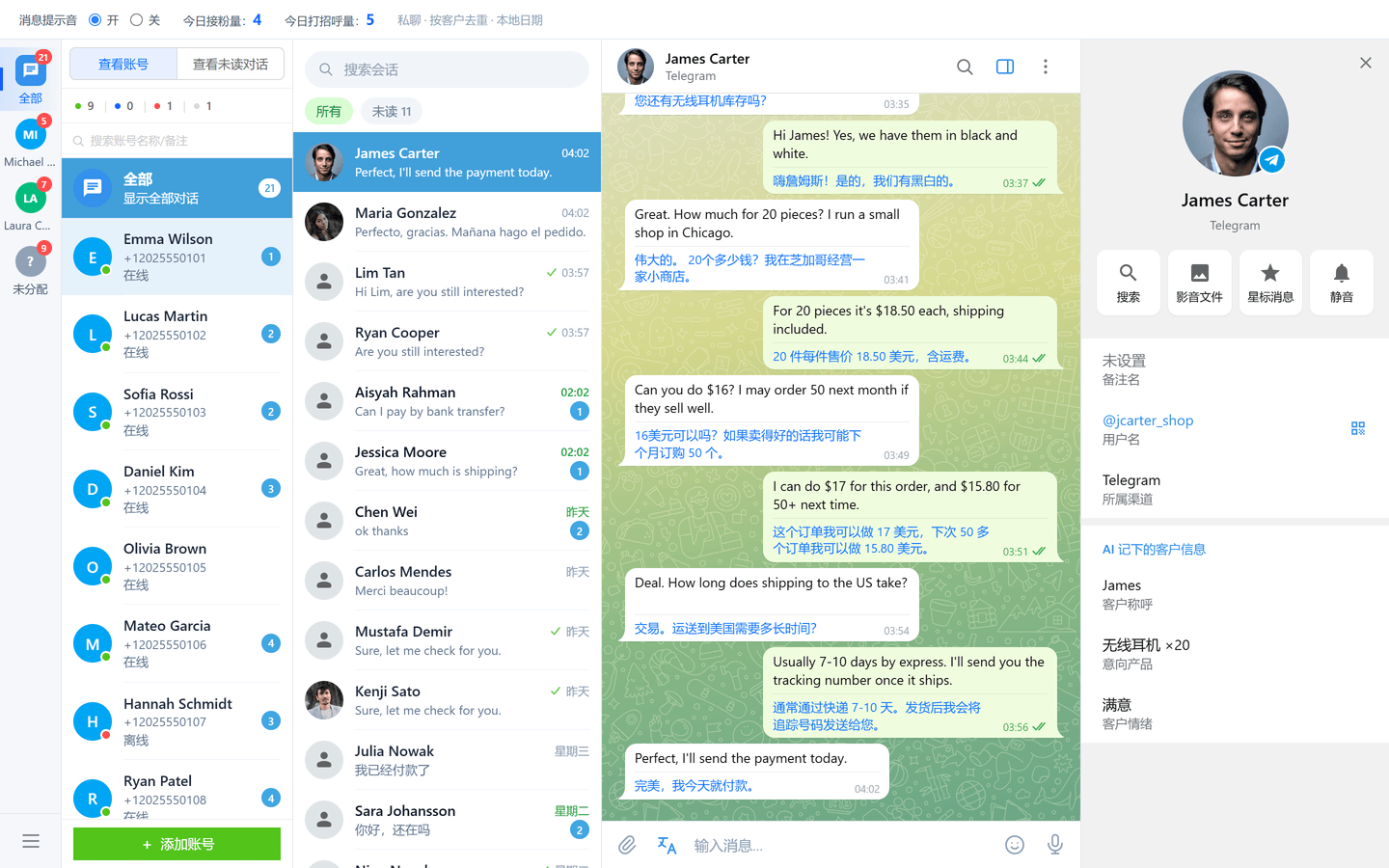
| Area | Location | What it is |
|---|---|---|
| Daily stats bar | At the very top | Contacts received today, Greetings sent today, and the Message sound toggle |
| Agent rail | Far left | Switches the viewing scope by agent; the hamburger menu (☰) is at the bottom |
| Account bar | Right of the rail | The social media accounts and web chat sites you can see — see The account bar & adding accounts |
| Conversation list | Right of the account bar | The private chats in the current scope — see Quickly find conversations and customer info |
| Chat window | In the middle | Send and receive messages — see The multi-function chat window |
| Customer profile card | Far right | Information about the current customer — see Completing the customer's profile; opening canned replies adds another column to its right |
① You can drag the dividers between columns to adjust their width, and double-click a divider to restore the default width.
② The agent, account, and conversation you've selected are all recorded in the URL, so refreshing the page or sending the link to a colleague returns to the same conversation.
Note: Column widths are saved only in the browser on the current computer; on another computer you'll need to adjust them again.
3. How do I use the agent rail?
① In the rail, the owner and admins see All, every agent, and Unassigned. Click an agent, and the account bar and conversation list show only the accounts and conversations under that agent; Unassigned is the accounts and web chat sites not yet assigned to any agent.
② A regular agent sees only themselves in the rail.
③ The red number at the top-right of an avatar is the unread message count; resting the mouse on an avatar shows how many accounts and conversations that agent has.
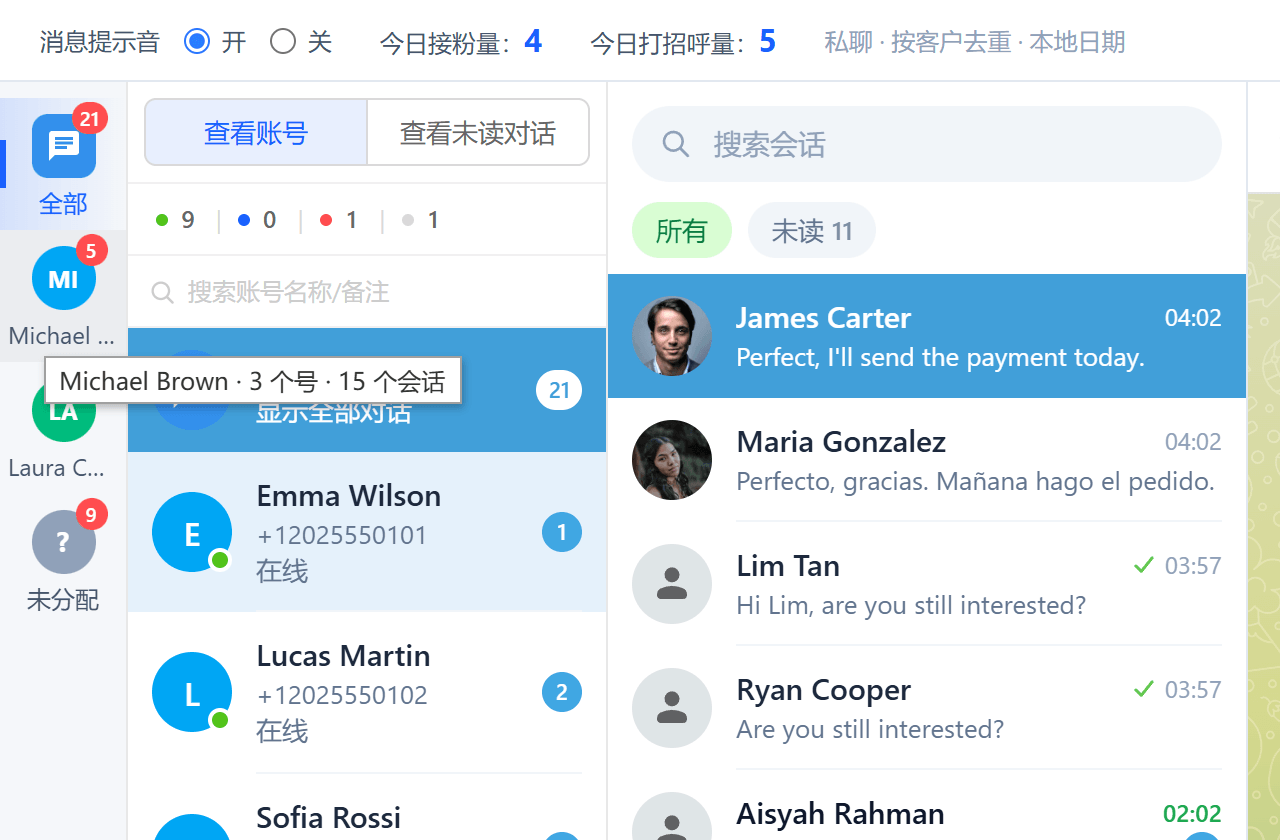
Note: The rail only switches the viewing scope; it doesn't change permissions. To set which agent an account is assigned to, use the back office — see Assigning accounts to agents.
4. Which accounts and conversations can I see?
① Owner and admins: can see all the accounts and conversations on the team.
② Agents: can see only the accounts assigned to them, plus the web chat sites assigned to them. When no accounts have been assigned, the middle shows "No accounts have been assigned to you yet"; please ask your supervisor to assign accounts to you in the back office.
Note: If your supervisor has granted you the Add accounts in the Workspace permission, you can also click Add account at the bottom of the account bar to log in accounts yourself; accounts you log in are assigned to you automatically.
5. How is the daily stats bar calculated?
| Metric | Description |
|---|---|
| Contacts received today | The number of private-chat customers who sent a message that day; the same customer under the same account counts once, and returning customers are included |
| Greetings sent today | The number of private-chat customers we sent a message to that day; the same customer under the same account counts once, and replies are included |
① The stats are counted by the browser's local date, cover private chats only, and follow the current selection in the rail and the account bar.
② The Message sound toggle is the same switch as Sound alerts under Notifications & sound in Settings.
FAQ
1. What happens if the network drops?
When the network drops, a yellow banner appears at the top of the page reading "Connection lost; showing local messages." Messages that have already loaded can still be viewed, and syncing resumes automatically once the connection is restored.
2. Why is the account bar empty right after I log in?
When there are many accounts, the first load takes some time, and the account bar shows "Syncing accounts… the first load takes a while when there are many accounts." Please wait a moment.
Thanks for the feedback!
Still stuck? Reach us directly: Telegram @scrmqiye001 or email [email protected]
Last updated: