
The number pool
1. Overview
The number pool stores the numbers you plan to broadcast to. You can import a batch of numbers at once as one pool, and when creating a broadcast task, choose Pick from the number pool and pull by count. Pulled numbers are locked so no other task can pull them again, and numbers already sent to are marked as used.
The number pool is shared across the whole team; everyone with the Bulk Messaging permission sees the same thing.
2. How to use it
1. How do I open the number pool?
① After logging in to the back office, click Bulk Messaging in the left-hand menu > click Number Pool at the top to open the number pool.
② You can also open it by clicking Manage next to Pick from the number pool in step 1 of task creation.
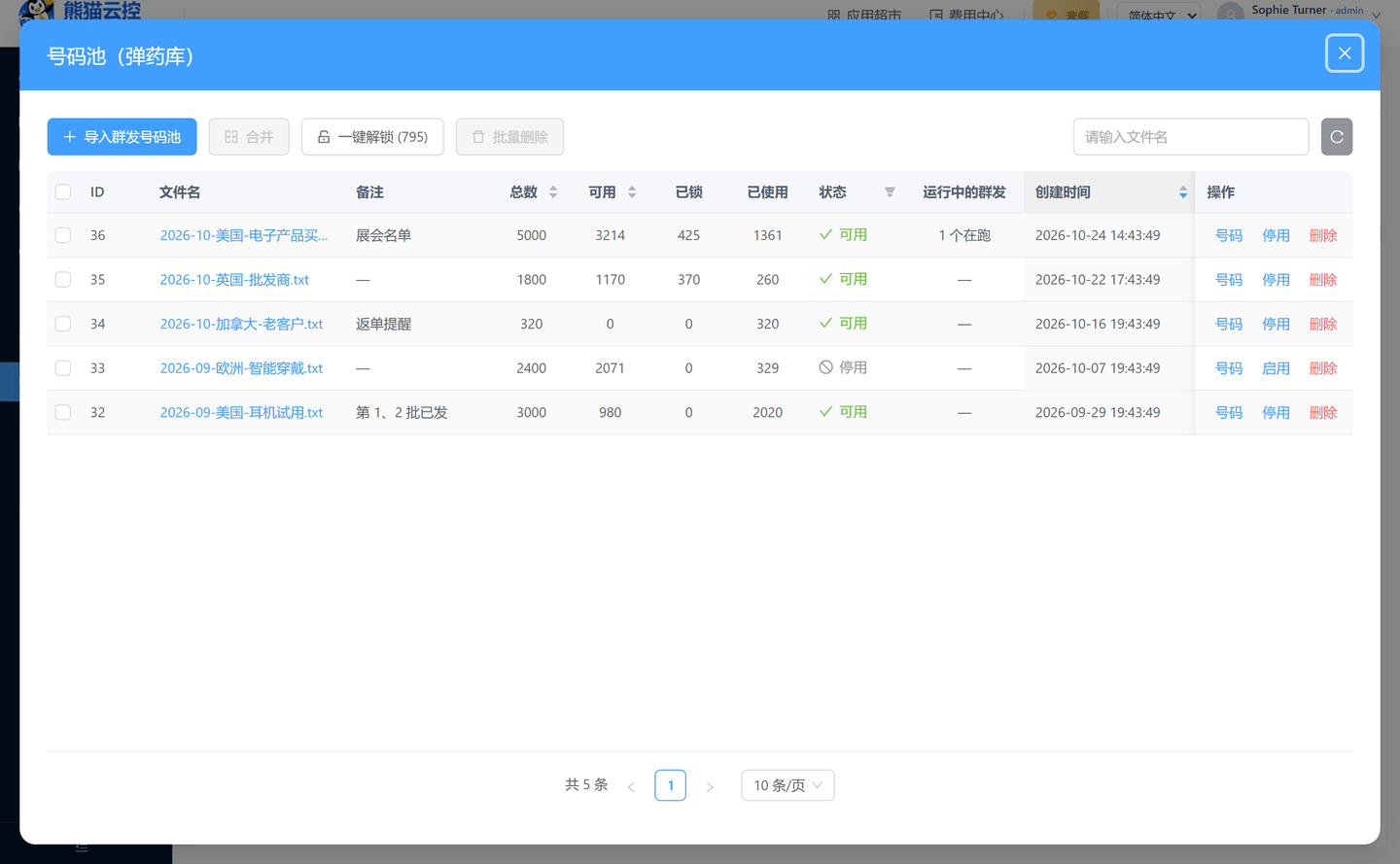
2. How do I import numbers?
① In the number pool dialog, click Import numbers.
② Enter a file name (this is what the list shows, for example 2026-08-HK-MO-TW.txt), and optionally a note.
③ Paste numbers into the text box, one per line, with country codes; write a note name after #, which you can insert into the copy with {name} when sending. Usernames (starting with @) can be included too.
④ Confirm the "N parsed" shown below, then click Import N numbers.
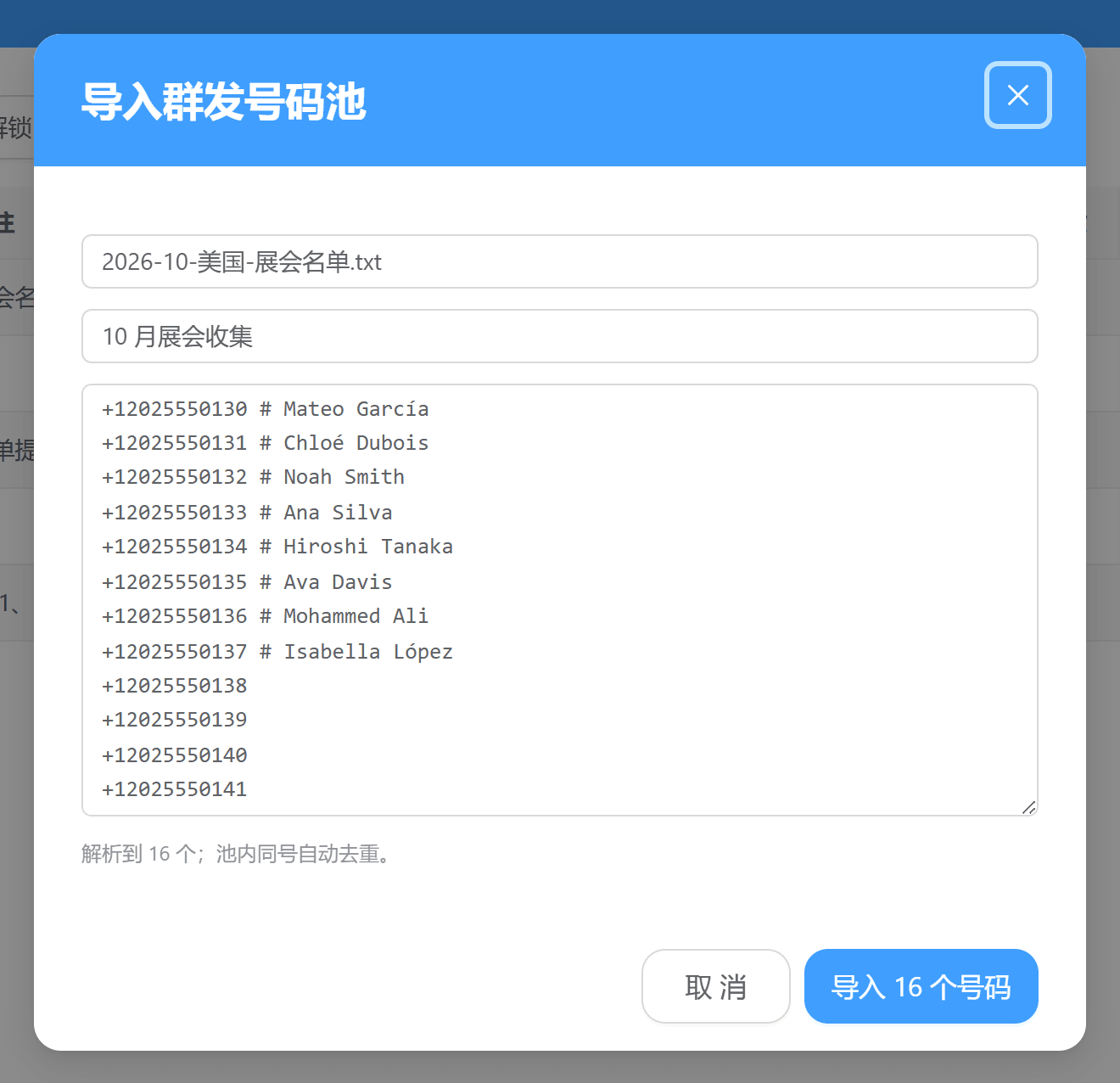
Note: You can only paste, not upload a file; up to 200,000 at a time; duplicate numbers within a pool are removed automatically.
Note: Numbers produced by Data Screening > Generate Phone Numbers can be sent straight to Save to the broadcast number pool, and the system creates a new pool automatically; see Data screening: generating and screening phone numbers.
3. What statuses can a number have?
| Status | Meaning |
|---|---|
| Available | Not yet pulled by any task |
| Locked | Pulled by a task and waiting to be sent |
| Used | Already sent (a send failure also counts as used) |
When a task is canceled, deleted, or completed, numbers not yet sent return automatically from Locked to Available. The Running broadcasts column in the list shows how many tasks are currently using this pool.
4. How do I use a number pool in a task?
① Create a broadcast task, and in step 1 set Data source to Pick from the number pool.
② Choose a pool under Select number pool; the dropdown shows only enabled pools and their remaining available count.
③ Enter the number to pull (1–5,000); when the task is created, the system pulls that many available numbers and locks them.
5. What other operations are there?
- View numbers: click Numbers in the Actions column to view by All, Available, Locked, or Used, and Export current N (TXT).
- Disable / Enable: a disabled pool does not appear in the dropdown when creating a task.
- Merge: select two or more pools, click Merge, and choose which pool to keep. Only Available numbers are merged in, the other pools are deleted, and duplicate numbers are removed automatically.
- Unlock all: returns Locked numbers to available.
- Delete: click Delete in the Actions column, or select pools and click Bulk delete; the numbers in the pool are deleted with it, and tasks already created are unaffected.
Caution: Unlock all also releases numbers held by a running task, so use it only when a task has already stopped but numbers are still stuck in Locked.
FAQ
1. What is the difference between a number pool and a contact library?
The number pool is for one-off broadcasts to strangers: numbers are locked once pulled and marked used once sent to. A contact library can be reused, has each person's send result written back to it, and can have its send status cleared to send to the whole library again.
2. Why can't I find a pool in the dropdown when creating a task?
A disabled pool does not appear in the dropdown; Enable it in the number pool, then click the refresh button next to the dropdown.
Thanks for the feedback!
Still stuck? Reach us directly: Telegram @scrmqiye001 or email [email protected]
Last updated: