
How do I connect WhatsApp (personal)?
1. Overview
Panda Cloud Control can sign in as a "linked device" of your WhatsApp personal account, much like WhatsApp Web. Once linked, this account's private messages arrive in the Agent Workspace, and agents can reply directly.
There are two ways to link:
- Scan a QR code: use the WhatsApp on your phone to scan the QR code on the page.
- Phone-number pairing code: enter the phone number, the page generates an 8-digit pairing code, and you enter it in the WhatsApp on your phone. Handy when scanning a QR code is awkward.
Note: A WhatsApp personal account and a WhatsApp API account are two different ways of connecting. For business numbers connected through Meta's official API, see How do I connect a WhatsApp API account?.
2. Steps
1. Linking by QR code
① Log in to the admin console, click Account Management in the left-hand menu, choose WhatsApp in the sub-navigation, and click Add Account.
② To assign it straight to an agent, choose the Assign agent and group at the top of the dialog.
③ Keep Scan QR code and click Generate QR code.
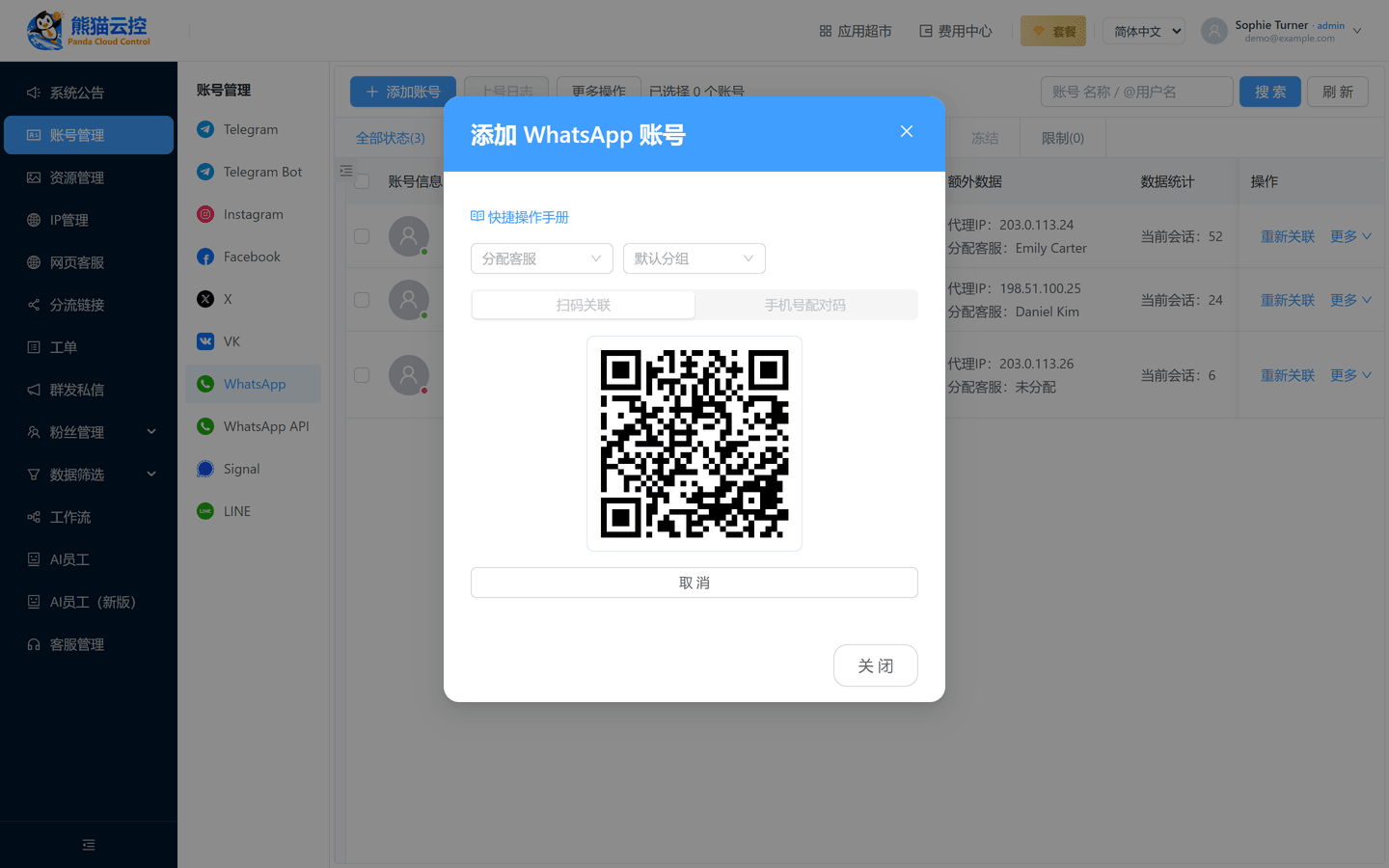
④ Open WhatsApp on your phone, go to Settings > Linked devices, tap Link a device, and scan the QR code on the page.
⑤ When the page shows "Logged in successfully; the account will appear in the list shortly," the link is complete.
2. Linking with a phone-number pairing code
① In the Add WhatsApp Account dialog, switch to Phone-number pairing code.
② Enter this WhatsApp account's phone number (with country code), for example +8613800138000, and click Get pairing code.
③ The page shows an 8-digit pairing code, which you can Copy.
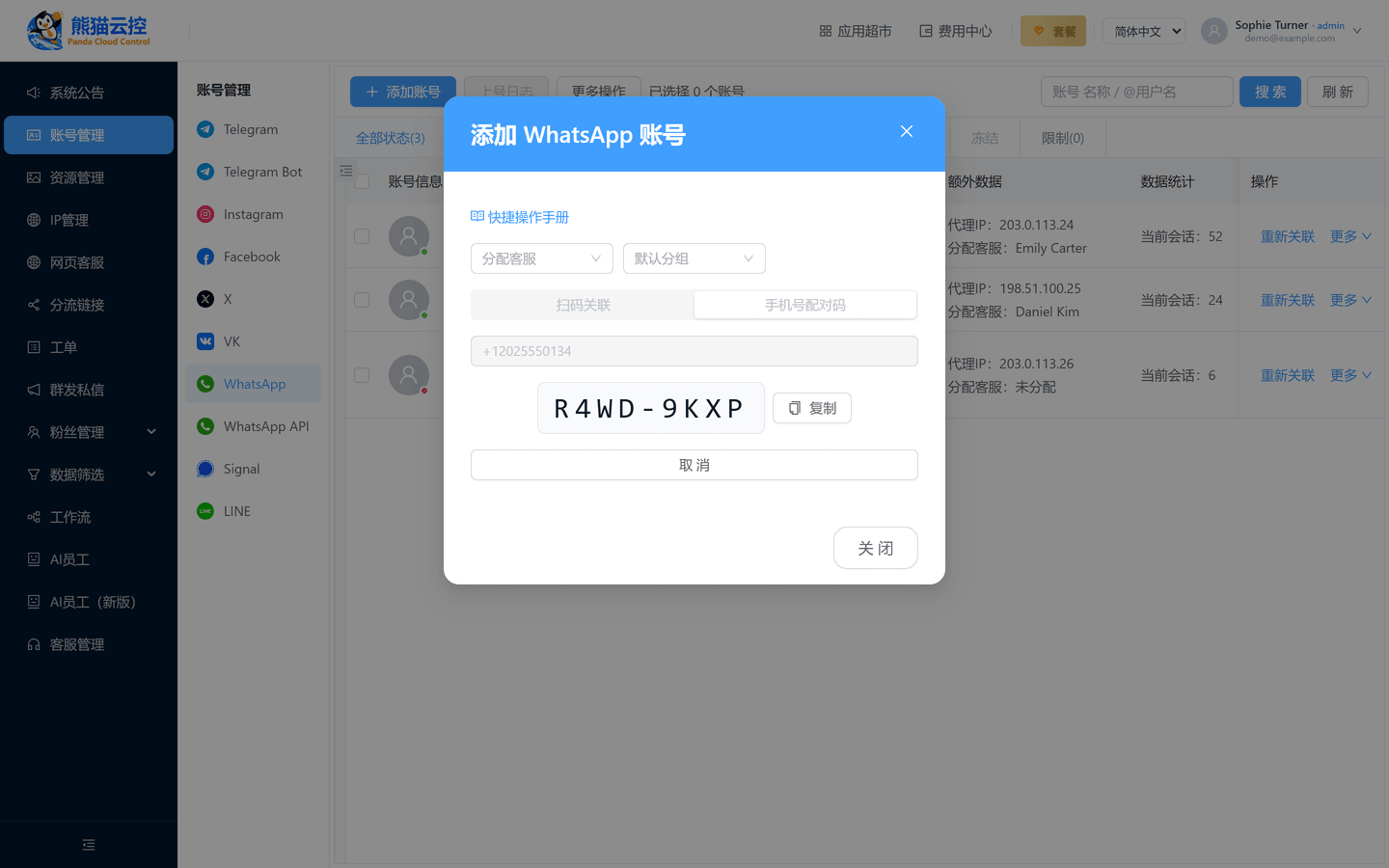
④ Open WhatsApp on your phone, go to Settings > Linked devices > Link a device, tap Link with phone number instead, and enter the 8-digit pairing code from the page.
⑤ When the page shows that login succeeded, the link is complete.
3. Linking from the Agent Workspace
① Log in to the Agent Workspace, click Add Account at the bottom of the account panel on the left, and choose WhatsApp from the list on the right.
② On the Link WhatsApp Account page, choose Scan QR code or Phone-number pairing code; the rest is the same as in the admin console.
③ Once linked, the account appears in the account panel. An account an agent links themselves is automatically assigned to them.
4. How to re-link an account that has gone offline
If you removed this linked device on the phone, or the phone went without a connection for too long and the link lapsed, the account needs to be re-linked:
① Find this account in the Account Management > WhatsApp list and click Re-link.
② Scan the QR code or enter the pairing code again, following the steps above. Re-linking keeps the same account and doesn't use an extra device slot.
FAQ
1. It asks me to confirm with a passkey?
With some numbers, WhatsApp asks you to confirm with a passkey on your phone when pairing by code, and that step can't be done inside Panda Cloud Control. Use Scan QR code instead, or try again later.
2. Does the phone need to stay on?
A linked device depends on the main account on your phone. If the phone goes without a connection for a long time, WhatsApp may take the linked device offline, after which you'll need to Re-link.
3. Can it receive group messages?
A WhatsApp personal account sends and receives private messages in the Agent Workspace.
Thanks for the feedback!
Still stuck? Reach us directly: Telegram @scrmqiye001 or email [email protected]
Last updated: