
Managing broadcast tasks
1. Overview
The Bulk Messaging page is the list of all broadcast tasks. Here you can view tasks by status, start, pause, cancel, or delete them in bulk, open Edit to change the sending parameters or add more targets and accounts, change the sending window on its own, and run stats and export task data.
The main account and admins can see everyone's broadcast tasks on the team; a regular agent can only see and act on the tasks they created.
2. How to use it
1. What is on the task list?
① After logging in to the back office, click Bulk Messaging in the left-hand menu.
② The tabs at the top group tasks by status — All, Not started, Running, Completed, Paused, Canceled — with the count in parentheses.
③ The list columns:
| Column | What it shows | Opens on click |
|---|---|---|
| Task info | The task ID and name | Click the task name: the task details (all parameters, read-only) |
| Task status | The status and a progress bar (processed / total) | Click the progress bar: the task progress |
| Read / Reply | The reply count and reply rate (read is not supported yet) | The task report |
| Task elements | How many sending accounts this task uses | The account details |
| Task time | Created and updated time | — |
| Actions | Two rows of action links | See below |
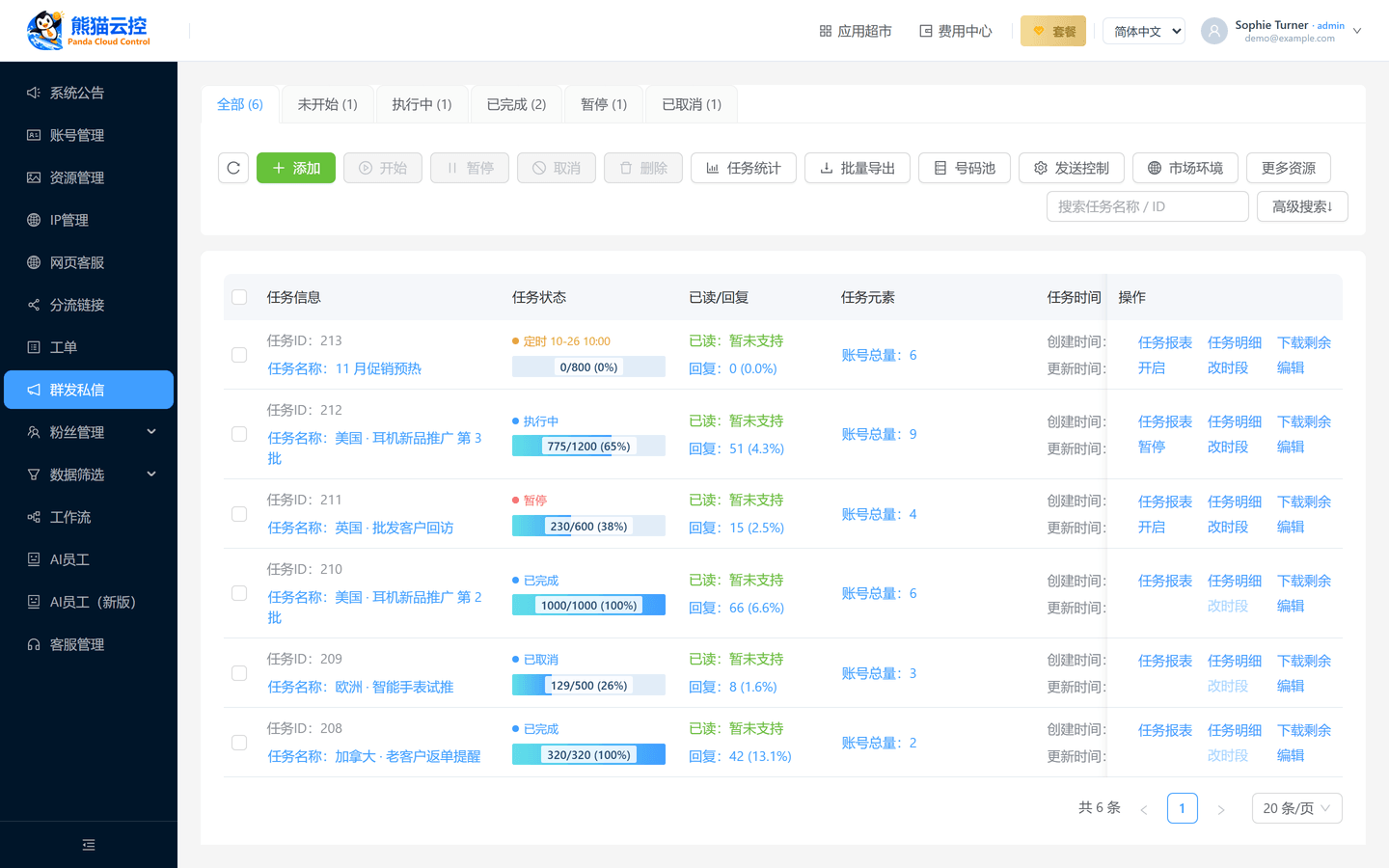
Note: Not started holds tasks that have been created but have not sent anything yet (both manually started and scheduled tasks are here); a task that sent some and was then paused is in Paused.
Note: While tasks are running, the list refreshes progress automatically; once everything has stopped, it no longer auto-refreshes, so click the refresh button at the top-left when you need to.
2. How do I start, pause, cancel, or delete a task?
① Select tasks in the list and click Start, Pause, Cancel, or Delete at the top. The system only acts on tasks whose status allows it; when none of the selected tasks qualify, the button is greyed out.
| Button | Which tasks it acts on | Notes |
|---|---|---|
| Start | Not-started and paused tasks (including scheduled) | Starts or continues by each task's own sending rules; a scheduled task starts right away when clicked, and its original schedule is voided |
| Pause | Running tasks | Pauses immediately, with no confirmation prompt |
| Cancel | Running and paused tasks | Stops the task and skips the remaining targets; unsent numbers return to the number pool, and sent messages are kept |
| Delete | Any status | Deletes the task record and its log; unsent numbers return to the number pool |
② For a single task, you can also click Start or Pause in the Actions column.
③ On partial success, a message shows "X succeeded, Y failed" and lists the task IDs and reasons.
Caution: Cancel and Delete cannot be undone, and a canceled task cannot be started again. To keep sending to the numbers you did not finish, click Download remaining to get the leftover numbers first, then create a new task.
3. How do I edit a task?
① Click Edit in the Actions column to open the Task [ID] dialog.
② Change what you need:
- Task name: can be changed in any status.
- Edit parameters set to Yes: change the send interval, message interval, daily cap, send rounds, sending window, retry failed, and active rate control. Send rounds cannot be fewer than the round currently sending.
- Add targets set to Yes: add more targets by upload or manual entry; those already in the task are skipped automatically, and the total after adding cannot exceed 5,000.
- Add accounts set to Yes: select by account group or by agent just as when creating the task, to add online sending accounts; targets not yet sent are handed to the new accounts, and a task has at most 200 accounts.
- Auto-stop on consecutive failures: change the switch and the count.
- Task start: can be changed only for not-started and paused tasks; choose Start manually, Start now, or Scheduled start.
③ Click Submit. The task does not need to stop; the new parameters take effect within a minute at most.

| Task status | What you can change |
|---|---|
| Running (including waiting for the window) | Name, parameters, add targets, add accounts, auto-stop on consecutive failures |
| Not started, paused (including scheduled) | All of the above, plus Task start |
| Completed, canceled | Name only |
Note: In no status can you change the target source, send method, data type, copy, or ad type, and you cannot remove existing targets or accounts — only add more. A Broadcast to friends task cannot have targets or accounts added.
4. How do I change only the sending window?
① Click Change window in the Actions column (available only for running and paused tasks) to open Change sending window.
② Check All day (no window), or enter the start and end times.
③ Click Save. The message tells you the current server time and whether it is already within the window.
Note: The window is judged by server time and takes effect within a minute at most. When a task is waiting outside the window, the dialog notes that checking All day starts sending right away.
5. How do I run stats and exports?
① Click Task stats at the top: it counts the selected tasks, or, when none are selected, all tasks under the current tab and search filters. It shows the number of tasks, sent, send failures, total replies, total targets, and pending.
② Click Bulk export at the top and choose:
- Export current tasks' report or Export selected tasks' report: one summary row per task (ID, name, type, status, total targets, succeeded, failed, pending, replies, created time), as a CSV file.
- Export selected tasks' numbers: all targets of the selected tasks, as a TXT file.
- Export selected tasks' unsent numbers: targets not yet sent and those skipped, as a TXT file.
③ For a single task: Task report in the Actions column downloads this task's one-row summary, and Download remaining downloads the numbers this task has not sent yet.
6. How do I find a task?
① Type a task name or ID into the search box at the top to filter as you type.
② Click Advanced search to filter by ID, task name, and created-date range, then click Search to apply.
FAQ
1. What do Number Pool, Send Control, and More Resources at the top do?
For Number Pool, see number pool; for Send Control, see Send Control. More Resources opens the Contact Library and Message Assets directly (you need the matching menu permission).
2. Why are some action links greyed out?
A dimmed link means it cannot be used in the current status; for example, a completed task cannot use Change window.
3. Where do I see the task log and task report?
Thanks for the feedback!
Still stuck? Reach us directly: Telegram @scrmqiye001 or email [email protected]
Last updated: