
Assigning accounts to agents
1. Overview
Once a Telegram account is assigned to an agent, that agent can see only the accounts assigned to them and those accounts' conversations in the Agent Workspace; the owner and administrators can see everything.
An account can be assigned to only one person at a time. You can assign to any enabled owner, administrator, or agent on your team; agents must first be created under Agent Management, see Adding agents & setting permissions.
2. Steps
1. How do I assign a single account?
① After logging in to the back office, click Account Management > Telegram in the left menu, then in the Actions column of the account's row click More > Assign Agent.
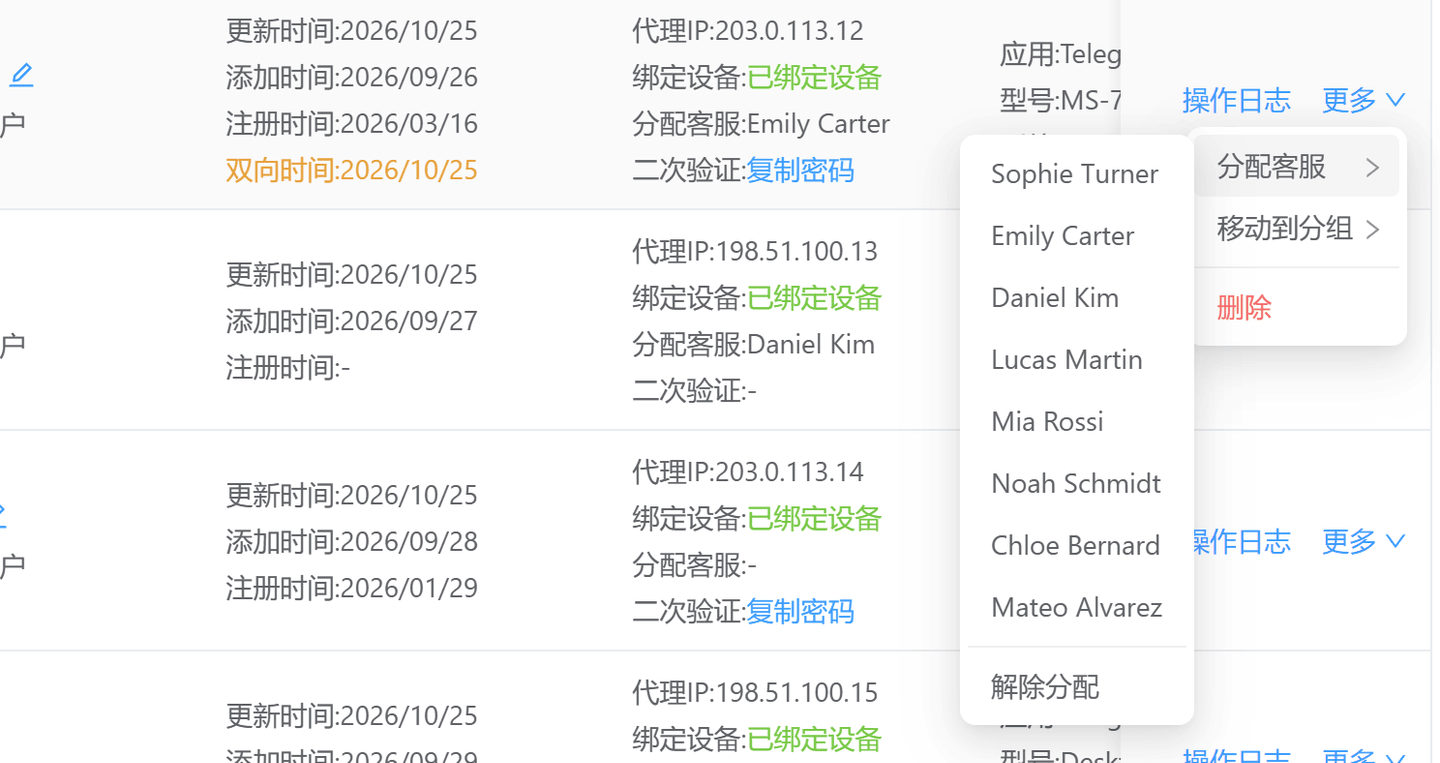
② Pick an agent; it takes effect immediately, and the page shows "Assigned to …".
③ To cancel, choose Unassign in the same menu.
2. How do I assign in bulk?
① Tick the accounts you want to assign. You can first use Quick Select > Select unassigned to agents to tick every account that is not yet assigned.
② Click Bulk Actions > Assign Agent in the Account Settings section and choose the scope.
③ Pick an agent from the Pick an agent dropdown and click Save.
Note: to unassign in bulk, click Bulk Actions > Unassign Agent, choose the scope, and it runs right away.
3. How do I see which accounts are not yet assigned?
- Click Quick Select > Select unassigned to agents.
- Click Advanced Search and choose Assigned, Unassigned, or a specific agent in the Agent dropdown; the stat cards also show the Assigned and Unassigned counts, and clicking a number filters by it.
- The Assigned Agent entry in the Extra Data column shows who each account is currently assigned to.

4. What happens after assigning?
- The agent can see this account and its conversations in the account bar of the Agent Workspace.
- For an agent who has the Add accounts in the Workspace permission ticked under Agent Management, accounts they log in themselves in the Workspace are automatically assigned to them.
- When an agent is deleted, the assignments of the accounts under them are released, and those accounts return to Unassigned.
FAQ
1. What do I do if an agent cannot see the accounts assigned to them?
Please first confirm that Assign Agent shows this agent, then have the agent refresh the Agent Workspace.
2. Can I assign one account to several agents at the same time?
No. An account can be assigned to only one person at a time; after reassigning, the previous agent can no longer see it. The owner and administrators can always see all accounts.
Thanks for the feedback!
Still stuck? Reach us directly: Telegram @scrmqiye001 or email [email protected]
Last updated: